
How to Identify Poor Drive Mapping to GPOs Causing Slow Logons

How to Identify Poor Drive Mapping to GPOs Causing Slow Logons

Citrix Blog

How to Identify Poor Drive Mapping to GPO is Root Cause of Slow Logons 

Citrix Logons Drive Mapping

Problem

End users are complaining of slow logons and IT cannot quickly identify root cause.

How to Identify Root Cause

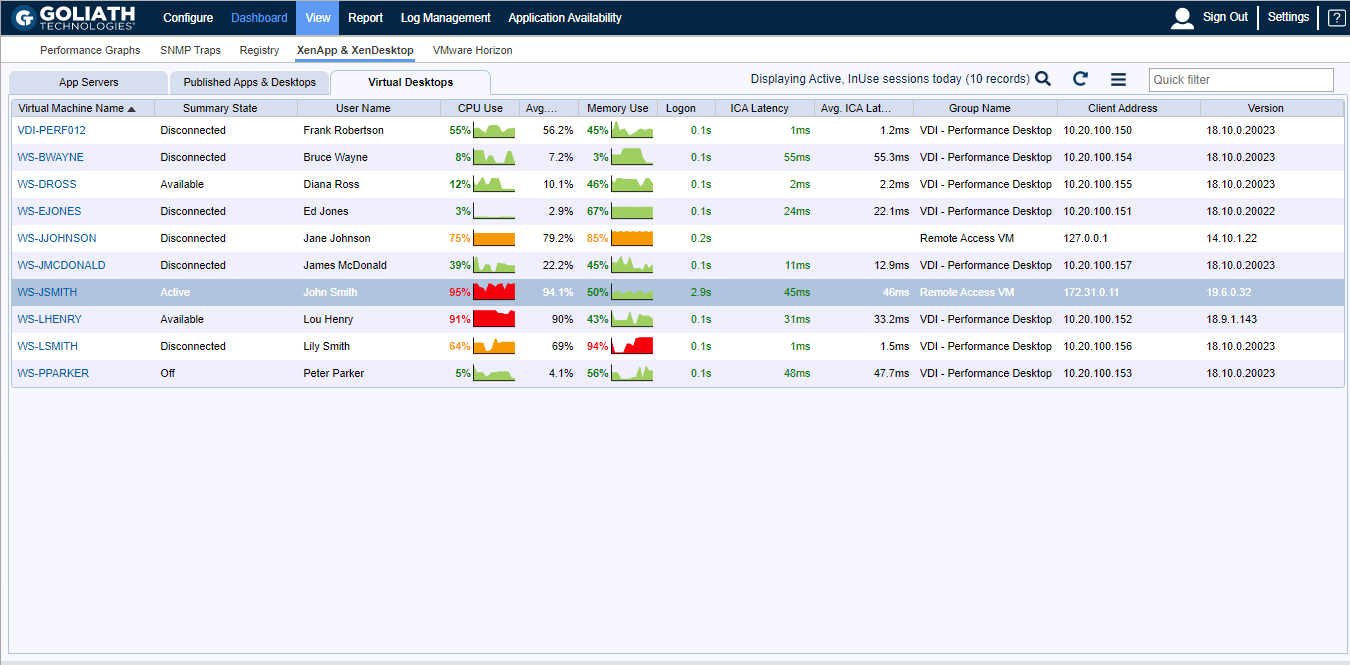
When trying to identify the root cause of a Citrix end-user experience issue, the main display to view all of the Citrix user sessions is the Goliath’s Citrix Virtual Apps & Desktops session display. The display is key because it includes user session data (both past and present),  allowing you to track the complete user experience through the environment, from the login at the endpoint all the way through the environment back to the underlying infrastructure, while presenting these data points over the course of the session so you can troubleshoot any issue that takes place during a user’s session.

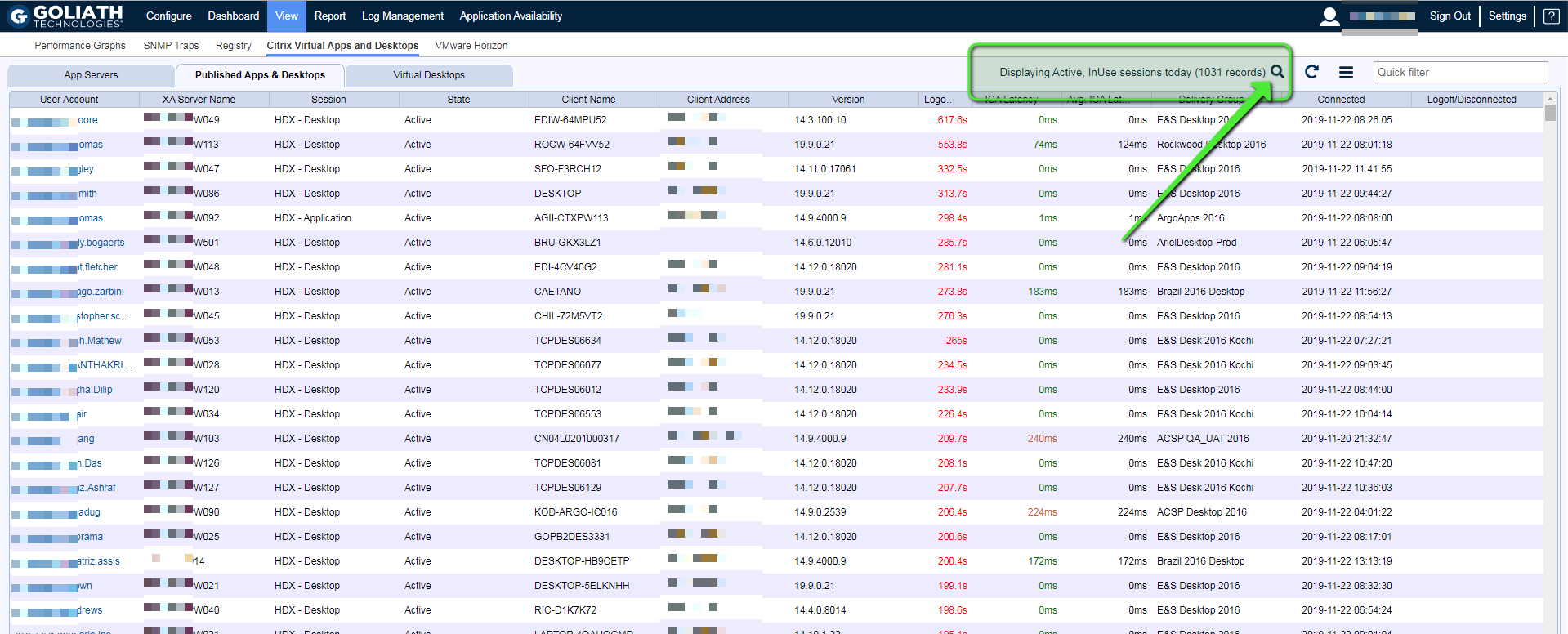
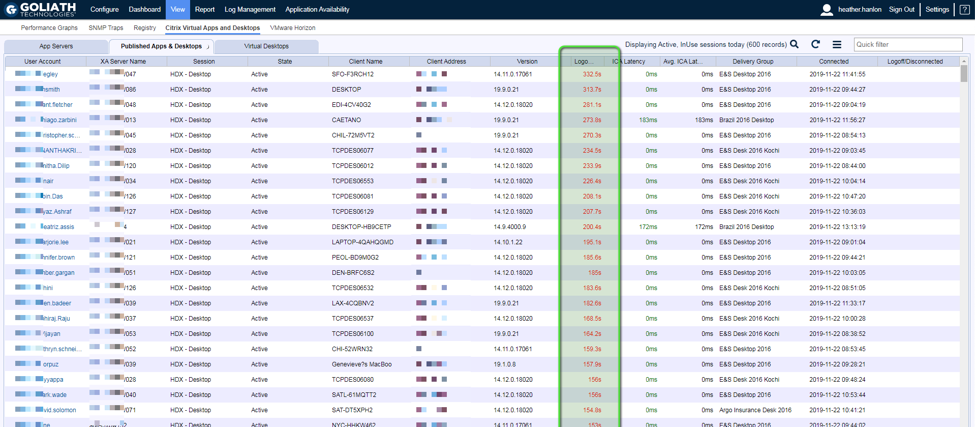
To access this display, click View then Citrix Virtual Apps & Desktops (Figure 1). This page is divided into three areas: App Servers and Published App & Desktops (for Virtual App environments) and Virtual Desktops (for Virtual Desktop environments). You’ll want to navigate to the applicable section for your environment (Published App & Desktop or Virtual Desktops) to troubleshoot further.

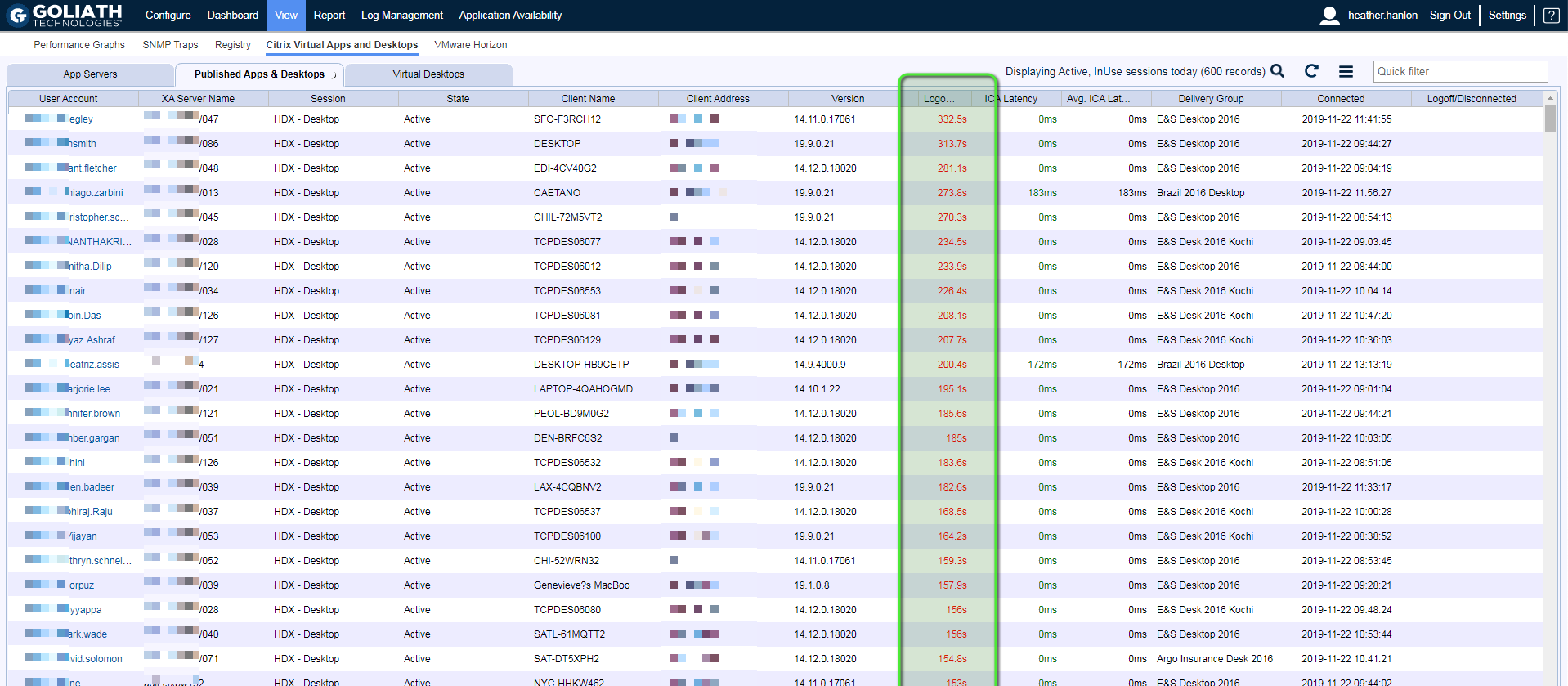
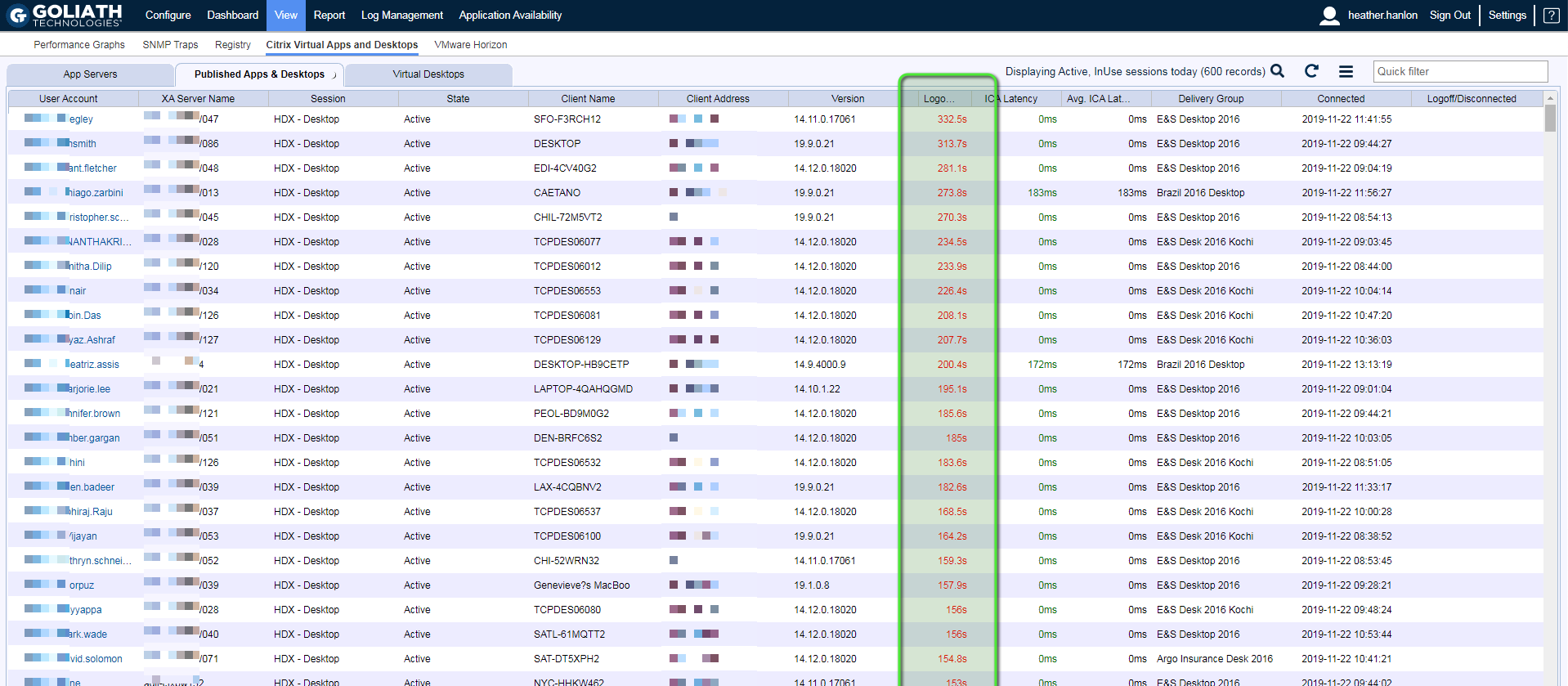
To view the sessions with high logons, sort the page by the Logon column or use the Search feature at the top of the page. Some of the key metrics of the page include Machine Name, Username, Group Name, and Start Time, which help confirm whether any patterns can be identified outside of high logon duration for the end users. For example, when widespread issues are occurring, it can be useful to note the client address to identify if all the users are connecting from the same location.

Figure 1 – Citrix Virtual Apps & Desktops Tab Sorted by Logon Times
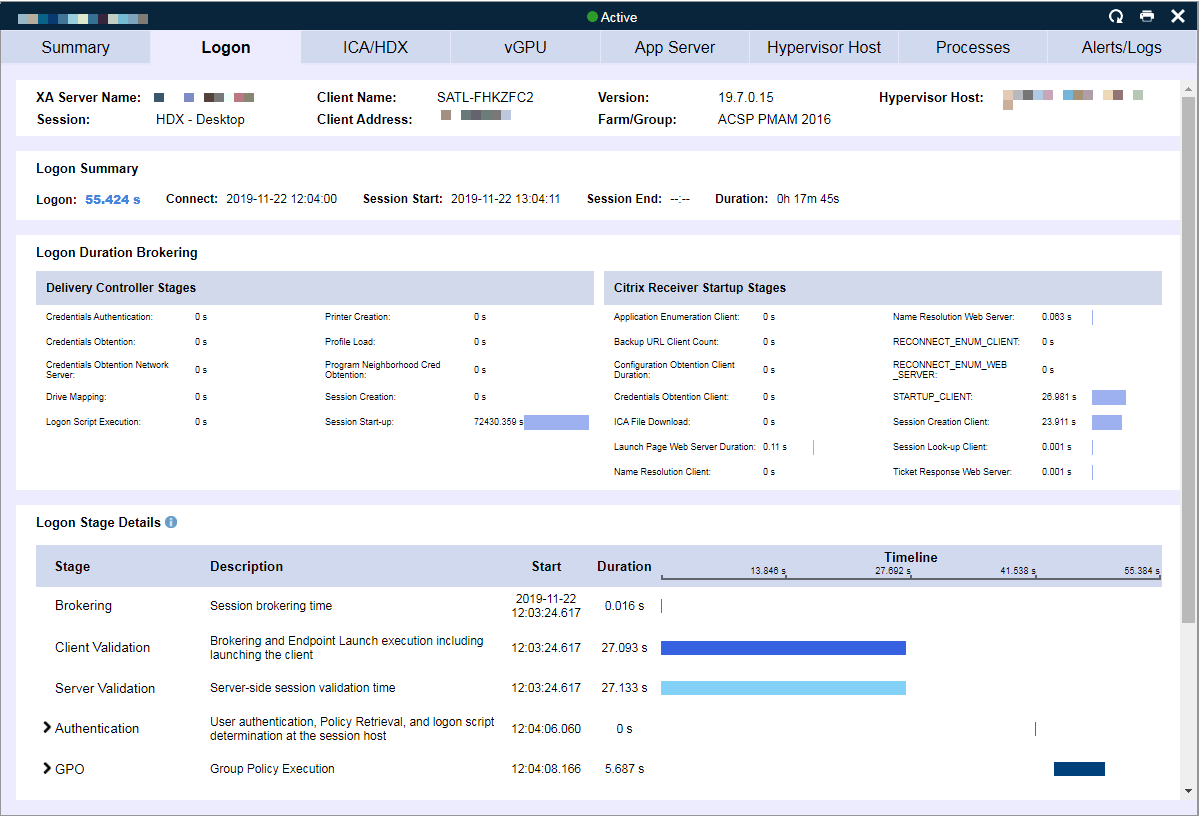
To analyze the 33+ stages of the user’s logon process, you can click on any user session to drill into the session metrics. Once you’ve drilled down, navigate to the logon duration tab (Figure 2). This tab is divided into two sections. The top sections break down the details of what is happening in the brokering stages and the bottom sections detail the high-level metrics of the launch on the App Server or VDI.

The brokering stages enable you to identify slowness due to Citrix Delivery Controller brokering issues such as Authentication, Logon Script, Profile Load time, and/or delays in Windows session creation on the session host. On the client side, you can identify delays in establishing the micro-VPN connection, receiver launch, ICA file download, and more.

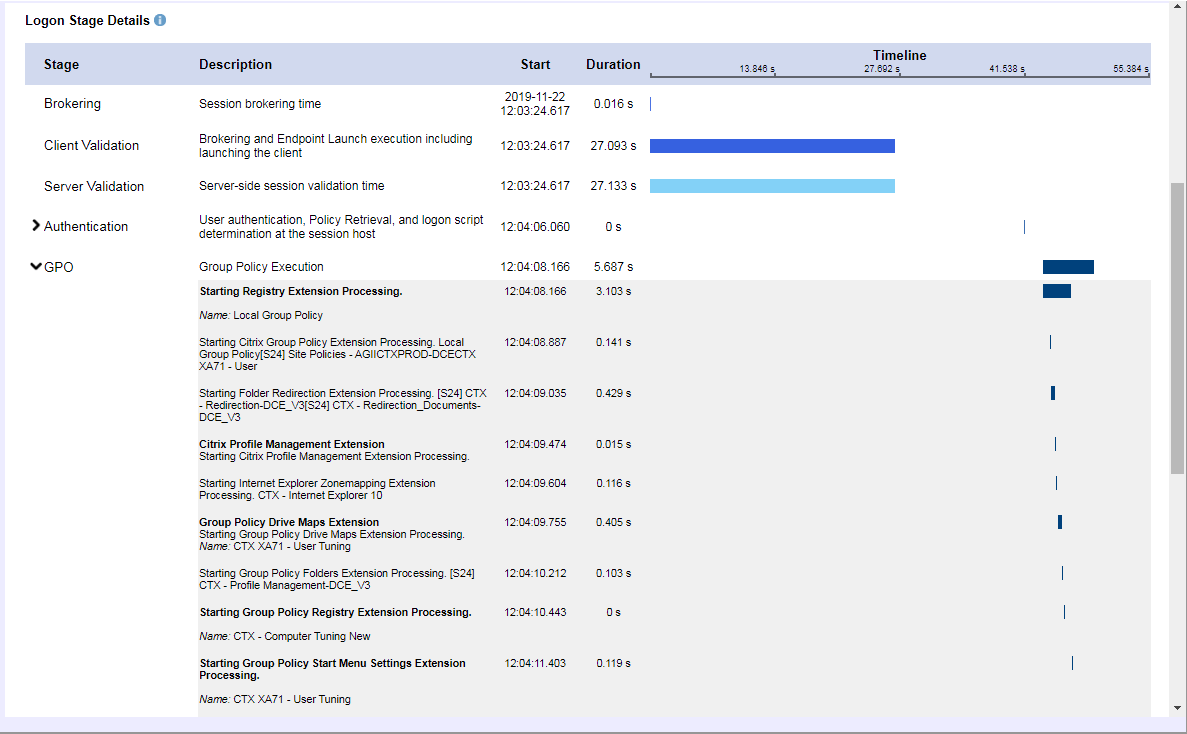
At the bottom of the dialog (Figure 2.A), each stage of the logon process at the session host process is displayed, including authentication at the domain controller, determining how long it took to copy over the policy files to the session host, logon script execution, drive mapping, printer mapping, and folder redirection. Each policy and script which is executed is included in this stage.

Figure 2: Session dialog – Logon Duration Tab
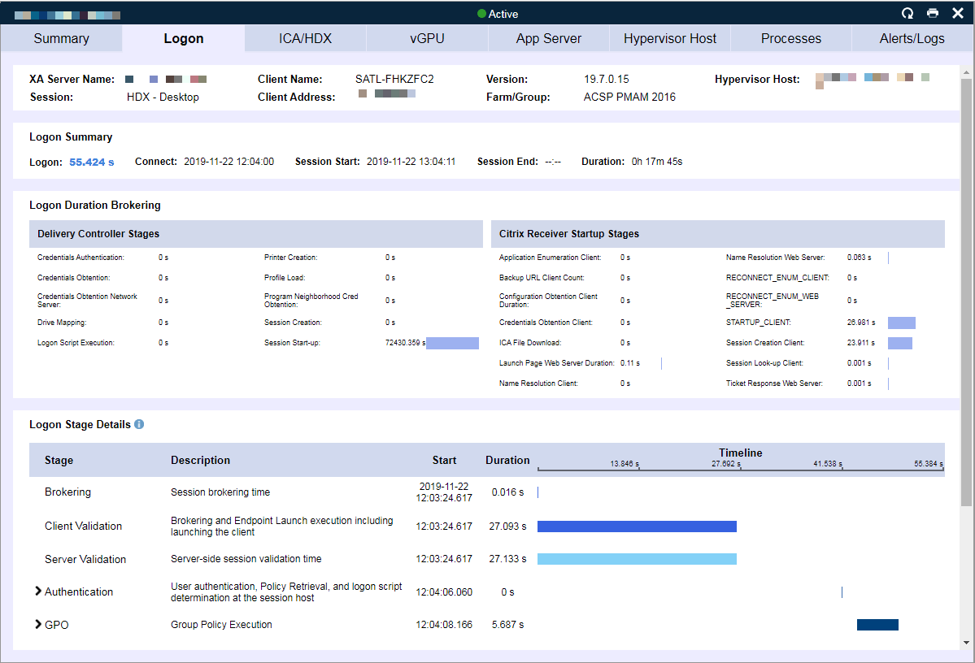
Figure 2.A: Session Dialog – Logon Duration Tab Drill Down
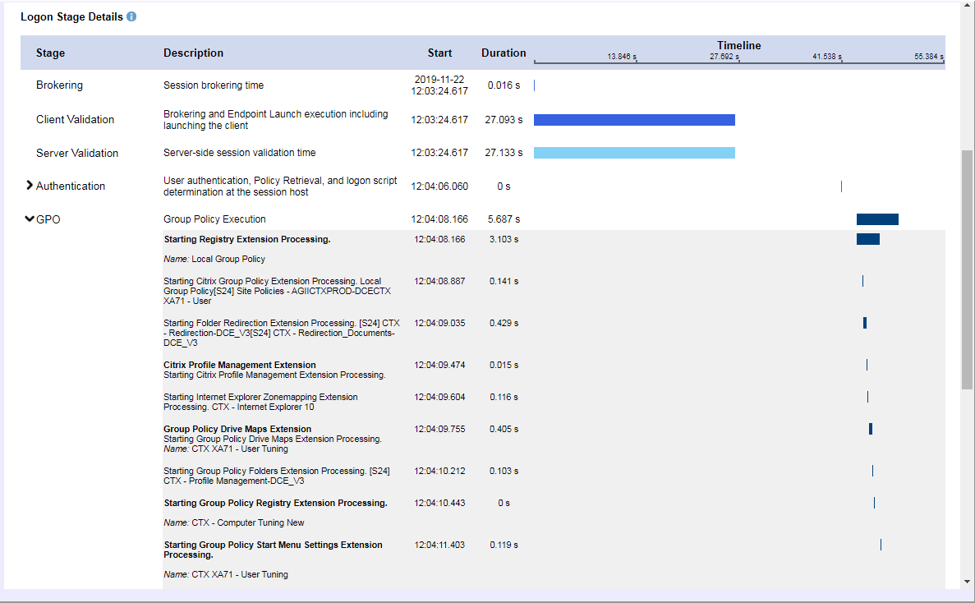
When you have many users in the environment complaining about the same issue (in this case logon duration), finding patterns can be key to isolating root cause and identifying a permanent solution.

Example Scenario

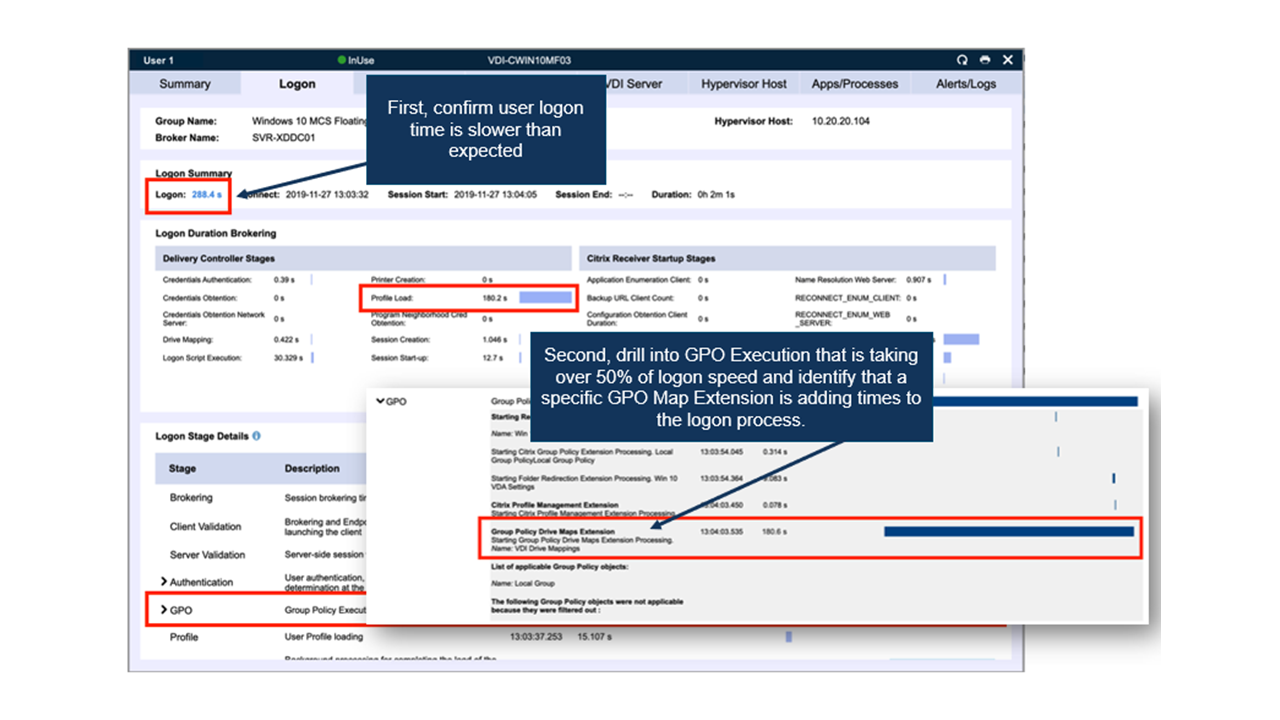
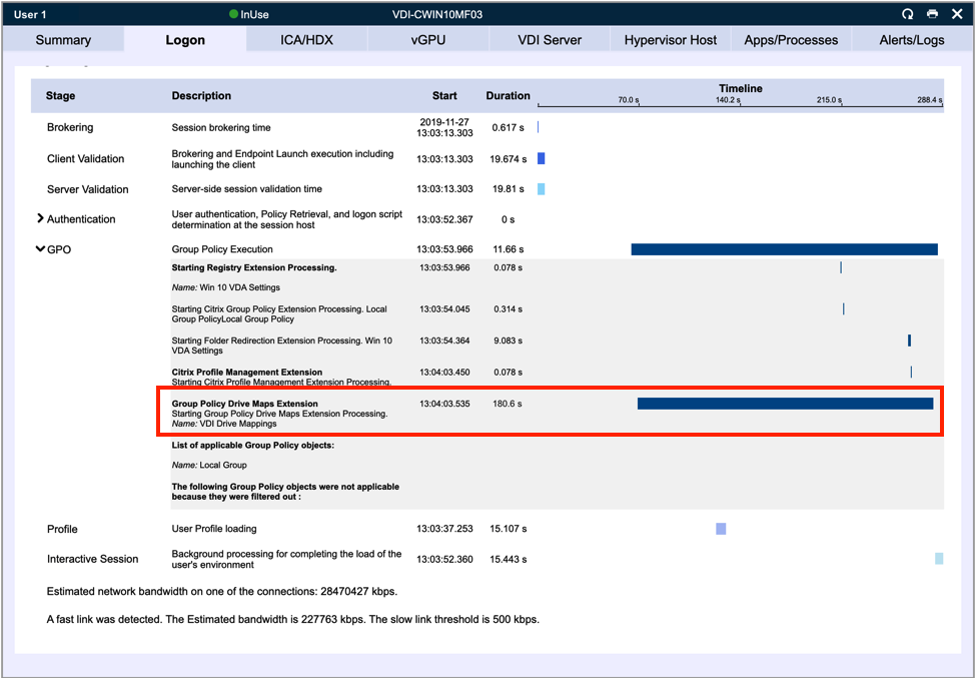
Using the Logon Duration details, a system admin can determine that the widespread delays in logon duration stemmed from drive mapping (logon) scripts. This was discovered by tracking high GPO times in the top level (Figure 3) of the logon duration breakdown, then down to the brokering stage of PLSD (the time spent on the server loading the user’s profile), and then down to the bottom section of the page, specifically Group Policy Drive Maps Extension (Figure 3.A).

Figure 3: Logon Duration Tab 
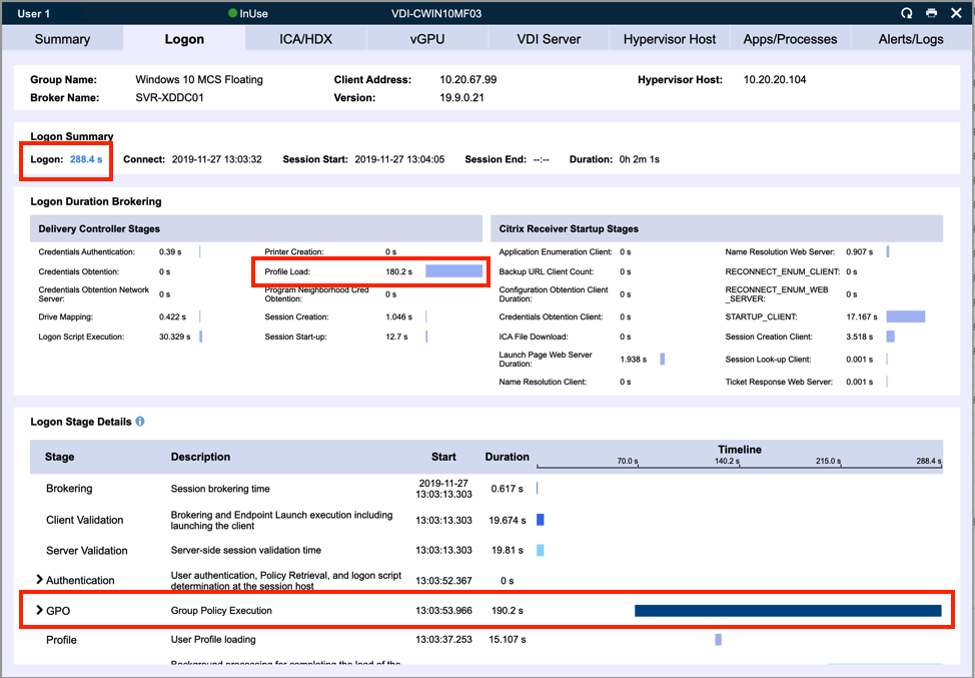
Figure 3.A: Logon Duration Tab Drill Down
Root Cause

In the example scenario described above, reviewing the logon duration metric trends resulted in identifying high group policy drive mapping. By identifying the exact policies that were associated with the drive mapping extensions, further investigation of those policies could take place. Ultimately, the system admin discovered that the scripts were mapping 30+ errant drives to the user’s profile. The IT Pro was able to reduce the number of logon scripts down to a single script and removed the problematic, incorrectly linked GPOs. By determining the root cause and applying the aforementioned actions in their environment, the system engineers were able to reduce logon times and solve the end-user performance issues.

How to Prove Citrix Broker Service Causing Slow Logon Problems

How to Prove Citrix Broker Service Causing Slow Logon Problems

How to Prove Citrix Broker Service is the Root Cause of Slow Logon Problems

Problem

End users are complaining of slow logon issues and there is no visibility if root cause is within the Citrix Broker Service, an issue with group profiles or even session latency.

Identifying Root Cause: Citrix Broker Service

When trying to identify the root cause of a Citrix end-user experience issue, the main display to view all of the Citrix user sessions is the Virtual Apps & Desktops display. To access this display, click View then Citrix Virtual Apps and Desktops. This page is divided into 3 areas: App Servers and Published App & Desktops (for Citrix Virtual App, formerly XenApp, environments) and Virtual Desktops (for Citrix Virtual Desktop, formerly XenDesktop, environments). You’ll want to navigate to the applicable section for your environment (Published App & Desktop or Virtual Desktops) to troubleshoot further.

These displays include user session data (both past and present) that enable you to track the complete user experience through the environment, from the login at the endpoint, all the way through the environment back to the underlying infrastructure. These data points are then presented over the course of the session so you can troubleshoot any issue that takes place during a user’s session (see Figure 1).

In the case of logon duration and the issue where long logons are occurring for different users at different times of the day, you’ll want to use the search button at the bottom of the page to filter the page to match the time period at hand.

Once the page is filtered, you will see the sessions with high logons by sorting the page by the Logon column. Once the page is sorted, you can then use the other columns on the page like Machine Name, Username, Group Name and Start Time to confirm whether any patterns can be identified.

Figure 1 – Citrix Virtual Apps & Desktops page sorted by the Logon column

Citrix Virtual Apps & Desktops page sorted by the Logon column

To analyze the 33+ stages of the user’s logon process, you can click on any of the user sessions to drill into the session metrics. Once you’ve drilled down, navigate to the logon duration tab (see Figure 2). This tab is broken into three sections. The top level provides the logon summary showing the high-level stages of the overall logon process, and then the next two sections break down the details of what is happening in the brokering stages and the launch of the session on the App Server or VDI.

The brokering stages in the middle of the dialog enable you to identify slowness due to Citrix Delivery Controller brokering issues including Authentication, Logon Script, Profile Load time, and delays in Windows session creation on the session host. On the client side, you can identify delays in establishing the micro-VPN connection, receiver launch, ICA file download, and more.

At the bottom of the dialog (see Figure 2.A) each stage of the logon process at the session host process is displayed including authentication at the domain controller, determining how long it took to copy over the policy files to the session host, logon script execution, drive mapping, printer mapping, and folder redirection. Each policy and script which is executed is included in this stage.

Figure 2 – Session dialog – Logon Duration tab 

Session dialog – Logon Duration tab

Figure 2.A – Session dialog – Logon Duration tab drill down

Session dialog – Logon Duration tab drill down

When you have many users in the environment complaining about the same issues, in this case logon duration, finding patterns can be key for identifying root cause. One item that is important when troubleshooting logon duration and often the cause of widespread issues, is the time it takes for the brokering stage, which relates to the delivery controller that was used. When the brokering time is consistently high, you’ll want to turn to investigating the Citrix Delivery Controller. By going to the Dashboard > Dashboard page of the technology, this page focuses as a color coded heat map of the entire environment and allows you to drill in on a machine basis to see faults that have triggered on the machine (driven by our monitoring rules), as well as drill into the resource utilization (see Figure 3).

In many cases with our customers, when they drilled into the delivery controller faults, they found events that triggered for high process utilization. In some cases, the process in question was the broker service process itself hitting the memory or page file memory thresholds.

Figure 3 – Dashboard > Dashboard machine drill down

”Dashboard

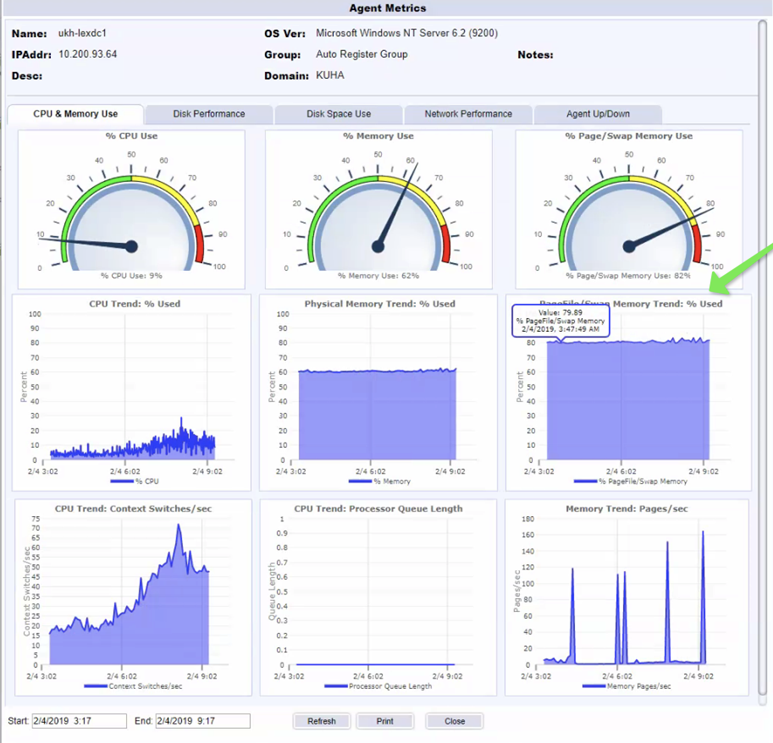
Once seeing the high process utilization, it is then suggested to drill into the server performance to ensure that the Citrix Delivery Controllers are properly resourced. In the screenshot example below (see Figure 4), our customer was easily able to see that their Citrix Delivery Controllers were constantly using lot of page file memory.

Figure 4 – Snapshot Metrics

Snapshot Metrics

Root Cause

In the case demonstrated above, reviewing the logon duration metric trends resulted in identifying high brokering times. With deeper investigation, the root cause of the high logon times was a result of an under-resourced Citrix Delivery Controller.

Troubleshoot Slow Citrix Logons Due to User Profiles

Troubleshoot Slow Citrix Logons Due to User Profiles

Citrix Blog

Troubleshoot Slow Logons when User Profiles are Root Cause

user profiles slow citrix logons

Problem

End users are complaining of slow logon issues. The issues occur randomly and to different users at different times of the day. There is speculation that it could be with User Profiles but no proof.

Identifying Root Cause: User Profiles

When trying to identify the root cause of a Citrix end-user experience issue, one of the key pieces of information is if the issue is widespread or if the issue is somewhat isolated. The quickest way to make that determination is by using the Automatic Citrix Discovery and Dependency Map (topology view) within Goliath Performance Monitor.

The Citrix Dependency Map provides access to a high-level overview of the Citrix environment. This view is automatically built and scales to any size environment and even multiple environments.

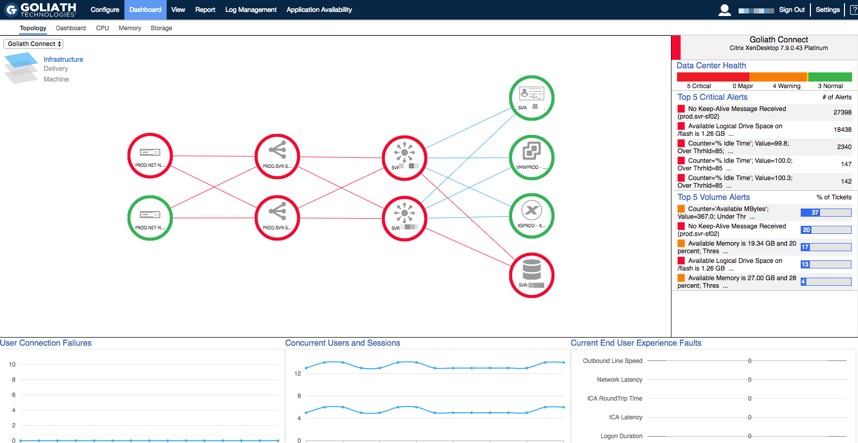
To access the Citrix Dependency Map (topology view), click Dashboard then Topology. This will display a window similar to the following:


Figure 1: Automatic Citrix Dependency & Discovery Map (topology view) – Infrastructure Layer

The Citrix Dependency Map (topology view) is divided into 3 sections:  Infrastructure, Delivery and Machine. To identify if logon duration issues are session host or VDI-related, drill down to the delivery layer of the view. From the delivery layer of the topology view, at the bottom of the page, you will see the past 2 hours of average logon duration on a per delivery group basis. By looking at the trend graph (screenshot below), you can instantly identify if one or more delivery groups are experiencing logon duration bottlenecks. This information allows you to confirm if the issue is less scattered than originally reported/assumed.


Figure 2: Citrix Dependency Map View – Delivery Layer

After reviewing the Citrix Dependency Map View, next you’ll want to go to the Citrix Virtual Apps & Desktops display.

To access this display, click View then Citrix Virtual Apps & Desktops. This page is divided into three areas:  App Servers, Published App & Desktops (for Citrix XenApp environments) and Virtual Desktops (for XenDesktop environments). You’ll want to navigate to the applicable section for your environment (Published App & Desktop or Virtual Desktops) to troubleshoot further.

These displays include user session data (both past and present). The display enables you to track the complete user experience through the environment, from the login at the endpoint, all the way through the environment back to the underlying infrastructure. The data points are then presented over the course of the session so you can troubleshoot any issue that takes place during a user’s session.

In the case of logon duration and the issue where long logons are occurring for different users at different times of the day, you’ll want to use the search button at the top of the page to filter the page to match the time period at hand. Also, depending on the results of the analysis of the Citrix Dependency Map view, it may also make sense to filter based on the delivery group name.


citrix virtual apps and desktop page

Figure 3: Citrix Virtual Apps & Desktops page

Once the page is filtered, you will see the sessions with high logons by sorting the page by the Logon column. Once the page is sorted, you can then use the other columns on the page like Machine Name, Username, Group Name and Start Time to confirm whether or not any patterns can be identified.


Citrix Virtual Apps & Desktops page sorted by the Logon column

Figure 4: Citrix Virtual Apps & Desktops page sorted by the Logon column

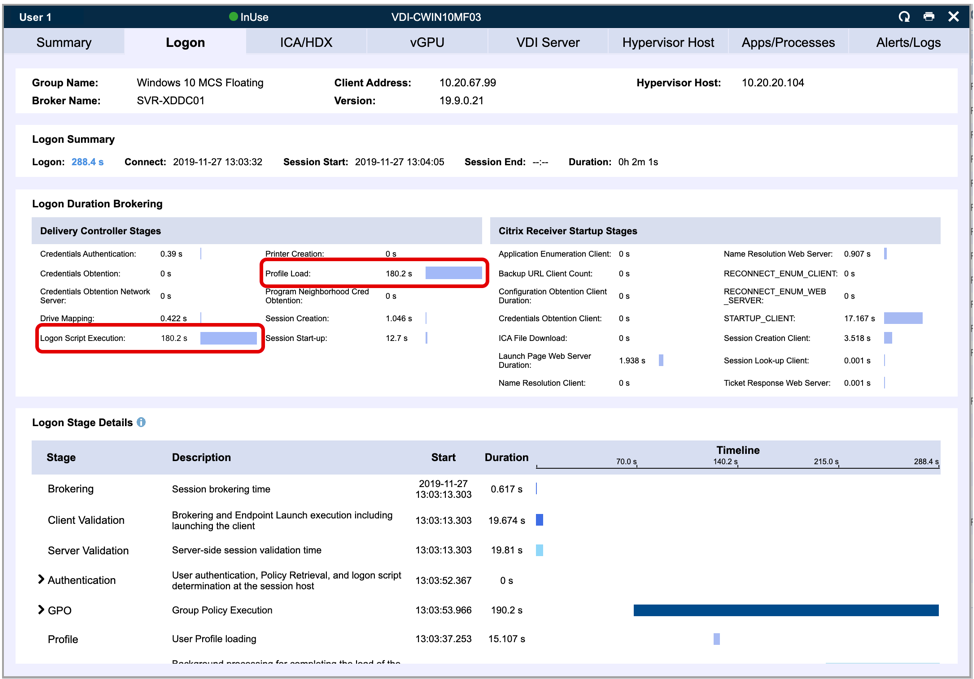
After reviewing the main display, click the individual line items to drill into the sessions and go to the Logon Duration tab. As mentioned previously, when reviewing high logon duration issues, it is important to look for patterns. One area that can often stand out are the Citrix Delivery Controller brokering of Profile Load and Logon Script Execution. It can be common for every instance of logon script execution and profile load times to be identical in duration and is generally where most of the time was consumed, as seen in the examples below.


Citrix Virtual Apps & Desktops page sorted by the Logon column

Figure 4: Citrix Virtual Apps & Desktops page – Session dialog – Logon tab

In this case, the net result of the slow logon issue points directly to the profile load time. In every session that is slow to logon, the profile load and script execution times are identical and the largest contributor to the overall logon duration. It is typical and expected to see both LESD and PLSD times match when the root cause of logon duration slowness is the result of Citrix UPM profiles loading slowly.

Root Cause & Recommendation

In the case demonstrated above, long profile load and logon script execution stand out as the primary consistency with long logons occurring in the environment. When these metrics match, it is indicative of Citrix UPM and is not in and of itself an abnormality. The steps listed below are recommended for tuning the environment to improve logon performance times.

    1. Review all user profile configurations and ensure that roaming data is minimized. Inherently roaming data requires time to upload and download, resulting in longer logon/logoff times.
    2. Review CPM configuration and ensure applicable optimizations such as caching, and profile streaming are enabled.
    3. Review performance of File Servers during the times of long logons. Performance issues can cause delays with downloading and uploading profile data, resulting in logon times.
    4. Review the performance of domain controllers and delivery controllers during the times of long logons. As with file servers, delays in processing profile and policy data can also result in long logons.
    5. Analyze and identify if there are resource constraints on the VDI for sessions with long logons. Many of the problematic logons observed during the assessment had either high memory consumption, high CPU consumption or both on the virtual desktop machines the users were logging on to. High resource constraints at the VDI level also would contribute to long login times.

      Based on the configuration complexity of user profiles and policies, combined with the possible resource constraints, it is likely that the slow profile processing in the environment is manifesting from a combination of several different variables. Following the recommendations above should help to pinpoint areas that tuning can occur and should produce positive improvements with logon duration.

      To see how Goliath could help you troubleshoot long logon duration times in your environment, sign up for a free trial today.

Why Troubleshooting Tools are Important to Any Citrix Upgrade

Why Troubleshooting Tools are Important to Any Citrix Upgrade

Citrix CTP Blog

Why Troubleshooting Tools are Important to Any Citrix Upgrade

George Spiers blog banner

The Extended Support end-date for XenApp 6.5 is just under two months away, so the remaining customers, which I expect to be a fair few, should be on their migration journey to the Flexcast Management Architecture versions of Citrix Virtual Apps and Desktops 7.

We should take a moment to firstly identify the different types of customers and where they are on their Citrix Virtual Apps and Desktops journey. I like to group them in to three categories:

The XenApp 6.5 Customers:

The XenApp 6.5 customers that remain on that version for reasons such as:

1. It just works, and the customer has been reluctant to move to Virtual Apps and Desktops 7 in case it did not perform as well.

2. Missing features available in XenApp 6.5 but not available in Virtual Apps and Desktops 7. Thankfully Citrix has filled the gap in this regard, not to mention the many more features now in Virtual Apps and Desktops 7.

3. Having to retrain staff on the Flexcast Management Architecture is a challenge and has delayed the transition to Virtual Apps and Desktops 7. The components that make up a Virtual Apps and Desktops 7 site do behave different, but many components have not changed a great deal from 6.5.

4. Budget constraints, as to support a new upgrade version, there is normally a requirement to invest in new virtualisation hardware, storage, and software licenses such as for new Operating Systems.

5. Concerns around how IT support can affectively troubleshoot in a Virtual Apps and Desktops 7 environment, as there has been change in the architecture and components.

The 7.x Long Term Service Release (LTSR) Customers:

The 7.x Long Term Service Release customers that remain on such a version for reasons such as:

1. The customer does not have the staff numbers or time to keep upgrading to the latest versions of Virtual Apps and Desktops.

2. The customer does not want to risk the disruptions that an upgrade has the potential to bring, such as new types of faults leaking into the environment, slower performing logons, or a worsened in-session user experience.

3. The customer wants to remain on a stable version and not risk introducing new code to the environment that could be unstable.

4. The customer has no interest in new features at this time, and the current LTSR version offers all that they need.

The 7.x Current Release (CR) Customers:

The Virtual Apps and Desktops 7 Current Release customers remain on such a version for reasons such as:

1. The customer needs the latest features released by Citrix, as it allows the customer to be more competitive in their market.

2. The customer has a well-defined upgrade strategy that minimises user disruption and can be executed easily.

3. The customer has the staff skilled to perform frequent upgrades and they are well equipped with tools such as monitoring products to capture analytics and troubleshoot the environment effectively.


Either way, if a customer is still on XenApp 6.5, LTSR or the Current Release of Virtual Apps and Desktops, at some time sooner or later the environment will need to be upgraded.

Stepping aside from Citrix upgrades and looking outside of the Citrix stack allows us to remember that every other component used to support your application or desktop virtualisation deployment will need to be maintained and not left stagnant. That is, from your bare metal hypervisor hosts, to the network and storage fabrics, Operating Systems, SQL server versions, and the applications that users’ interface with every day.

The problem the IT team and organisation face is that with upgrades to any infrastructure hardware or software component, it can result in a degraded end-user experience, or it could introduce new types of faults into your environment. This is where monitoring software can aid your deployments and help ease those deployment pains.

Investment in purpose-built troubleshooting and monitoring tools helps with deployment pains:

A monitoring solution is just what you need to aid your upgrades from XenApp 6.5 to 7, or from Virtual Apps and Desktops 7 versions to later releases. Here are three key benefits you can gain from having a monitoring solution in place:

Baseline the environment before and after upgrades.

Baselining allows you to compare the performance of your infrastructure when it is working as it should, and then after you complete an upgrade to a newer version of Virtual Apps and Desktops. You can also extend the baselining to hardware refreshes, Operating System upgrades, 3rd party software upgrades and more. This allows you to determine if any change to the environment has had an impact on performance.

Baselines should be focused to include logon times, application launch times, virtual machine resource consumption, and resource consumption against your hypervisors, storage and network.

Monitor both old and future environments from a single pane of glass.

During a Virtual Apps and Desktops upgrade, there is going to be a time where you will have users launching resources from both old and new environments. More typically in an enterprise environment will you stage the upgrade. This allows you to carefully plan and execute your upgrades, without putting too much pressure on your team and causing mass-disruption to end-users.

With a monitoring product that is able to monitor both environments at the same time, you will have the advantage of being able to effectively monitor and troubleshoot both environments from a single console, as let’s face it, the priority of the old environment should not decrease until the last user has been migrated off it.

Troubleshoot any issues that do crop up after the migration quickly, to avoid end-user disappointment.

Your end users are the key to a successful deployment. If your end-users frequently experience issues during or just after the deployment of a new version of Citrix Virtual Apps and Desktops, management may delay

Leverage historical reports to continually monitor and trend use and performance over time.

To anticipate and prevent future issues, it is critical to trend and watch performance over time so that you can foster data driven conversations on how and where you can make future performance improvements and ensure performance degradation does not slowly happen over time.

Goliath Performance Monitor (GPM):

The three key benefits I spoke about can be delivered by a monitoring and troubleshooting solution such as Goliath Performance Monitor, and the Application Availability Monitor products.

Application Availability Monitor (GAAM) is a synthetic application availability tool that can simulate the launching of applications or desktops in your Virtual Apps and Desktops environments, mimicking a real user session launch. Simulations are automatically performed at set times chosen by you, and simulations launch a resource just like an end-user would. This synthetic logon process tests StoreFront logins, authentication, application enumeration, session launch, and more, including capturing the time it takes for each step to complete.

These steps play a direct part in the success of a Virtual Apps and Desktops upgrade. If they are much slower after an upgrade than they previously were, delays to the upgrade may be inevitable as user feedback would be poor and adoption is likely to be low.

Having a tool like GAAM running in your current environment allows you to capture a baseline for many of the workflows an end user goes through every day, and you can compare that baseline with an upgraded version of Citrix Virtual Apps and Desktops. This is further achieved by the historical reporting capabilities of the product.

The results of GAAM are fed into the Goliath Performance Monitor system and can be used for historical reporting as mentioned. This system monitors your Citrix components such as the Delivery Controllers, VDAs, and StoreFront servers. It can also monitor multiple versions, solving the key benefit of monitoring your XenApp 6.5 environment and Virtual Apps and Desktops 7 environment at the same time.

However, it also goes beyond just Citrix. GPM can monitor your hypervisor hosts, the virtual machines that run within them, your storage platform, the networking stack, and end-user specific experiences such as real user logon times, in-session performance and more. This allows you to even benchmark hypervisor performance before and after a hardware refresh, or virtual machine resource consumption after an Operating System upgrade.

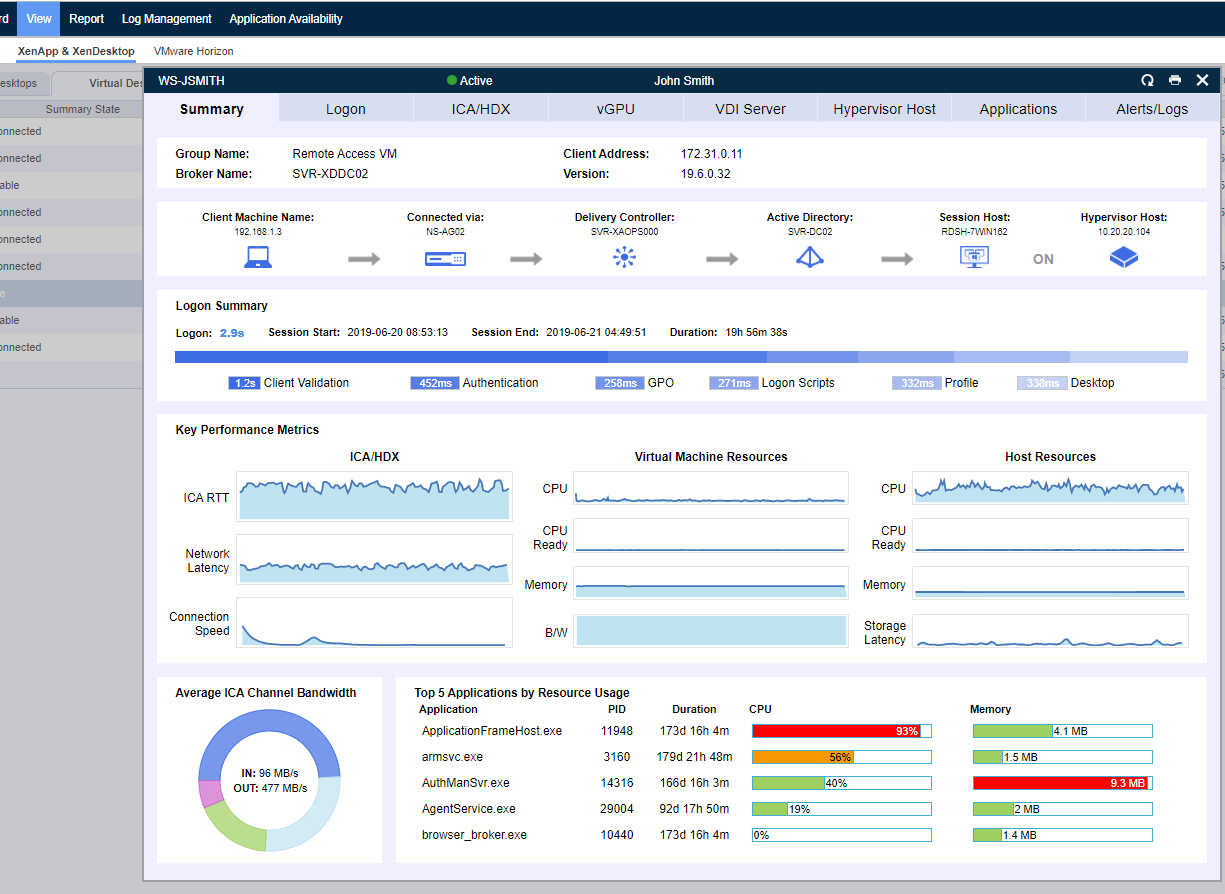
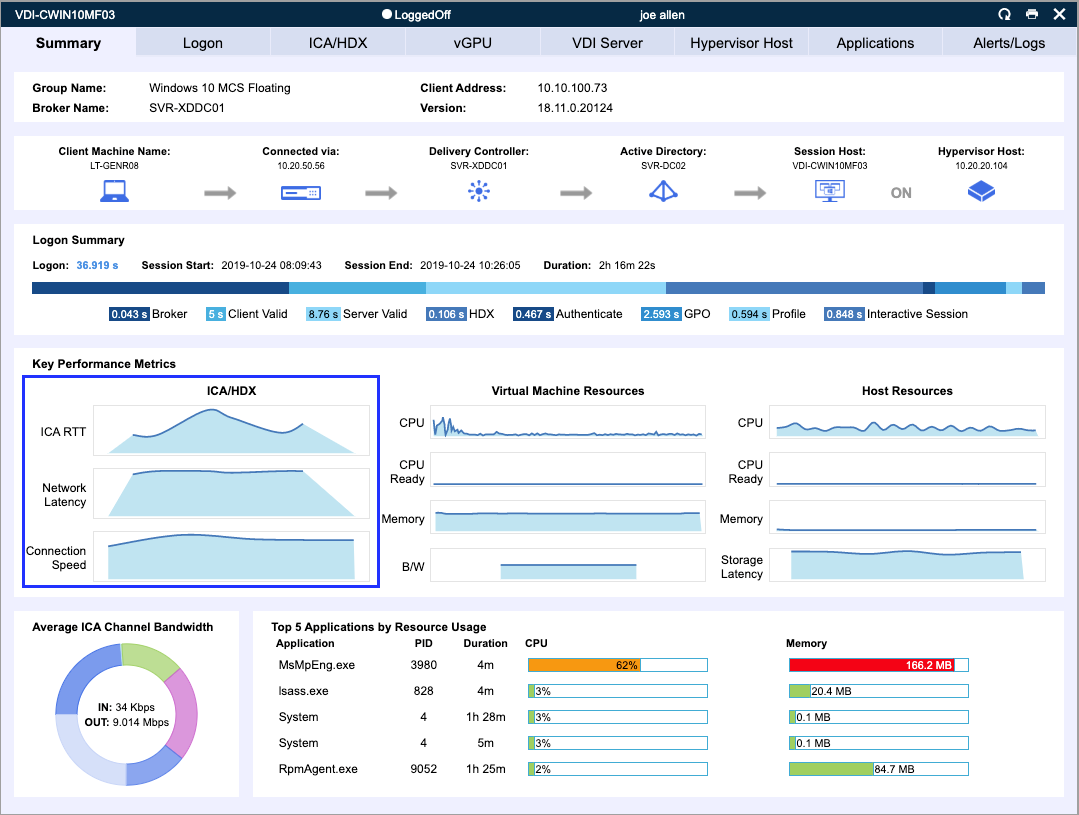
Above is a screenshot of the summary information composing the user experience dashboard that provides information and metrics about the user’s specific published app/desktop or virtual desktop session making it easier to troubleshoot when issues arise.

Going beyond benchmarking for upgrades, the capturing and archiving of all this data can assist with your capacity planning for future upgrades without the need to guess.

Whilst on a normal day the solution keeps check on your infrastructure, the early warning system provided by Goliath Performance Monitor makes sure that you are alerted to problems before an end-user experiences them, or the problems become more widespread within the business affecting multiple users. This delivers the third key benefit of solving issues before an end-user notices and tickets are opened with the helpdesk. There is also the capability of self-healing, allowing problems to automatically be remediated without manual intervention from the IT administrators.

Summary

Software vendors such as Citrix are innovating at a rapid pace, bringing new versions of their products out every quarter. This speed of release means that customers will find themselves upgrading more frequently than they ever did before, which is often warranted to make use of new functionality and stay current, however it does bring a risk to the end-user using the platform you are upgrading that they may not get the same user experience they have become used to expecting. That experience can be calculated by performance or by hard or soft errors encountered.

With a monitoring tool like GPM, you get a wrath of information about a user’s session experience when they are connected to a virtual application or desktop. That information is saved and available for historical reporting.

GPM also provides information about your virtual machine’s performance, the network performance, and hypervisor performance. You can see things like how much CPU is being consumed on a hypervisor host or what process in a virtual desktop is taking up too much memory.

If an IT administrator takes a call from an affected user, direct from the GPM console you can see the client’s IP address, logon time, Citrix Receiver version, what time they connected, their session latency and so much more. Having information like this readily available and at your fingertips empowers the IT service desk and results in support incidents being resolved faster.

All of these capabilities will undoubtably help you during those upgrades that will happen sooner rather than later. They will also continue to help once the upgrade is successful, ensuring that you not only deliver a performing solution from the beginning, but during the full life of the environment.

Whether you’re still in the planning stages or in the middle of a phased roll-out, here is a free migration guide, written for IT professionals by IT professionals that will give you all the technical details you need to ensure a seamless migration and a positive end-user experience.

Chris Hughes

George Spiers

Citrix CTP, Citrix Certified Expert in Virtualization (CCE-V), Citrix Certified Expert in Networking (CCE-N), and Microsoft Certified Solution Expert.

Identify Cause of Issues in Your Citrix/VMware Horizon Deployment

Identify Cause of Issues in Your Citrix/VMware Horizon Deployment

Citrix CTP Blog

Top 3 Ways to Identify Root Cause of Poor Performance Issues in Your Citrix or VMware Horizon Deployment

Enterprise troubleshooting is not an easy task with many enterprises.  Administrators are typically left maintaining many different solutions, attempting to evaluate root cause manually, or are left with solutions that do not give broad visibility into all aspects of the deployed Citrix or VMware Horizon deployment.  This can leave systems down for longer than necessary and can leave administrators in a tough spot.  We covered some of these pain points previously and can be found here.  As we unravel this topic further, let’s look at my top 3 virtualization troubleshooting scenarios that could have simply been resolved with the right purpose-built tools.  Then let’s look at how 3 of the new features in Goliath Performance Monitor 11.8 could have ensured quick identification of the problem and helped resolve the technology issue by finding root cause easily.

If only there were a way

Using the wrong tools or a very manual approach can leave users stranded without the ability to do their jobs while support teams spend hours or days troubleshooting and working toward resolving issues.  The more complex the deployment the more challenging this can be to fix the issue.  It seems that most enterprises will spend large amounts of money on a deployment, but often try to cover monitoring by using native toolsets, scripted options, or even manual approaches.  Making it challenging to quickly resolve issues and work quickly to identify root cause.  Let’s take a closer look 3 of my top troubleshooting challenges from my experiences.

Troubleshooting Challenge 1: New EHR Deployment or Upgrade Goes Live and within an Hour Performance Significantly Degrades

In a healthcare environment a new EHR deployments goes live, and within an hour of the new system being online the environment quickly went from performing to only a subset of users being able to function while the rest of the environment degraded quickly.  It started with multiple user calls to the service desk.  This deployment didn’t have a single, comprehensive monitoring solution in place.  After leveraging the tools available, and some manual diagnosis multiple support calls were opened.

Root cause:

  • Memory leak in the EHR application
  • Bug that a patch was created for within the virtualization platform software that was creating a limitation in the number of users that could connect to the backend host

Despite all the load testing and prep that went into this environment in advance, there were still issues uncovered that could not be seen without real load and without the right monitoring tool to oversee the entire environment.  So how could a purpose-built monitoring tool have helped in this scenario?

See Figure 1 below:


End-User Experience Overview


Figure 1 – Demonstrates visual insights; with Goliath 11.8, into the user experience with detail that allows for quick identification of compute issues that could have more led to expedited identification of the issues.


Troubleshooting Challenge 2: Remote Workers Struggling to Logon

In a financial environment external access to the virtualization environment was primarily used for the rare cases that users needed to work remote.  For example, a snow day.  Users that accessed the system earlier in the morning could access the system fine, but those coming in later in the morning are being denied by the access gateway.  The support desk starts getting calls, and upon further analysis root cause was identified:

  • Not enough user connection licenses

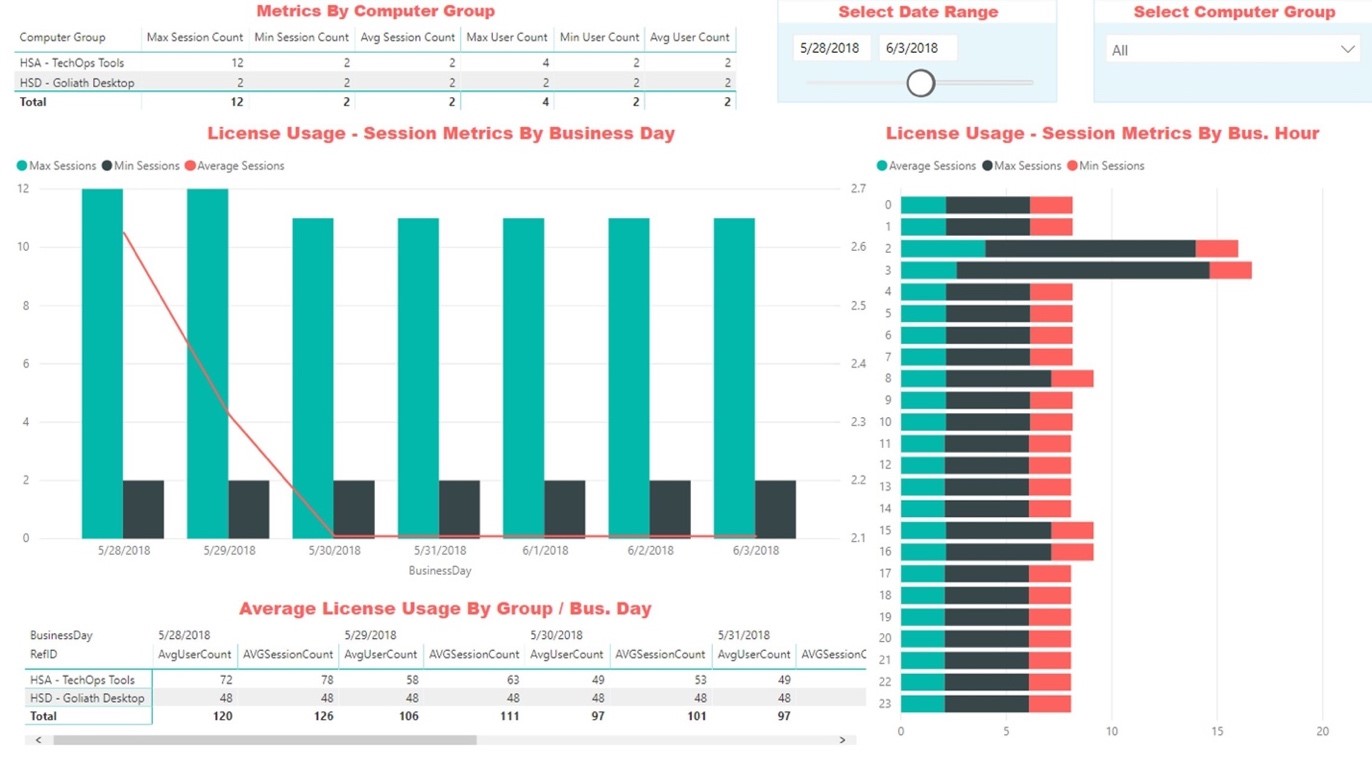
To resolve, an expedited license purchase was procured.  Let’s take a look at how with the right tool this could have been identified and resolved quickly.  See Figure 2 and Figure 3 below:


Goliath's System Health Overview


Figure 2 – Demonstrates visual insights into the overall performance of the users previously connected in Goliath 11.8 which clearly shows us the system is functioning well and the server health is not creating a bottle-neck.


License Count Visual Information


Figure 3 – Demonstrates visual information into the available license count.


Troubleshooting Challenge 3: User is Having Application Issues and Opens a Ticket Saying Citrix is Slow.

In a technology company a user calls in and states that Citrix is slow.  It is up to the support desk to dive in more closely, because the support person knows that Citrix as an application isn’t the problem at all.  After doing some shadowing of the user it was identified that their remote desktop is performing slowly.  From here, the call needs to be escalated, because administrative permissions to dive deeper are needed.  In this environment all troubleshooting is manual and tools are being researched, but when all is said and done the root cause is:

  • The server the desktop is running on is low on resources, so it must be removed from production so that user can reconnect their desktop session on a new server.

With the process being manual, this took the better part of an hour to resolve when it could have been minutes.  The same process would apply if it was a VMware Horizon instance. Let’s take a closer look at Figure 4 below.

in session performance quickly evaluated


Figure 4 – Demonstrates how in session performance can be quickly evaluated with Goliath 11.8 to determine which server the user is connected to and identify the root cause of the server slowness issue.


Concluding Thoughts

Troubleshooting your Citrix or VMware Horizon environment shouldn’t be difficult or time consuming.  With the right purpose-built tools leveraging analytics of your environment will not only help you quickly identify tough issues quickly it can lead to more proactive technical work that can eliminate issues before the user calls. With the right metrics and increased visibility not only will you be better equipped to anticipate, troubleshoot and prevent end-user issues from occurring, but you will be able to foster data-driven conversations across your entire IT debarment, with other vendors as well as internal stakeholders.

Click here to learn more about all the features included in Goliath’s latest product release.

Theresa Miller

Theresa Miller

IT professional working as a technical expert in IT for over 20 years. Theresa is a Citrix CTP, VMware vExpert, Microsoft MVP (Office Servers and Services), Nvidia Advisory Council, and MBA. Her areas of expertise are in the areas of Exchange, Office 365, Active Directory, VMware, Citrix XenApp, and XenDesktop. She is the Founder of 24×7 IT Connection, LLC, a Windows IT Pro Contributing Editor, Pluralsight author, and is an author for TechTarget. You can find her on twitter @24x7itconnect.