How To Get Alerted To Citrix Issues Before End Users Complain

How To Get Alerted To Citrix Issues Before End Users Complain

Get Alerted To Citrix Issues Before End Users Complain

Until now, Citrix system administrators with responsibility for XenApp and XenDesktop had no way to anticipate the end user experience, therefore, were only able to be reactive to complaints from users. Being proactive is now achievable as Goliath gives you the ability to create the same analysis for both real and simulated users, which allows administrators to proactively initiate user sessions with simulated users and analyze performance prior to real end users attempt to access their applications. Imagine that you can truly know what a user’s experience is going to be before they do!

With the Goliath Performance Monitor you will know what the end users will experience during logon initiation, the logon process and while in their Citrix session.  This isn’t possible without key features that I will explain in this blog post, and to my knowledge, this capability is not available in any other single solution. Many of the Citrix Administrators, Citrix CTP’s and consultants we talked to while designing the product told us that they have attempted to accomplish the goal of being truly proactive but they had to leverage multiple different products and scripts, but still couldn’t get it done. Now, this very difficult objective can be achieved by utilizing a single product with the following key features:

Logon Simulation

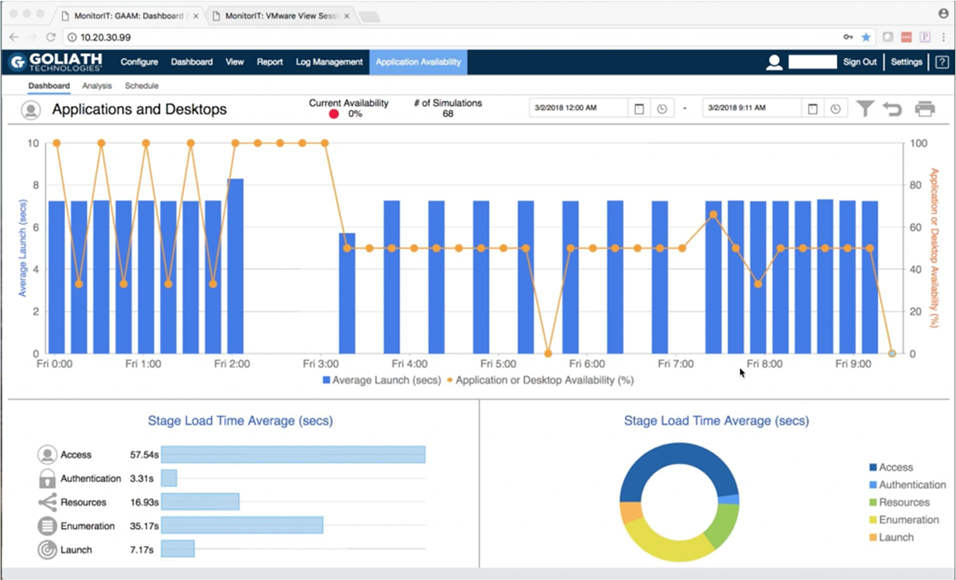
With the Goliath Application Availability Monitor (GAAM), Citrix Administrators can finally become proactive when it comes to Citrix logon issues. GAAM is the only software available that tests the entire Citrix delivery infrastructure, both locally and remotely, by simulating the exact same steps a user would take during the Citrix logon process. This allows you to identify the root cause of logon issues, whether they fail or are simply slow, and resolve them before end users complain.

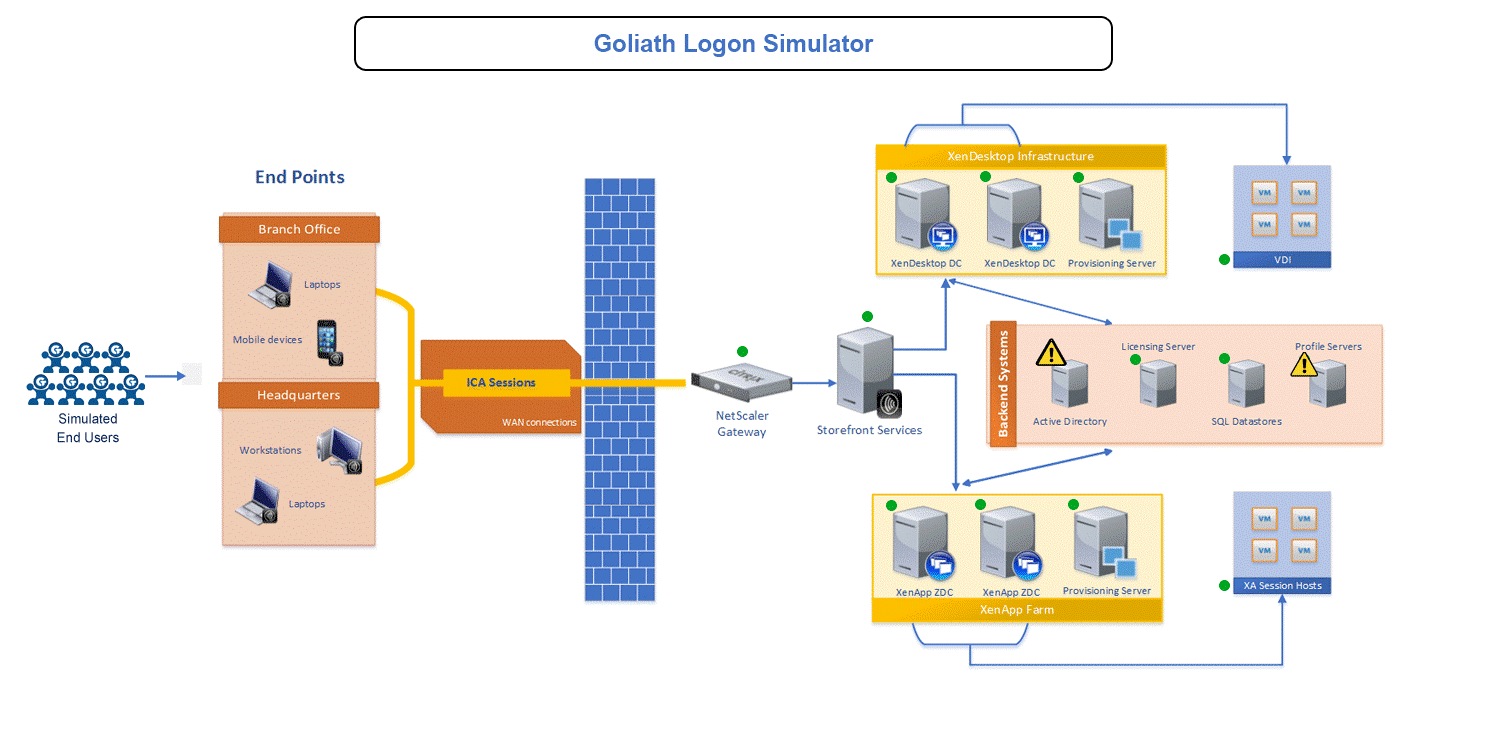
In this diagram, from left to right, the logon simulator initiates the logon process with simulated users which follow the same exact steps a user would, thereby exercising the entire Citrix Infrastructure including passing through the NetScaler, Storefront and other elements in the delivery infrastructure. In this example, a profile didn’t load but the root cause was active directory.

Logon Simulator Diagram

ICA Channel Dashboard

ICA Latency is the key indicator of Citrix session slowness as it takes into consideration server slowness and network performance in a single value to indicate user experience. By drilling down into the Citrix ICA Channel, you can track the bandwidth usage by channel – Audio, Video, Clipboard, Printer, KB & Mouse response, and Connection Speed – to identify the root cause of session slowness or performance degradation. Sample image below:

ICA-Session-Drilldown

Logon Duration Breakdown

The Logon Duration Analysis real time dashboard lets you troubleshoot and resolve logon slowness issues by breaking down each stage of the logon process so you can determine exactly where the slowness is occurring by total logon time, authentication, profile load, group policy processing, script execution and interactive display load.

Logon Duration Breakdown

Logon Duration Report

The Logon Duration Report gives you a historical view of the entire logon process for all users during the time period you specify. This allows you to determine the root cause of user logon slowness by drilling down into each stage in the logon process including, total logon time, authentication, profile load, group policy processing, script execution and interactive display load.  With this report, you can easily troubleshoot and resolve logon issues reported by users during a specified period of time.

User Application Task Visibility

With our End User Application Task Visibility, you can see what users are doing within an application and the resource utilization. For example, if a user was streaming audio and video, not only would you see how many resources an application was using, but also the specific content  the user was streaming.

End-User-Application-Task-Visibility

 End User Experience Report

Run a report of all users or any specific user over a period of time to identify and troubleshoot slow Citrix sessions. The End User Experience Report allows you to first determine if a user’s session was slow and then correlate that to the connection speed and where the user launched the session from to narrow potential root cause.

End to End Connection Report

With the End-to-End Connection Report, you can run a report for a specified period of time for all users to see trends and troubleshoot user slowness caused by connection routes. The report correlates end user experience metrics to the exact combination of the Web Interface, Broker, and server for each user’s session.

This is a very exciting new release for our customers because these features allow them to truly be proactive in the three areas that most commonly cause ticket related issues – logon initiation, logon process and session performance.

If you want a fully supported 30-day free trial or personal demonstration of this software, please go here. If you just have a question or comment feel free to email us at techinfo@goliathtechnologies.com
Guest Post: ICA Latency Isn’t Enough

Guest Post: ICA Latency Isn’t Enough

Guest Post: ICA Latency Isn’t Enough

This post is republished on our blog with permission from Alexander Ervik Johnsen, Blogger, Senior Solution Architect, Technology Evangelist, Author and Speaker, based in Oslo – Norway. The original post appears here on Alexander’s blog. Check out Alexander’s latest blog around the topic of Citrix ICA.

Troubleshooting End User Experience with Advanced Citrix ICA/HDX Metrics and Analysis

By: Alexander Ervik Johnsen

“Citrix is slow” is one of the most common end user complains that frustrates both the end users themselves and the support teams and administrators tasked with resolving the issue.  The challenge is finding the key metrics that identify the true root-cause of the problem so that Citrix XenApp and XenDesktop administrators can proactively monitor, troubleshoot and prevent end user experience issues quickly and confidently.

The ICA/HDX remoting protocol delivers critical applications and resources to users across geographic distances and various connection mediums on different devices.  This means the network layer is enormously responsible for delivering a good end user experience.  For this reason, many people and monitoring solutions use ICA Latency as their end-all measure for understanding end user experience issues over Citrix ICA/HDX.  It’s a convenient and broadly available, but to truly understand what specific factors are contributing to the problem, you need a tool that breaks down ICA Latency into its detailed components. 

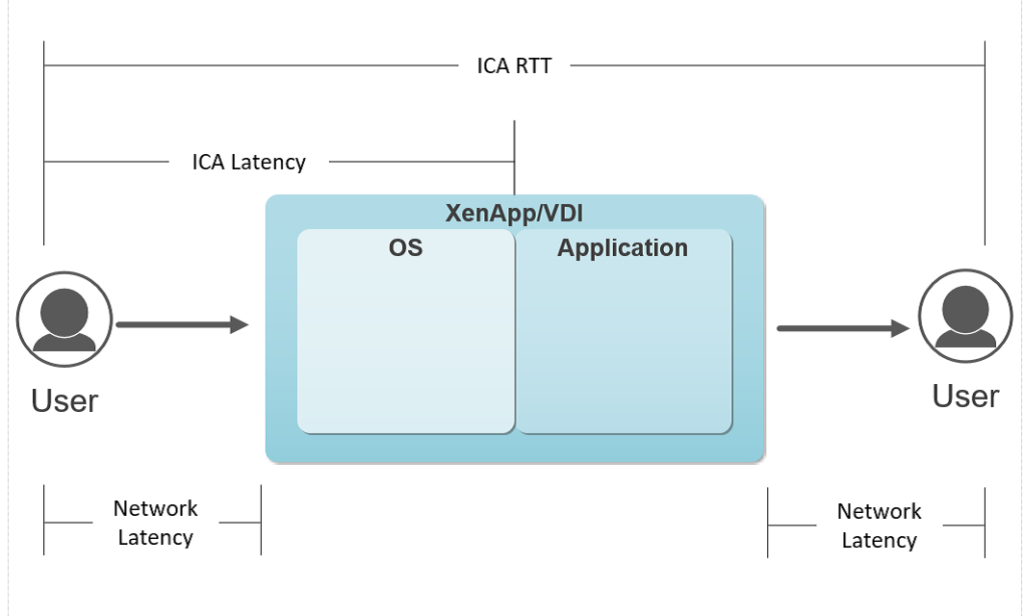
ICA Latency is the time from when a user executes a keystroke or mouse click to when it is processed on the session host.  It includes both network latency and any delay on the session host to process this request.  To best understand the cause of end user issues, administrators require an application that can break out and track these sub-components separately to identify and address the true root-cause.

ICA Round Trip Time (RTT) is the elapsed time from when the user hits a key until the response is displayed back at the end point, as calculated by the session experience monitoring service. The difference between the ICA Latency and RTT is the application processing time on the session host.  

ICA Network Latency is the amount of time it takes data to reach the server.  ICA Network Latency may be higher than ICA Latency, as underlying Citrix protocols are designed to will smooth out ICA Latency spikes to improve experience for the end user.  The delta between ICA Network Latency and ICA Latency can be attributed to server performance.

By breaking ICA Latency into ICA RTT and ICA Network Latency, IT Administrators can take the general complaint ‘Citrix is slow’ and quickly identify specific reasons driving that issue – be that bandwidth, server performance, or application performance issues.  Using this information and more detailed metrics available from Goliath Performance Monitor, administrators can confidently take specific action to remediate problems with the network, or with resource issues at the server.

For more information on how to confidently troubleshoot end user experience issues using Citrix ICA/HDX please download our whitepaper: 


Independent Review: New Goliath Performance Monitor for VMware Horizon

Independent Review: New Goliath Performance Monitor for VMware Horizon

Independent Review: New Goliath Performance Monitor for VMware Horizon


Goliath Technologies has been a strong player in the Citrix ecosystem for quite a while now with multiple products such as their Performance Monitor, Application Monitor and Netscaler Monitor. The solutions already had support for VMware vSphere to monitor virtual machines and the physical infrastructure, and since the newest version, the Goliath Performance Monitor also supports VMware Horizon. In this post I would like to highlight some of the features which I think can have a great benefit in VMware-based VDI solutions.

LOGON MONITOR

Let me first tell some more about one of the use cases of the Goliath Performance Monitor; the logon monitor. Everyone who manages Virtual Desktop Infrastructures knows that user experience starts with the logon process. At one of the projects I worked before, end users were used to waiting for at least 5 minutes before they were logged in. After entering credentials, they went for coffee. When they came back, they were able to work. So, when the logon time was reduced to nearly 20 seconds, I had a very happy customer. Monitoring the logon process is important to avoid a bad user experience. That’s where Goliath Technologies steps in with their logon monitor. The logon monitor focusses on the different steps of the logon process and gives a detailed overview of these different steps.

Citrix Virtual Apps & Desktops page sorted by the Logon column

Figure 1: Application Monitor main UI

In the above picture, you can see that different types of logon processes are defined as applications and are ran every 15 minutes. The result is shown as well. In this overview, you are able to check out if certain changes in the infrastructure such as Active Directory Group Policy Objects (GPO’s), applications changes or hardware changes affect the logon process. If, after a change, the logon process is negatively affected, the management console will tell this so you are able to troubleshoot.

When you would like to dig somewhat deeper in the logon process, Goliath Performance Monitor During allows you to, because during the logon process, every step that is taken, is validated with a timestamp and a screenshot. The screenshot will be taken of the individual steps which is accompanied with the timestamp. The next picture shows the details individual steps with the accompanying results.

Session dialog – Logon Duration tab

Figure 2: Logon process details including screenshots

VMWARE HORIZON SUPPORT

Like I explained at the beginning of the post, a new feature in the Goliath Performance Monitor is the ability to view VMware Horizon session information. And this is also a great one for VMware Horizon troubleshooting User Experience related issues. When troubleshooting UX issues, there are a lot of factors which can have a negative impact. What Goliath did, was to include most of the factors which can be related to the virtual infrastructure or connection protocol in one simple overview.

Figure 3: User Experience overview of connected sessions

Session dialog – Logon Duration tab drill down

When in need for more detailed information, this is easily accessible by just selecting a session.

”Dashboard

Figure 4: vSphere Host related metrics

Snapshot Metrics

Figure 5: Connection protocol related metrics

As you can see in the above pictures, most of the information required to troubleshoot the UX is available in the simple UI that the solution offers. No need to create custom dashboards or views.

Another feature that is very useful is the heatmap. In (again) a simple overview, you are able to see what virtual desktops are having an issue.

Figure 6: Heatmap overview containing servers and desktops   

Selecting any of the faulting virtual machines will show you a similar overview of what’s happening in detail. The following figure displays an issue that is happening around Group Policies.

 In an event-viewer style UI, it is fairly simple to track down the source of the issue and start fixing it. Besides the already rich set of services, apps and metrics, it is fairly easy to add another custom metric with the proper thresholds.

LOG MANAGEMENT

Another cool feature that is included, is Log Management. One single overview that contains a variety of log files on which you can filter including Event Viewer and Syslog.

Figure 7: Aggregated Syslog viewer

Figure 8: Aggregated Event Viewer log viewer

Again, an easy way to troubleshoot through log files if this is required. These are just 3 of a lot more features which are part of the Goliath Performance Monitor. I think the solution has a real value in a VMware Horizon VDI environment. Especially if you find vRealize Operations too complex, the Goliath Performance Monitor is a great alternative. It’s easy to set up and deploy, has the ability to create simple overviews of the required metrics needed to troubleshoot and the logon monitor proves to be a great feature to troubleshoot one part of the User Experience that is quite often neglected.

As there are a lot more features and advantages than I wrote about in this post, I will dive deeper into some specific use case in future posts. Keep an eye out for more on Goliath Performance Monitor.