Guest CTP Theresa Miller – Benchmark Citrix End User Performance

Guest CTP Theresa Miller – Benchmark Citrix End User Performance

Game Changer:

Using Scorecards to Benchmark Citrix End User Performance 

Article originally posted by Citrix CTP, Theresa Miller

Enterprise administrators often feel blamed for performance issues that they don’t have any visibility into.  While these virtual environments are constantly monitored to deliver strong performance for end users, the way they are typically viewed can leave us assuming that individual user performance is okay when it may not be. When monitoring a Citrix environment, typically your storage, network, and other infrastructure are monitored separately.  Even when working in one monitoring solution this only captures the overall infrastructure performance level.  Fortunately, there are now tools you can use to have full visibility into the end-user experience, and even scorecards to benchmark your performance against industry standards. In this post, we’ll look at some strategies for tracking user performance and benchmarks, dive into a real-world scenario in which user performance discovery was a challenge, and then wrap things up. 

Performance Benchmark Challenges 

In my experience, enterprises often limit the budget on monitoring tools and try to use native options to monitor their virtual environments, which can leave the enterprise administrator scrambling to cobble together an answer to a performance problem when a user calls in for support.  

Enterprises often have multiple monitoring tools, and in many cases need to manually look through multiple logs and performance counters to come up with an answer. Recalling a time when I was working at a very large healthcare organization, we were limited because the person in charge of our EHR on Citrix deployment didn’t include budget for monitoring tools. Even after request, it was deemed there wasn’t going to be any additional funding provided, so an approach that involved PowerShell scripting for service availability checking, reviewing event logs, and analyzing the Citrix console and EHR application console became part of the routine for the person on-call very early every day.  In time this proved to be very inefficient and didn’t provide any true answers around performance when there were end-user problems reported, only availability.  The reality is that just because the application is online doesn’t mean the performance is where it should be. 


End-user performance is experience, right? 

So far our primary focus has been around performance of the application and strictly based upon how the back-end system is functioning.  Thinking about this more, does performance of a server guarantee that the end-user experience is where it needs to be?  The experience is what the end user is telling you, and the performance is what is perceived by the administrator based upon looking at individual IT component-based element metrics such as on CPU, memory, networking, and number of users connected to the server.  There is a perception that if these numbers look okay to the administrator that the user doesn’t have an experience problem.  This, however, is also likely not the case either.  So, if we go back to my experience as an administrator of an EHR application, and a budget that wouldn’t allow for proper monitoring of the environment, end-user experience never really could be fully qualified and left us as a team chasing down performance problems based upon user experiences that we most likely were not even going to be able to resolve permanently. 


Benchmark End-User Experience Scorecard 

Without a proper toolset that can truly analyze end-user experience, end-user performance can only be inferred and is only as good as a guess. In my experience the native toolsets will only take you so far.  For example, with the healthcare organization running EHR on Citrix we used the native tools, PowerShell scripting, and windows server logs to ultimately confirm that the servers had some IT element resource capacity and that the servers were online.  This doesn’t provide data on end-user experience or ensure that data will be retained for any period of time.  The other challenge with this approach was that in order for anyone to troubleshoot the environment they required permissions to Citrix, and an education around the EHR application and Citrix which also limited who could interpret the dataset.  All of the steps weren’t leading to successful business outcomes.  With the proper toolset, my team could have had insights into end-user experience through the Goliath Citrix End-User Experience Scorecard.  Troubleshooting would have still been required, the but the answer would have been easier to find. The End-User Experience Scorecard also provides IT with objective data to report on to management with definitive proof of end-user experience forensics. See an example of the Scorecard below. 
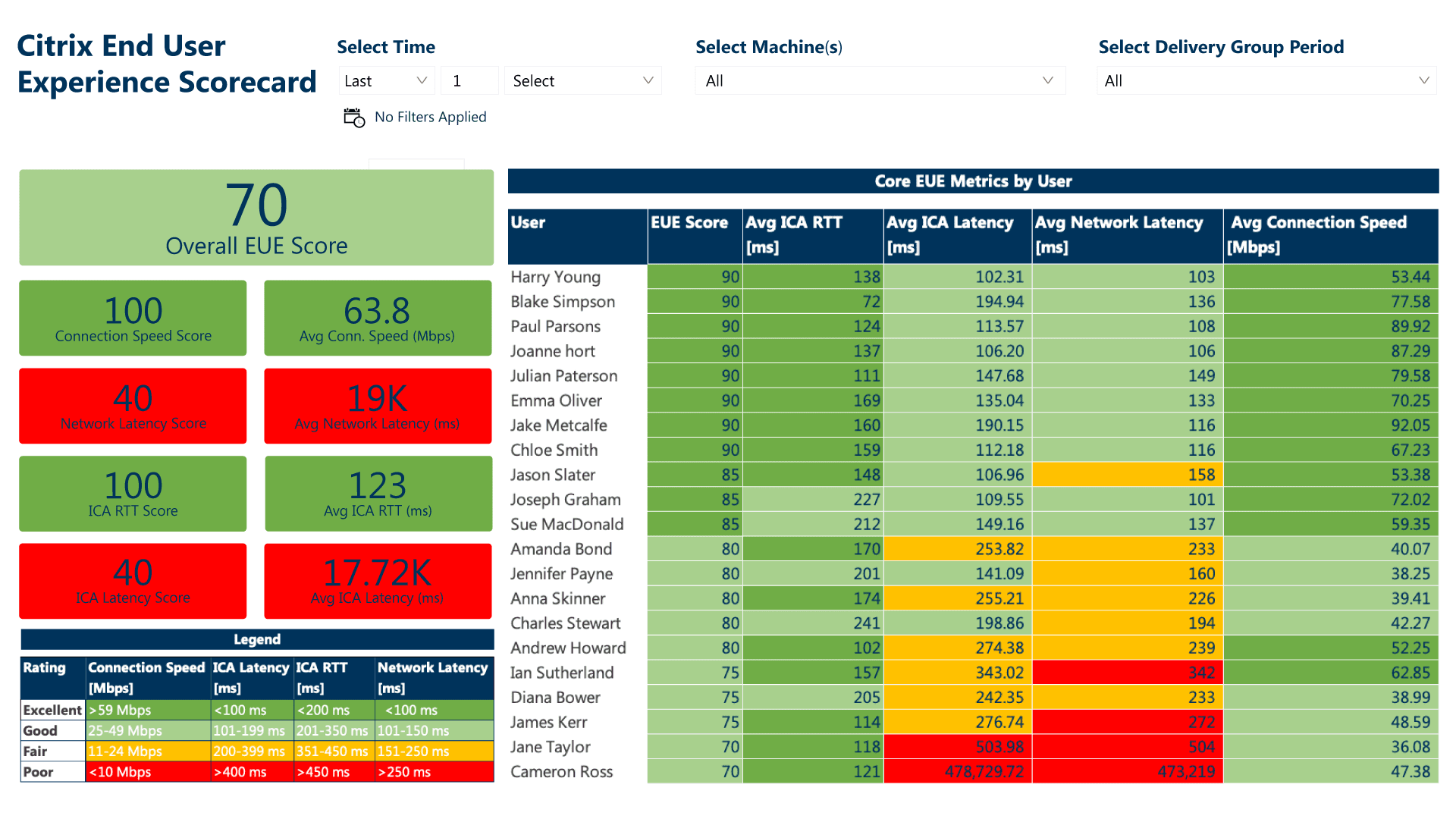
Goliaths End User Experience Scorecard

Concluding thoughts 

Upon review it’s clear that cobbling together a monitoring process with native toolsets is not advantageous for being able to determine true Citrix user experience.  Implementing a wholistic solution developed with the end-user experience in mind can ensure the best possible outcomes for your Citrix users and the business in the best possible way.  


Troubleshooting the Top 3 Citrix Issues found in Health IT

Troubleshooting the Top 3 Citrix Issues found in Health IT

Article originally posted by Citrix CTP, George Spiers.

For several years I have worked with healthcare customers deploying, managing, and supporting Citrix environments that serve applications and desktops to thousands of users. 

Citrix Virtual Apps and Desktops tends to be a popular choice for healthcare customers wanting to virtualize their applications and desktops, often due to the complexity of health IT, supporting many different applications from SaaS to modern thick apps and legacy apps, providing access out to other healthcare organizations, and keeping patient data secure at all times. Citrix performs well in this field and can solve many of the challenges and requirements mentioned. 

With healthcare though, due to how healthcare staff work, their needs, and the typical applications that are used, there are particular issues that I have witnessed in this field that I haven’t so much witnessed in others, or at least not to the same scale. As such, I would like to highlight the three I have come across most recently and how you can help avoid or troubleshoot those issues more efficiently. 


Audio and Dictation Issues 

Dictation in particular is prominent in healthcare. With the many consultant visits by patients every day, the consultant dictates notes for that patient into their EHR app, for a secretary then to transcribe the audio to text, into a letter that can be sent to the patient or simply to be stored on the system. This method of work uses a consultant’s time efficiently. 

I have seen in the past secretaries complain of poor audio quality in relation to these dictation audio files. Sometimes audio skips, slows down and then speeds up, and so on, or does not work at all. 

Audio Bandwidth Citrix Bandwidth

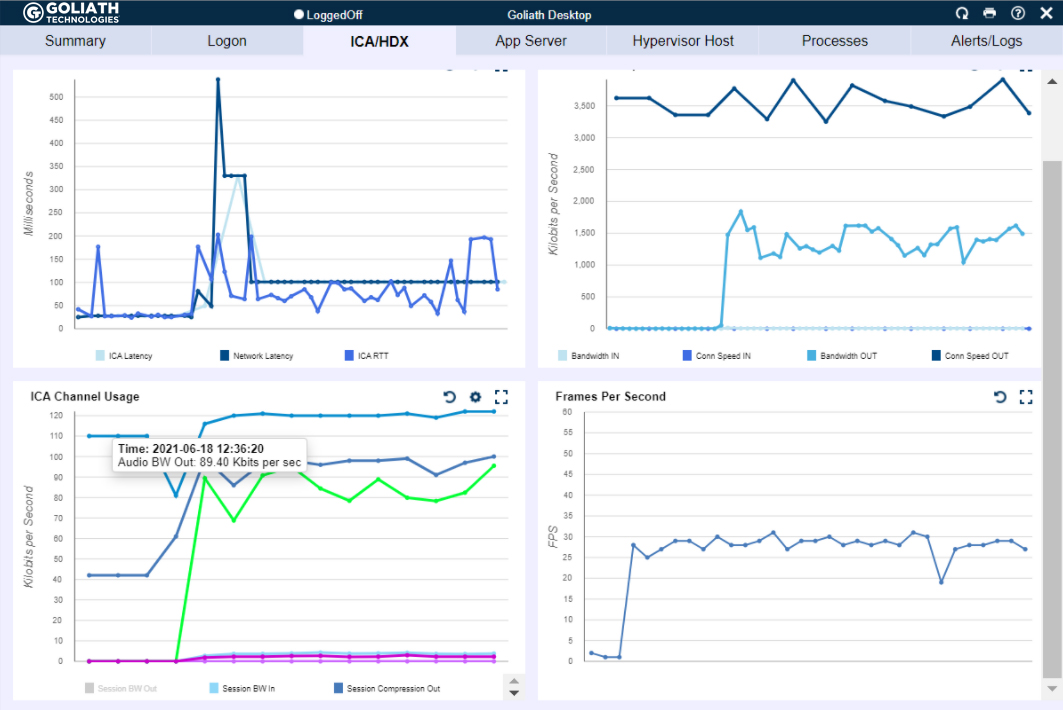
Figure 1  – Audio bandwidth (bright green line graph in bottom left chart) is being heavily utilized when there isn’t much bandwidth available for Citrix (top right graph with connection speed) which can lead to poor experience. 

Audio in a Citrix Virtual Apps and Desktops environment can be subject to poor latency, having a negative effect on how audio is delivered to the client. Otherwise, it could simply be impacted by missing best practice configuration. 

To troubleshoot, if the issue is poor audio quality, firstly check the user’s latency when they are connected to Citrix. This is the most simple and quickest thing to check first. You can use a tool like Citrix Director, or your third-party solution if you have one. You should also check if the ICA connection is facing packet loss. This is a little more difficult when using a tool like Director, but can be achieved using third-party tools, or some packet captures between the endpoint and Citrix server. If the user is working remotely, you will want to make sure your third-party tool, if you have one, can still report on latency. 

Secondly, you should analyse the consumption of the audio virtual channel. I have written an article previously explaining how incorporating this task into your troubleshooting steps could help you determine if audio bandwidth throughput is low due to a misconfigured Citrix policy, or due to other virtual channel contending for the user’s bandwidth, such as high video bandwidth consumption, which can then negatively impact the audio virtual channel, especially if no QoS is in place.

Finally, to avoid many of the audio performance problems your users may face in the first place, you should take a task to review your audio configuration for your Virtual Apps and Desktops deployment. As a starter, the Audio quality policy in Citrix Studio should be set to Medium. Secondly, you should adopt the use of Audio over RTP (Real-time Transport Protocol). This is the recommended protocol to use when delivering audio from a Citrix environment to the end user. It does require some configuration and firewall policies to be open but has most definitely in my experience solved many audio quality issues in the past.  

Long Logon Times 

Long logon times and associated user complaints are not unique to healthcare environments in any case, but healthcare has some of the highest user logon counts across any industry. Firstly, healthcare organizations typically run 24/7, and staff come and go as part of shifts. This means that throughout a day or week, the number of times that EHR app delivered via Citrix is launched enters the thousands. On the other hand, an individual user may launch a Citrix session multiple times per day. The hospital has many different kiosk or shared workstations that are used by many clinicians each day, and individual clinicians may launch Citrix apps from several PCs as they move between wards and so on. 

That is why logon times are crucial for healthcare, because if those logon times are slow, they will most likely be realised in a healthcare environment, and the helpdesk are most likely to receive calls about it. 

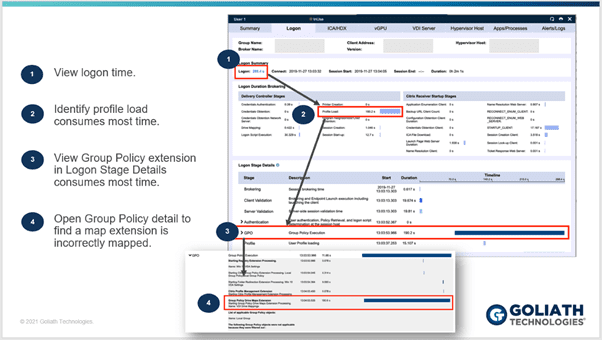
To troubleshoot, you really need the aid of a monitoring solution that can help track each step of the logon, and report on the time it takes to complete each step. The Citrix logon process contains many different steps such as Group Policy printing, logon script execution, printer and drive mappings, desktop load, brokering, user profile load, and so on. Without knowing which step is causing the overall process to be slow, you can’t begin to troubleshoot effectively. 


Logon Drill Down Spiers Blog

 Figure 2 – The benefits of the logon drill drown 

However, that said, what I do recommend is that you take a process of elimination approach. Check for patters and consistencies to the issue, such as if it’s a particular location that is impacted by long logon times, a particular set of users, users on a particular set of VDAs and so on. You will want to review the health of your entire infrastructure, from the network, to storage, hypervisor hardware, and the virtual infrastructure. Again, based on if you have the right monitoring solution in place or not will determine how manual and time intensive these steps are, and how many other different teams you need to involve. 

Printing Issues 

The final piece I wanted to talk about is printing. Clinicians or medical staff cannot print at all, or print jobs are not rendering as expected. 

Again, like the number of logons, the healthcare industry prints more than any other industry I have worked with, which makes printing very important, and as it affects patient care, something that cannot go wrong! 

However, it often does go wrong. Printing is complex. Print devices are deployed en-masse all over the environments in their hundreds, some wireless, others hardwired. Then you have the print servers that contain many different print drivers for each of your device types, and often those drivers are old or simply unstable and that can lead to things like spooler crashes. 

To troubleshoot printing issues effectively, first understand the scope and impact of the problem. Are the issues affecting multiple people, what type of print jobs are the users trying to print, what devices are they trying to print from. For example, if it’s a single device, you are going to troubleshoot the issue from a different angle compared to if the issue was affecting multiple devices. 

Output Printer Bandwidth
Output Printer Bandwidth High Latency

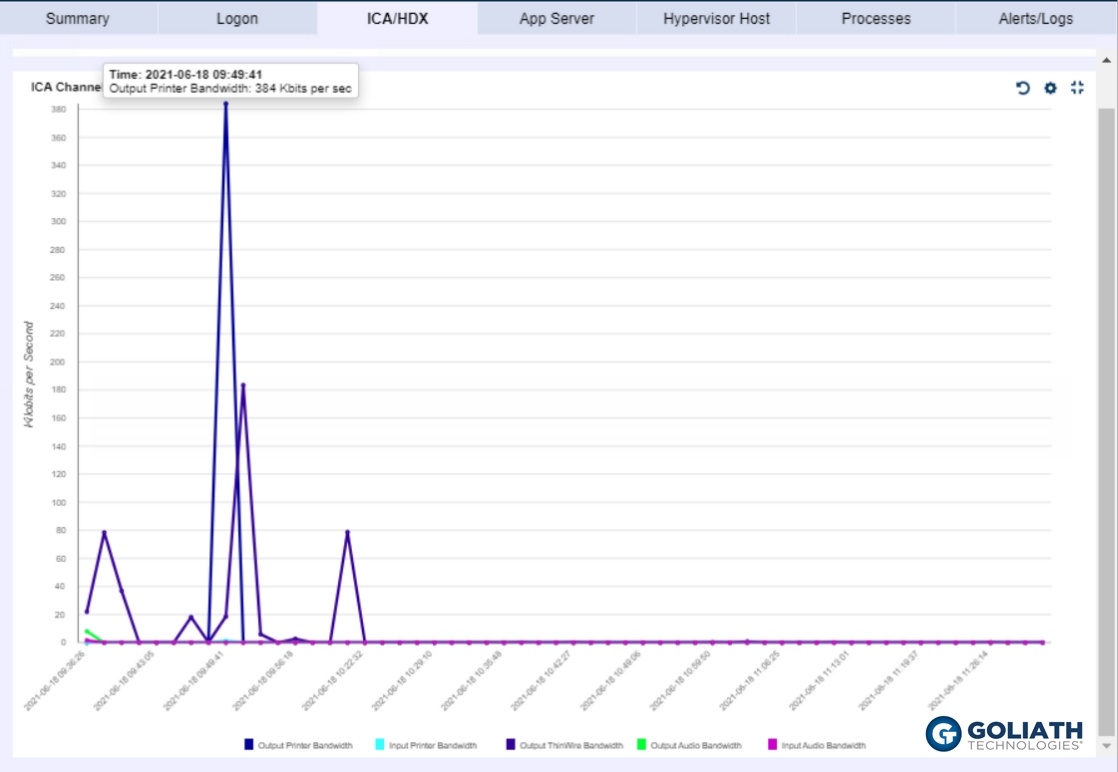
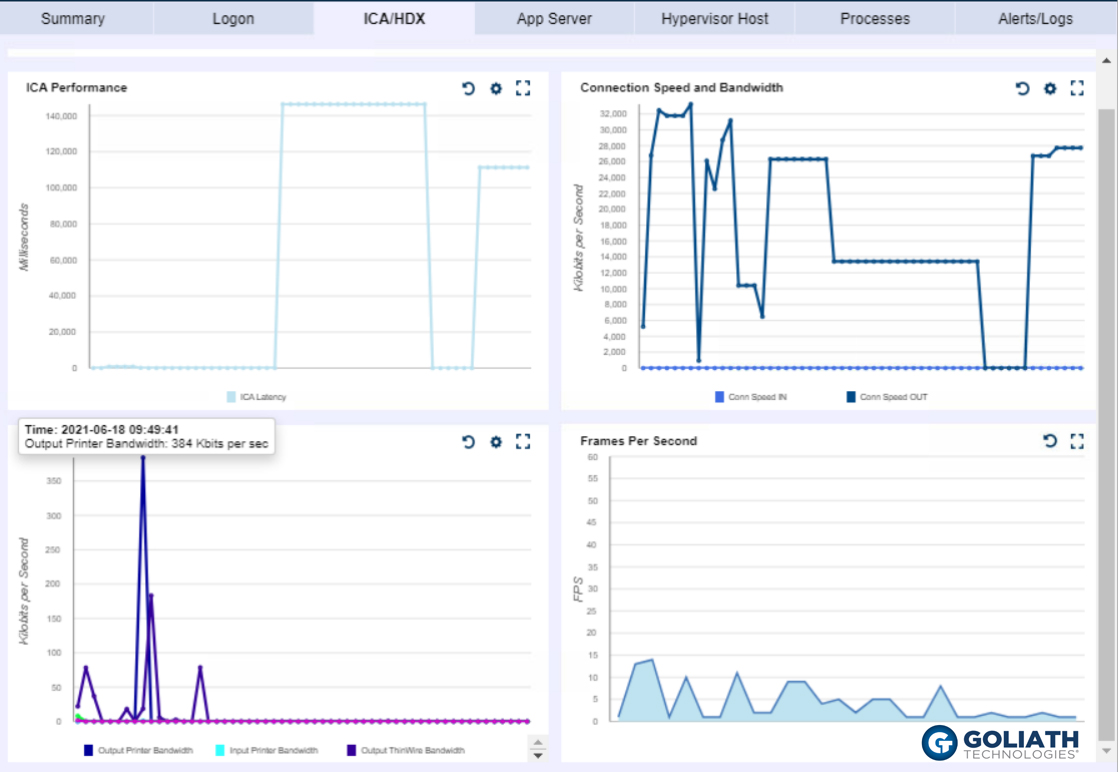
Figure 3 & 4 – The Output Printer Bandwidth (dark blue line in Figure 3, and dark blue in line in bottom left graph of Figure 4) is being heavily utilized, showing that there was a large print job at the same time that there was high latency within the session, which allowed the IT professional to quickly identify it was a printer issue that led to the poor experience.

Also, keep in mind that no print job is the same. Some prints flow through Citrix, whilst others may flow through a healthcare organizations EHR infrastructure. So, knowing the type of print again will shape how you begin to tackle the issue, and where you begin to look. 

If you have the ability through third-party monitoring solutions, track the print job as it flows through your infrastructure. Maybe the job is reaching the print server and spooling, but not arriving at the physical print device, or maybe it’s not spooling, or reaching the print server at all. 

Asides understanding the scope and impact, and understanding the type of print job etc, you will want to check the health of your print servers and components a print job may travel through. Check to make sure there has not been any spooler crashes, typically due to bad drivers, and that print queues are responding to requests. You may even send engineers on-site to investigate the physical elements from the print device itself to the network connection piece. In many cases, a monitoring solution can automate many of these checks, so you can find route cause quicker. 

Summary 

If you support a Virtual Apps and Desktops environment in a healthcare organization, audio quality issues, slow logins, and printing woes are likely something you have come across during your time. 

To be one step ahead in finding root cause, or catch issues before end-users are impacted, you ideally will have a monitoring solution that can monitor your entire infrastructure and has functionality specific for Citrix deployments. 

Without the help of a monitoring solution, you are left with a more manual approach to troubleshooting, which can burn up many more hours than anticipated which isn’t ideal in any industry, not to mention healthcare were patient care could be impacted as a result. 


About Goliath Technologies

Goliath Technologies offers software that is purpose-built for monitoring and troubleshooting end user experience issues, and can more easily correlate and present ICA/HDX virtual channel metrics alongside all other potential metrics that could impact performance.

To learn more on Goliath, email techinfo@goliathtechnologies.com to set up a demo.

Troubleshoot Remote Worker Issues Using Citrix Latency Metrics

Troubleshoot Remote Worker Issues Using Citrix Latency Metrics

Troubleshoot Remote Worker Issues Using Citrix Latency Metrics

Originally posted by Citrix CTP, George Spiers

Citrix latency, the delay before the transfer of data, is one of the critical user experience measurements for many technology solutions, and one of the top, when judging the quality of end user experience on Citrix Virtual Apps and Desktops.

Why is Citrix so slow?

Have you ever received a “Citrix is slow” user complaint? I will expect the answer to be yes. It is very common, even more so for remote workers. The reason Citrix is slow might not be related to high Citrix ICA latency at all, but there is a good chance it is. You see, there are multiple reasons why latency could be high for a user remotely connecting to their Citrix app or desktop using something like Citrix Gateway or full VPN, such as:

      • User is connected to WIFI but the signal/coverage is poor.
      • User is connected to public WIFI which has a bandwidth cap, or contention from other people sharing the same connection.
      • Local device network cards or wireless adapters are running old, outdated drivers, or there could be hardware faults impacting network performance.
      • Packet loss experienced due to old or faulty broadband equipment that needs to be refreshed by the broadband provider.
      • Local device running low on RAM and available CPU, causing lag to ICA session.
      • Local broadband overloaded by other household members streaming videos or playing online games.
      • Overall public internet overloaded due to increase in usage caused by COVID stay-at-home requirements.

To help gauge user experience, Citrix latency is defined by two metrics:

      • ICA RTT – This is Citrix ICA latency and Thinwire latency, aka the time between the user clicking or typing into something on a virtual app or desktop, and the moment that action is graphically displayed to the end user. For example, clicking on a menu drop-down within an application, or typing into an Outlook mail window. This can be more easily known as screen lag. Application performance could increase ICA RTT.
      • Latency – Otherwise known as Citrix ICA latency, this metric captures the bottom-line network latency and ICA stack latency between the client and VDA server. For example, latency between client-side Winstation Driver and VDA Winstation Driver. Think similar to a ping test. System performance could increase ICA RTT and ICA latency.

How does ICA round-trip latency impact the user experience?

When ICA round-trip latency is high, the end user may notice a delay when they click or type within their ICA session. Citrix technologies are quite good at controlling latency and minimizing it where possible with features like Adaptive Display and Adaptive Transport, but there will be times when the latency is too high and the end user experience starts to become impacted. It is at these times when you may get those “Citrix is slow” complaints and have to start some investigations.

Remember that many of your remote workers are accustomed to working from the office, where they receive a low latent connection to their virtual apps and desktops. This results in the end user having a certain expectation for the performance of their session. They know the experience they normally get when working within the office, and they expect the same experience when connected remotely.

Now that we have some metrics from Citrix, we can easily look up the affected user session and immediately understand ICA RTT for that session. However, what do the numbers mean?

Everyone will have their own perception of good and bad latency, and personal opinion mixed with experience will determine what the numbers mean to you. Also, depending on the application and desktop in use, latency may not impact users the same way.

I typically like to categorize the numbers into Great, Good, and Poor. The numbers I use to categorize are estimates, so the categorization is more general. For example, you could adjust the numbers by 30ms either way, but from my own testing and experience I would categorize them as follows:

      • Great: Typically, anything between 20-180ms
      • Good: Typically, anything between 180-240ms
      • Poor: 240ms+

The challenge is finding what causes the latency. Is it the user’s home network, Citrix Gateway, internal network, VDAs, high CPU, etc? If you want to find the root cause, you always need more information rather than only having numbers thrown at you. Unfortunately, most of the time, Citrix’s internal tools, like Citrix Director, will not provide enough information to understand what is causing latency. This is when you need to turn to other products, specifically purpose-built to monitor Citrix. Solutions such as Goliath Performance Monitor can not only show the numbers, but also explain the reasons for them.

Make Citrix Troubleshooting Easy

With Goliath, IT administrators, or even the support desk, can find any existing or historical user session. Now when the admin begins to investigate a ‘Citrix is Slow’ ticket, they can navigate to that user session and quickly identify if that user is experiencing high latency (Image 1).

Image 1: Goliath’s Virtual Apps and Desktops view displays both active and historical user sessions to support Citrix troubleshooting.   

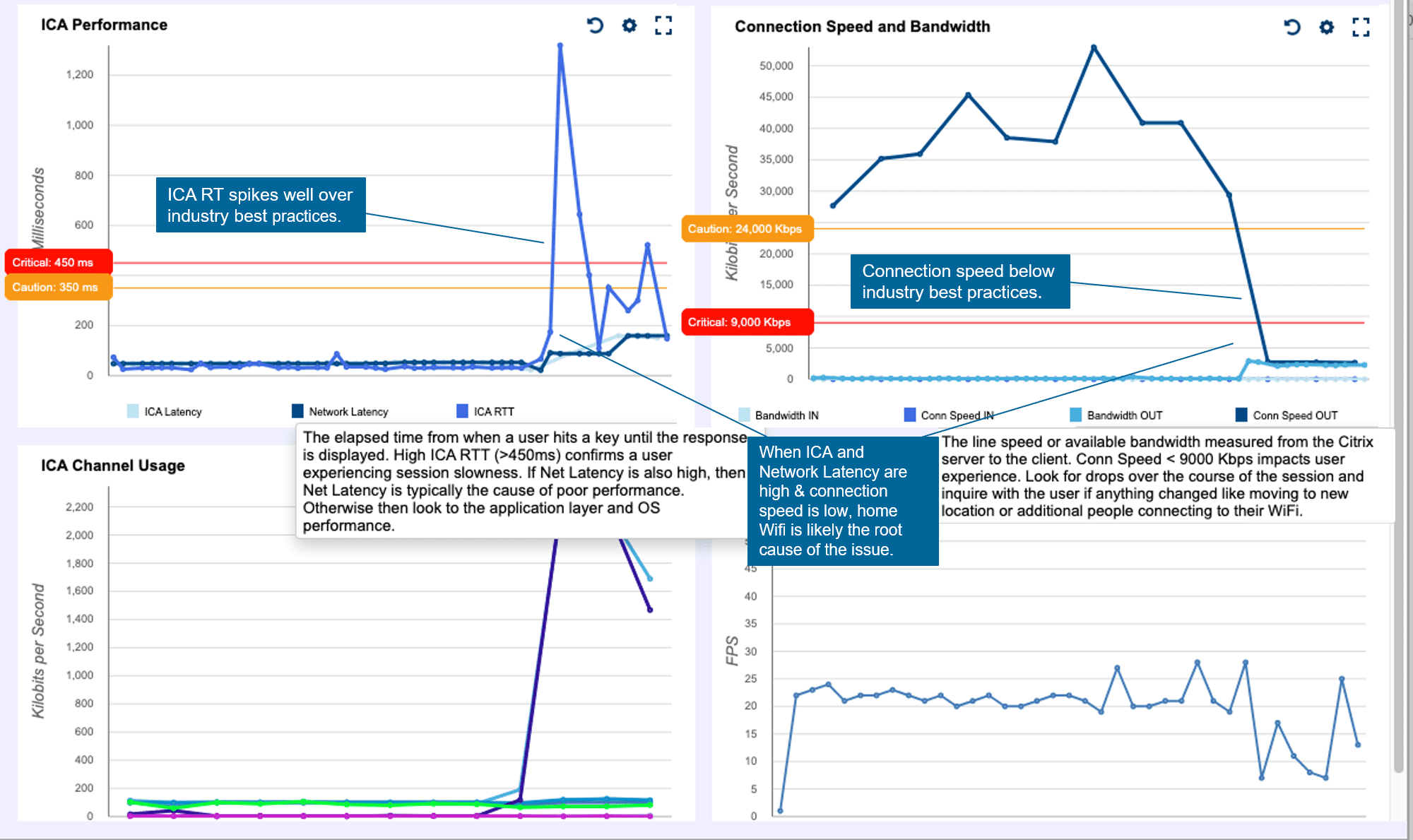
Then by clicking into that user session, you as an IT admin can see every IT element that could impact that end user’s session. From the user’s endpoint, to logon details, to connection and user behavior, to all Citrix and supporting infrastructure components. Knowing the user has high latency, you can click into the ICA/HDX tab. Here you can now see additional correlated metrics you don’t get with Citrix alone, that prove root cause of the slowness. In the example in Image 2, this user has both high latency and network latency above 240ms and in that same period slow connection speed well below 10mb/s. As an admin, you can draw the conclusion and prove to the user the slowness is an issue with the connection point before reaching Citrix Gateway. If all else looks good in the data center, root cause is most likely an issue with the user’s home ISP.

Image 2: Goliath correlates latency metrics from all ICA/HDX channels, enabling IT admins to isolate and prove root cause of remote worker issues quickly. In the use case above, the root cause is somewhere in the connection point to the Citrix Gateway. There is a high likelihood then it is an issue with their home WIFI if everything else looks good in the data center.  

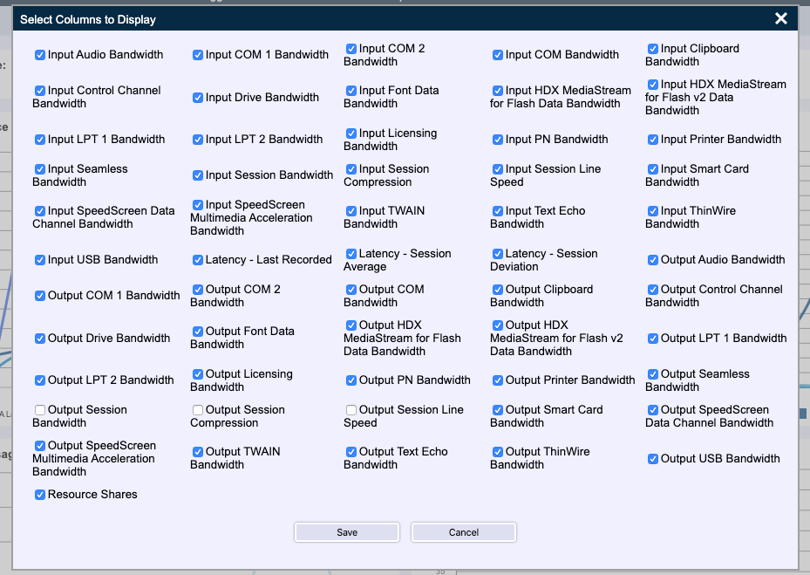
Goliath offers additional insights into a variety of ICA channels that can help IT Pros identify and prove root cause from audio or graphical files consuming too much bandwidth, a large print job stuck in queue, or even if a large clipboard file exists, all potentially negatively impacting user experience. When it comes to troubleshooting remote worker slowness issues, latency is to confirm the issue is present, but as an admin you need additional correlated, metrics to prove root cause and resolve.

See how Penn National Insurance uses key metrics to quickly troubleshoot remote worker issues.

Video: Prove Home WIFI as Root Cause of Citrix Latency

How to Troubleshoot “Citrix is Slow” for Remote Workers

How to Troubleshoot “Citrix is Slow” for Remote Workers

Citrix CTP Blog

How to Troubleshoot “Citrix is Slow” for Remote Workers

Troubleshoot Citrix remote workers

By George Spiers, Citrix CTP

The COVID-19 pandemic has disrupted how every business on the planet works. Remote working has become the new normal, and IT needs to adapt quickly to support this somewhat new way of working.

I say new way of working, but it isn’t actually new at all in the grand scheme of things.

People have been working outside of the office, such as from home or other public places, for many years now. Organizations such as Citrix have provided technologies that have helped with achieving this, and many times in the IT industry we hear how the office is now just another place people can stop by to work from.

However, working remotely may now be for many of us the new normal. While there are organizations that previously had staff working from home one or two days a week, these organizations may now have staff working from home full time or the majority of their working week.

On the other hand, some organizations did not have staff working remotely at all. These organizations have had to adapt quickly because of the pandemic, and that may have been a rushed, painful process especially if the organization did not initially have the correct infrastructure in place to allow effective remote working.

Organizations now have staff working from home all over the country, and staff depending on remote technology could be using either their personal devices, or corporate laptops. To support this shift, Citrix Gateway could be configured within the organization’s private or public cloud to allow for secure remote access to virtual applications and desktops. With Citrix Gateway acting as an ICA proxy, staff may be allowed by the organization to use their personal computers, laptops, or tablets such as an iPad.

Other organizations may use the Citrix Gateway for VPN access, and have staff again use their corporate devices, or personal devices subject to posture checking.

IT loses visibility and control

These technologies such as VPN and ICA proxy are great at allowing efficient remote working, however, there are more external factors introduced with remote working that can impact the end-user experience. We now have staff connecting into our datacenters from a range of different internet connections, from 3G, 4G, Wi-Fi hotspots and broadband. This is something corporate IT can’t control.

Further to this, if staff are likely using their personal devices to connect in, those devices in some instances could be the latest and greatest Windows 10 or Apple devices that are fully patched running the latest versions of web browsers and Citrix Workspace app. This is often only a very small percentage of the userbase though, as most devices will run a mixture of operating systems from Windows 10 to Windows 7, and older macOS versions that have not been updated in 3-4 years. I often find these devices also running unsupported versions of Citrix Receiver that simply haven’t been updated since they were initially installed.

Staff still expect that if they can connect to their virtual apps and desktops, that the performance they receive is similar to what they were used to when working from the office. That is, minimal lag, a responsive application that also launches quickly, and is available whenever they need it.

The rise of multimedia

Audio and video technologies such as Zoom and Teams have become much more popular due to the pandemic and staff working remotely. People need to stay in touch daily, from having meetings regarding ongoing projects or simply keeping in touch to prevent feeling isolated.

Usage of Teams has more than doubled in recent months, with now over 70 million active users using it around the world. Bandwidth consumption can range from 30kbps to over 1Mbps depending on if you are audio calling or in a group video call.

It is important to keep in mind that these multimedia platforms do have the ability to consume more of your available bandwidth, and for those staff members who have lower quality broadband in the home, there could be bandwidth contention with your virtual apps and desktop sessions. I should also mention the fact that if you have other members in your household streaming or playing online games from a range of devices, those activities will further add to the bandwidth contention of your home broadband.

The remote worker, returning to the office

Since the initial months of the pandemic, some restrictions are being lifted across different countries and people are allowed to return back to the office, though often in limited numbers.

Some staff are also returning to the office on a part-time basis, but the change of toolsets has created a potential new problem. All these multimedia applications such as Zoom and Microsoft Teams that were adopted for keeping connected will continue to be used even as staff return to the office. Because of this, what starts to happen is that gradually a much higher demand is placed on the office network. The more people that return, the higher the bandwidth utilization is likely to be, higher than ever before.

Users will still also obviously continue to launch their virtual apps and desktops whilst in the office, but with the much higher bandwidth contention with peers, the ICA channels could be impacted, causing slow application launches, slow in-session performance and so on.
Ultimately, the risk of tickets reaching the desk for “Citrix is slow” problems may be more common.

Pinpointing the slowness

From an IT perspective, Citrix admins need to be able to pinpoint where the slowness is coming from when an end-user reports that “Citrix is slow” from the office or remote. Is it the home network the user is connected from, the user’s personal device, the entire corporate office, or something in the datacenter with the Citrix VDAs?

For example, it could be the end-users home network due to household members using Wi-Fi for streaming and playing video games, leading to bandwidth contention which is impacting the end-users ICA session to their virtual apps and desktops.

On the other hand, it could be that the end-user’s personal device is running poorly. Maybe it is running on quite old hardware, or there has been a lot of third-party software installed on the device which is causing high RAM or CPU utilisation. Such problems can impact the launching and in-session ICA performance, however the end-user may report to the helpdesk that Citrix is slow, not knowing that it is caused by their own device. This leads IT down the wrong path from the beginning.

Also, staff may now be reporting slowness after a return to the office, with the usage of Zoom and Teams still high, because the network infrastructure was not designed for the larger amount of traffic end-users are now pushing through it.

IT needs purpose-built monitoring tools to help pinpoint where the issue lies and to quickly rule out if the issue is not with Citrix at all.

How ICA channel, network, and latency monitoring help

A purpose-built monitoring tool that can monitor each of the individual ICA channels, the end-user’s network, and latency is a powerful solution to have at your disposal. Goliath Performance Monitor, for example, has such ability to monitor each channel and you can be selective about what channel to investigate when troubleshooting.  


Troubleshoot Citrix remote workers

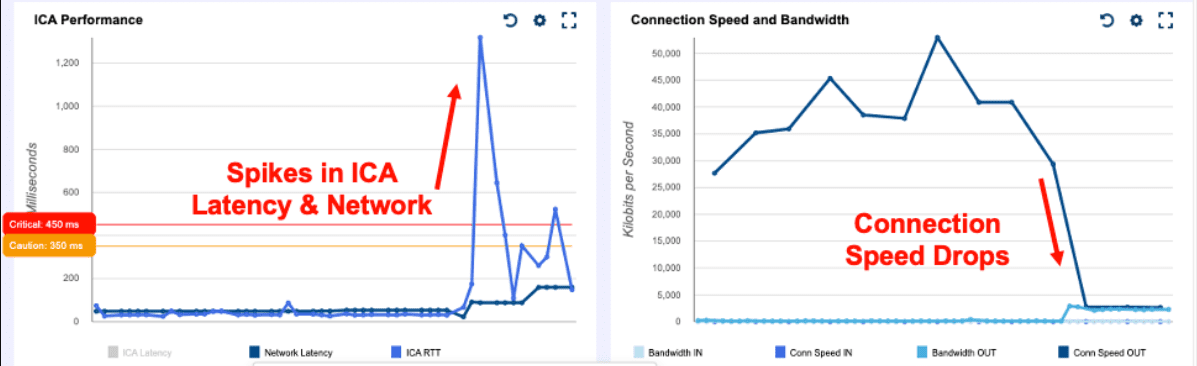
In the below example, an end user reported that their session became slow suddenly and wanted to know what happened. Upon review, we can see that the end user experienced a sudden spike in network latency, which caused the ICA latency to jump up.

At the same time, we were able to see that the user’s connection speed dropped simultaneously, which we can correlate to the sudden spike in network latency. Obviously, something happened on the end-users network at that time to cause a drop, which could have been a burst in demand for available bandwidth or just temporary slowness from any of the hops coming into the organization’s datacenter.


Troubleshoot Citrix remote workers

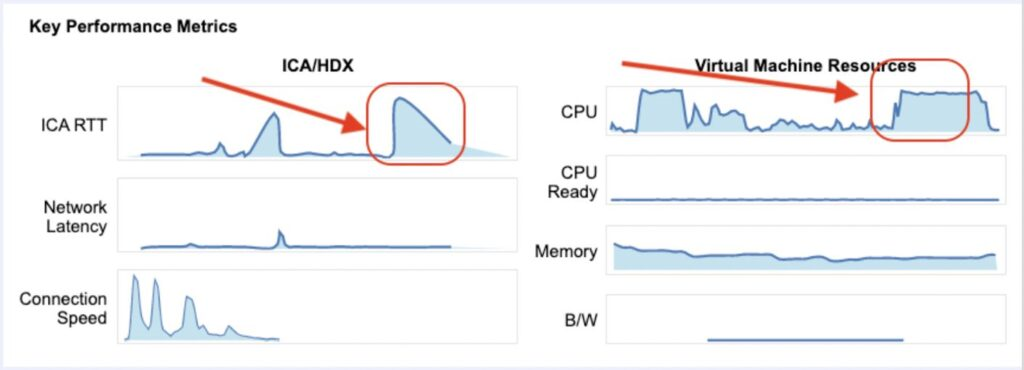
Finally, in this example, an end user similar to the scenario before encountered a sudden spike in ICA RTT latency, but this time it was not actually anything user-side which caused the problem.

Upon comparing the VDA CPU utilization the end user was connected to at the time, we can see the CPU usage increase for a period of time that matches when the ICA RTT latency jumped. This eliminates any doubt over the end-user connection, which can also be tracked under Network Latency and appears to be very stable throughout.


Troubleshoot Citrix remote workers

Summary

Remote working, and higher usage of multimedia solutions are here to stay. What that also means is troubleshooting slow session and end-user experience issues is not going away any time soon.

Luckily, there are solutions out there that can help assist and guide Citrix admins to typical “Citrix is slow” resolutions so that you don’t spend any extra time troubleshooting, especially when you cannot see the full picture for those users remotely connecting from various internet links and from personal devices.

As you can see from these examples, with actual data-driven proof you can quickly isolate root cause, have your users back up and running quicker and spend less time troubleshooting end-user problems.

To learn more about how to troubleshoot “Citrix is Slow” by understanding data from ICA/HDX protocol, check out this Technical Guide to Citrix ICA/HDX sponsored by Goliath Technologies.

This post was originally published on JGSpiers.com.

Chris Hughes

George Spiers

Citrix CTP, Citrix Certified Expert in Virtualization (CCE-V), Citrix Certified Expert in Networking (CCE-N), and  Microsoft Certified Solutions Expert. 

Monitoring of the End-User Experiencey in Healthcare Environments

Monitoring of the End-User Experiencey in Healthcare Environments

Citrix CTP Blog

Intelligent Monitoring of the End-User Experience is Necessary in Healthcare Environments More than Ever

Citrix CTP Blog Banner

Originally post by Theresa Miller at 24×7 IT Connection

Healthcare workers are continuing to find themselves overwhelmed, and the Health IT Professionals that support these workers with technologies that must be online and high performing are equally stressed. There is no time for EHR (Epic, Cerner, Allscripts, MEDITECH) or other system failures. All technology vendors must work in concert to deliver a successful end-user experience. If you work in healthcare and you are an IT professional and you are not proactively monitoring, troubleshooting, and documenting performance issues across ALL applications and IT infrastructure elements (Citrix, VMware, Microsoft, etc.) then you will continue to struggle.  Speed to technology resolution is critical, and lives are impacted if the technology is down, making monitoring and troubleshooting the end-user experience more important than ever.  Let’s look.

Healthcare workers need to focus on the patients, not worry about broken systems

IT Professionals in healthcare; more than ever, need to make sure systems are always online.  A purpose built-monitoring solution is critical to making sure this is possible.  Systems are complex, and there is no time to manually troubleshoot anything. In my experiences within the healthcare space monitoring was always important, but solutions implemented were not efficient and typically time-consuming. A solution that can be implemented quickly to support the surge of remote workers is no longer optional and is needed so healthcare workers can focus on the patient and not tech issues.  Keeping your EHR solution and other applications online, and available from home, should be front and center and ensuring quality outcomes by reducing or eliminating system downtime are more important than ever.

Telehealth – the new normal

If your appointments for routine and general medical follow-up haven’t been rescheduled your medical provider may be scheduling your next appointment to be via Telehealth call instead of in person.  Leading into the COVID-19 outbreak, depending on the healthcare system and provider this may be an appointment approach that you have already tried.  Just this week I received a note from one of my medical providers indicating that all appointments will now be done this way until the COVID-19 concerns are alleviated.  So, soon I will get to experience this firsthand and I suspect this will be true for many going forward.  Consider now how Telehealth will need its infrastructure systems to be online and working 99.9999% of uptime with support for reliable access at home.  There is no room for system downtime, all telehealth services must be up and working; monitoring and troubleshooting the infrastructure both while on-site at a health system and from a healthcare worker’s home office is now critical.

Peace of mind for healthcare workers and IT Professionals

Healthcare workers have one focus that is even more elevated and critical during the COVID-19 pandemic, and that is ensuring the health and well-being of the patient they are treating. A computer system failure can interfere with patient care in so many ways and can be life-threatening.  To reiterate from above – there is no time for EHR (Epic, Cerner, Allscripts, MEDITECH) or other system failures. When an IT Professional deploys the right monitoring tool it enables them to proactively address performance issues before clinicians or patients are impacted. And with the right troubleshooting tools, you can quickly isolate root cause when performance problems do occur – as we know they will. Finally, purpose-built tools will offer historical reports to not only prove when permanent fix solutions have been put in place are working but also to foster collaboration across internal IT teams, management, other vendors and end-users. As more healthcare workers work from home, IT will need analytics to determine if root cause of poor session performance is due to the application, IT infrastructure, or home office environment. Investing in the right monitoring and troubleshoot tools, ensure healthcare providers have the technology they need to do their jobs successfully.

Theresa Miller

Theresa Miller

IT professional working as a technical expert in IT for over 20 years. Theresa is a Citrix CTP, VMware vExpert, Microsoft MVP (Office Servers and Services), Nvidia Advisory Council, and MBA. Her areas of expertise are in the areas of Exchange, Office 365, Active Directory, VMware, Citrix XenApp, and XenDesktop. She is the Founder of 24×7 IT Connection, LLC, a Windows IT Pro Contributing Editor, Pluralsight author, and is an author for TechTarget. You can find her on twitter @24x7itconnect.

Try Goliath For Free

Experience true end user experience monitoring and troubleshooting free for 30 days.

Why Troubleshooting Tools are Important to Any Citrix Upgrade

Why Troubleshooting Tools are Important to Any Citrix Upgrade

Citrix CTP Blog

Why Troubleshooting Tools are Important to Any Citrix Upgrade

George Spiers blog banner

The Extended Support end-date for XenApp 6.5 is just under two months away, so the remaining customers, which I expect to be a fair few, should be on their migration journey to the Flexcast Management Architecture versions of Citrix Virtual Apps and Desktops 7.

We should take a moment to firstly identify the different types of customers and where they are on their Citrix Virtual Apps and Desktops journey. I like to group them in to three categories:

The XenApp 6.5 Customers:

The XenApp 6.5 customers that remain on that version for reasons such as:

1. It just works, and the customer has been reluctant to move to Virtual Apps and Desktops 7 in case it did not perform as well.

2. Missing features available in XenApp 6.5 but not available in Virtual Apps and Desktops 7. Thankfully Citrix has filled the gap in this regard, not to mention the many more features now in Virtual Apps and Desktops 7.

3. Having to retrain staff on the Flexcast Management Architecture is a challenge and has delayed the transition to Virtual Apps and Desktops 7. The components that make up a Virtual Apps and Desktops 7 site do behave different, but many components have not changed a great deal from 6.5.

4. Budget constraints, as to support a new upgrade version, there is normally a requirement to invest in new virtualisation hardware, storage, and software licenses such as for new Operating Systems.

5. Concerns around how IT support can affectively troubleshoot in a Virtual Apps and Desktops 7 environment, as there has been change in the architecture and components.

The 7.x Long Term Service Release (LTSR) Customers:

The 7.x Long Term Service Release customers that remain on such a version for reasons such as:

1. The customer does not have the staff numbers or time to keep upgrading to the latest versions of Virtual Apps and Desktops.

2. The customer does not want to risk the disruptions that an upgrade has the potential to bring, such as new types of faults leaking into the environment, slower performing logons, or a worsened in-session user experience.

3. The customer wants to remain on a stable version and not risk introducing new code to the environment that could be unstable.

4. The customer has no interest in new features at this time, and the current LTSR version offers all that they need.

The 7.x Current Release (CR) Customers:

The Virtual Apps and Desktops 7 Current Release customers remain on such a version for reasons such as:

1. The customer needs the latest features released by Citrix, as it allows the customer to be more competitive in their market.

2. The customer has a well-defined upgrade strategy that minimises user disruption and can be executed easily.

3. The customer has the staff skilled to perform frequent upgrades and they are well equipped with tools such as monitoring products to capture analytics and troubleshoot the environment effectively.


Either way, if a customer is still on XenApp 6.5, LTSR or the Current Release of Virtual Apps and Desktops, at some time sooner or later the environment will need to be upgraded.

Stepping aside from Citrix upgrades and looking outside of the Citrix stack allows us to remember that every other component used to support your application or desktop virtualisation deployment will need to be maintained and not left stagnant. That is, from your bare metal hypervisor hosts, to the network and storage fabrics, Operating Systems, SQL server versions, and the applications that users’ interface with every day.

The problem the IT team and organisation face is that with upgrades to any infrastructure hardware or software component, it can result in a degraded end-user experience, or it could introduce new types of faults into your environment. This is where monitoring software can aid your deployments and help ease those deployment pains.

Investment in purpose-built troubleshooting and monitoring tools helps with deployment pains:

A monitoring solution is just what you need to aid your upgrades from XenApp 6.5 to 7, or from Virtual Apps and Desktops 7 versions to later releases. Here are three key benefits you can gain from having a monitoring solution in place:

Baseline the environment before and after upgrades.

Baselining allows you to compare the performance of your infrastructure when it is working as it should, and then after you complete an upgrade to a newer version of Virtual Apps and Desktops. You can also extend the baselining to hardware refreshes, Operating System upgrades, 3rd party software upgrades and more. This allows you to determine if any change to the environment has had an impact on performance.

Baselines should be focused to include logon times, application launch times, virtual machine resource consumption, and resource consumption against your hypervisors, storage and network.

Monitor both old and future environments from a single pane of glass.

During a Virtual Apps and Desktops upgrade, there is going to be a time where you will have users launching resources from both old and new environments. More typically in an enterprise environment will you stage the upgrade. This allows you to carefully plan and execute your upgrades, without putting too much pressure on your team and causing mass-disruption to end-users.

With a monitoring product that is able to monitor both environments at the same time, you will have the advantage of being able to effectively monitor and troubleshoot both environments from a single console, as let’s face it, the priority of the old environment should not decrease until the last user has been migrated off it.

Troubleshoot any issues that do crop up after the migration quickly, to avoid end-user disappointment.

Your end users are the key to a successful deployment. If your end-users frequently experience issues during or just after the deployment of a new version of Citrix Virtual Apps and Desktops, management may delay

Leverage historical reports to continually monitor and trend use and performance over time.

To anticipate and prevent future issues, it is critical to trend and watch performance over time so that you can foster data driven conversations on how and where you can make future performance improvements and ensure performance degradation does not slowly happen over time.

Goliath Performance Monitor (GPM):

The three key benefits I spoke about can be delivered by a monitoring and troubleshooting solution such as Goliath Performance Monitor, and the Application Availability Monitor products.

Application Availability Monitor (GAAM) is a synthetic application availability tool that can simulate the launching of applications or desktops in your Virtual Apps and Desktops environments, mimicking a real user session launch. Simulations are automatically performed at set times chosen by you, and simulations launch a resource just like an end-user would. This synthetic logon process tests StoreFront logins, authentication, application enumeration, session launch, and more, including capturing the time it takes for each step to complete.

These steps play a direct part in the success of a Virtual Apps and Desktops upgrade. If they are much slower after an upgrade than they previously were, delays to the upgrade may be inevitable as user feedback would be poor and adoption is likely to be low.

Having a tool like GAAM running in your current environment allows you to capture a baseline for many of the workflows an end user goes through every day, and you can compare that baseline with an upgraded version of Citrix Virtual Apps and Desktops. This is further achieved by the historical reporting capabilities of the product.

The results of GAAM are fed into the Goliath Performance Monitor system and can be used for historical reporting as mentioned. This system monitors your Citrix components such as the Delivery Controllers, VDAs, and StoreFront servers. It can also monitor multiple versions, solving the key benefit of monitoring your XenApp 6.5 environment and Virtual Apps and Desktops 7 environment at the same time.

However, it also goes beyond just Citrix. GPM can monitor your hypervisor hosts, the virtual machines that run within them, your storage platform, the networking stack, and end-user specific experiences such as real user logon times, in-session performance and more. This allows you to even benchmark hypervisor performance before and after a hardware refresh, or virtual machine resource consumption after an Operating System upgrade.

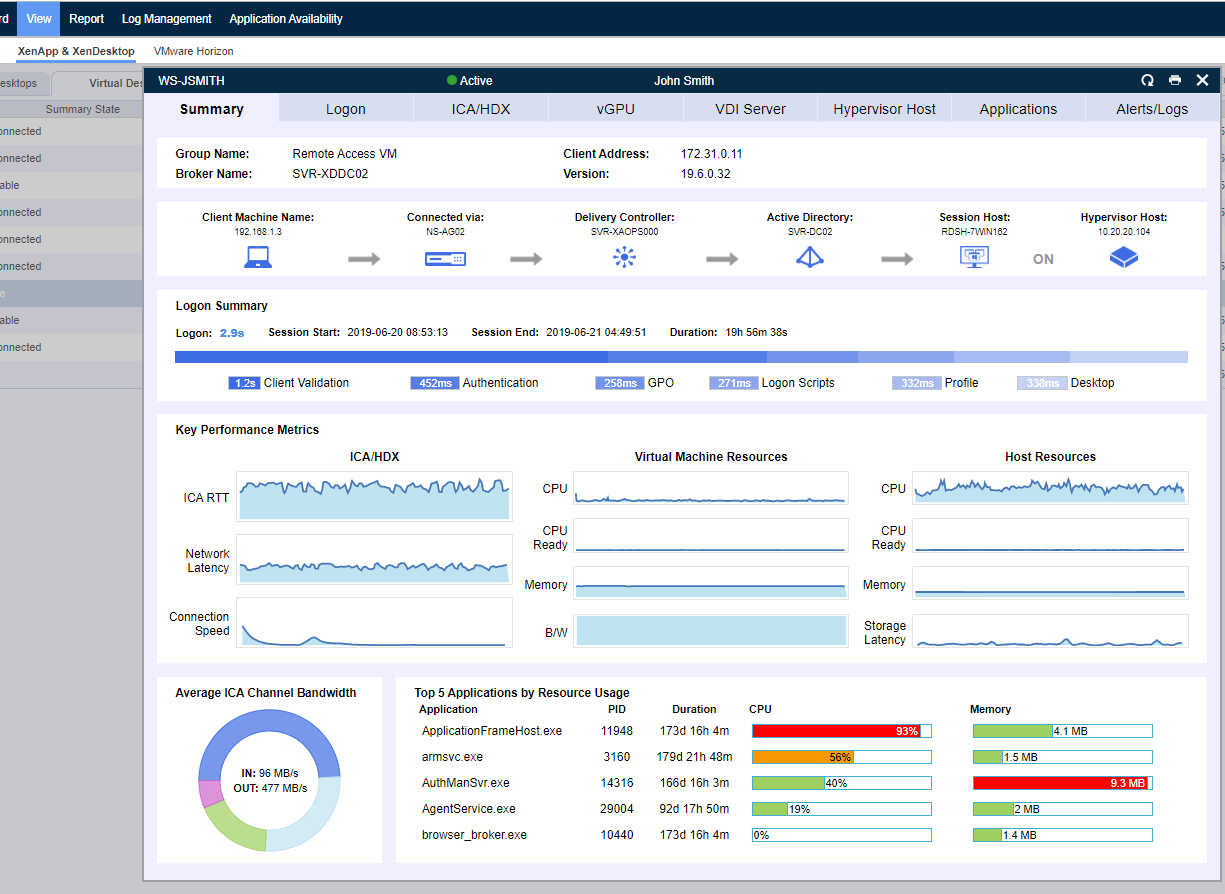
Above is a screenshot of the summary information composing the user experience dashboard that provides information and metrics about the user’s specific published app/desktop or virtual desktop session making it easier to troubleshoot when issues arise.

Going beyond benchmarking for upgrades, the capturing and archiving of all this data can assist with your capacity planning for future upgrades without the need to guess.

Whilst on a normal day the solution keeps check on your infrastructure, the early warning system provided by Goliath Performance Monitor makes sure that you are alerted to problems before an end-user experiences them, or the problems become more widespread within the business affecting multiple users. This delivers the third key benefit of solving issues before an end-user notices and tickets are opened with the helpdesk. There is also the capability of self-healing, allowing problems to automatically be remediated without manual intervention from the IT administrators.

Summary

Software vendors such as Citrix are innovating at a rapid pace, bringing new versions of their products out every quarter. This speed of release means that customers will find themselves upgrading more frequently than they ever did before, which is often warranted to make use of new functionality and stay current, however it does bring a risk to the end-user using the platform you are upgrading that they may not get the same user experience they have become used to expecting. That experience can be calculated by performance or by hard or soft errors encountered.

With a monitoring tool like GPM, you get a wrath of information about a user’s session experience when they are connected to a virtual application or desktop. That information is saved and available for historical reporting.

GPM also provides information about your virtual machine’s performance, the network performance, and hypervisor performance. You can see things like how much CPU is being consumed on a hypervisor host or what process in a virtual desktop is taking up too much memory.

If an IT administrator takes a call from an affected user, direct from the GPM console you can see the client’s IP address, logon time, Citrix Receiver version, what time they connected, their session latency and so much more. Having information like this readily available and at your fingertips empowers the IT service desk and results in support incidents being resolved faster.

All of these capabilities will undoubtably help you during those upgrades that will happen sooner rather than later. They will also continue to help once the upgrade is successful, ensuring that you not only deliver a performing solution from the beginning, but during the full life of the environment.

Whether you’re still in the planning stages or in the middle of a phased roll-out, here is a free migration guide, written for IT professionals by IT professionals that will give you all the technical details you need to ensure a seamless migration and a positive end-user experience.

Chris Hughes

George Spiers

Citrix CTP, Citrix Certified Expert in Virtualization (CCE-V), Citrix Certified Expert in Networking (CCE-N), and Microsoft Certified Solution Expert.