Independent Review: Agentless vs Goliath’s Intelligent Agent

Independent Review: Agentless vs Goliath’s Intelligent Agent

Editor’s note: this post is from Jacob Rutski, a Citrix Engineer and accomplished virtualization expert who holds specialized certifications for technology products from Citrix, VMware, NetApp, Microsoft, and Cisco. You can connect with Jacob on LinkedIn, Twitter, and through his blog, SeriousTek.

The debate over enterprise monitoring solutions that use agentless technology vs those that use agent software has been around for as long as monitoring has existed, and I’m not going to cover it in great detail as there is nothing new.

Agent Monitoring:

  • Able to gather numerous data points, including those not otherwise exposed
  • Communication can be configured and secured
  • Need to install, maintain an agent
  • Additional software can introduce extra load

Agentless Monitoring:

  • No additional software running
  • Easy to deploy – no software to deploy, update, maintain
  • Not as much data is available via SNMP, WMI, SSH
  • Communication through a firewall can be tricky
  • Still need to configure security
  • Service providing the data (SNMP, WMI, SSH) can introduce load to the system
  • Only able to report data

Enough about that.

Let’s talk about a monitoring agent I’ve been working with: the Goliath Intelligent Agent which is a feature in the newly released Goliath Performance Monitor (GPM) version 11.6. The GPM agent has always existed, but this latest release brings some great additional capabilities.

About the Goliath Intelligent Agent:

  • Able to gather numerous data points, including API integration in the underlying Hypervisor and ICA/HDX metrics not exposed in SNMP or WMI
  • It consumes minimal resources: .1% CPU, 60Mb RAM for XenDesktop, 100Mb RAM for XenApp, and 1.5 Mb on disk
  • Centrally managed install/update, no reboot required for either
  • Able to execute remediation actions on XenApp Servers, XenDesktop VDI, Citrix Role Servers, Infrastructure VMs, and endpoints
  • Template/Gold image (PVS/MCS) ready
  • *Able to monitor local or remote devices using agentless technologies (SNMP, Syslog)
  • *Improved scalability by communicating remote agents through ‘master’ agents rather than directly to the GPM server
  • *Specific agent groups can be federated for different purposes – network device agents, hypervisor integration, Windows Server agents
  • *Consolidate agent outbound communication to the central server

*New or enhanced features

Metrics Collected by Goliath’s Intelligent Agent

The Goliath Intelligent Agent is able to collect the following metrics:

Windows resources:

  • CPU, CPU queue length and context switches
  • Memory and paging metrics
  • Disk metrics – queue length, disk latency and IOPS
  • Network metrics including retransmits
  • Event log collection and analysis
  • Service monitoring
  • Application performance analysis
  • Windows Services
  • Custom Scripts like Powershell to collect metrics
  • Custom PerfMon counters

Application resources:

  • Application process performance – CPU and Memory Utilization
  • Application specific faults
  • Application services
  • Log file analysis
  • Custom scripts
  • Network and device metrics via SNMP & Syslog
  • Custom alerting

Nothing like the EdgeSight Agent

I will tell you right now that Goliath’s Intelligent Agent is nothing like the Citrix EdgeSight agent. There is no local Firebird database to house the data; the GPM agent consumes far fewer resources.

GPM offers the best of both worlds – it is also able to monitor devices where installing an agent is not possible; previously, agentless data gathering was initiated from the central server.

The best part?

All of the different roles and features are available from the same agent software that gets deployed, managed and updated from the central store without having to reboot the endpoint.

The new Goliath Performance Monitor Intelligent Agent can act like another GPM server, allowing you to use agentless technologies such as SNMP and Syslog to gather data in a branch office as well as pass data from other installed agents on to the central server – all while giving you the ability to view all of the data in a single, unified dashboard.

Branch Office Scenario

goliath-technologies-master-intelligent-agent

In the diagram above, you will notice that the remote office has infrastructure to be monitored as well as a ‘master’ Intelligent Agent.

This allows you to not only aggregate all monitoring traffic to the central server to come from a single point, but also to monitor all non-agent systems locally to that office without having to cross a WAN or firewall. All of the remote office data is presented in the same dashboard – no more guessing is it ‘http://monitorServer01’ or is it ‘http://monitorServer02’?

The remote intelligent agent also provides the ability to execute remediation actions and scripts ‘from the outside’ of the problem – again, without having to cross a WAN/firewall. Also keep in mind that the metric data is aggregated in real time – any batching or queuing could potentially lead to missing a problem or lost analytics.

Are you ready to consolidate all of your monitoring servers and dashboards into one? Learn more about Goliath’s Intelligent Agent.

About the Author: 

The team members collaborated to bring together this blog post by calling on their past Customer Experiences and Expert Knowledge of Citrix Troubleshooting. Beyond writing technical documents this team supports Goliath Customers and provides product feature and function guidance to development.

Independent Review: Goliath Logon Simulator for Citrix

Independent Review: Goliath Logon Simulator for Citrix

Independent Review: Goliath Logon Simulator for Citrix

Editor’s note: This post is republished on our blog with permission from Wilco van Bragt, CTP, CCEE, CCA & Microsoft MVP on RDS. The original post appears here on Wilco’s blog.

Any system administrator has encountered this situation at least once–arriving to the office in the morning and at the entrance you are already told that users cannot logon to Citrix.

When you are at your desk you quickly identify the issue and solve it as well. However, not everyone is happy about the fact that this was not noticed and solved proactively before users were actually starting with work.

Since you cannot simulate the whole user logon process at the moment, it is difficult to be proactive in this kind of situations. In this article, I will show you how the Goliath Logon Simulator for Citrix can proactively solve this situation.

Goliath’s Logon Simulator is integrated within the Goliath Performance Monitor (GPM) suite, but is also available as a separate product. Using it in combination with GPM offers the biggest added value, as you also have lots of insights about the sessions and the health of the Citrix infrastructure.

Not a Regular Monitoring Tool

Goliath Performance Monitor’s main focus is monitoring the Citrix XenApp/XenDesktop infrastructure and components that are directly related, like the hypervisor and the network. Because of this focus, the product offers more insights into the Citrix components than regular monitoring products.

The Goliath infrastructure (depending if you are using the suite or the stand-alone product) consists of four components: a SQL database, a Goliath server, agent on the Citrix XenApp/XenDesktop servers and the Logon Simulator software.

The Logon Simulator Installation Process

The installation of Goliath Logon Simulator is pretty straight forward. Reminder that .Net Framework 3.5 SP1 currently is required. The SQL database can be the embedded SQL express (recommended for Proof of Concepts), or a local or remote SQL server.

goliath-performance-monitor-set-up

For the Logon Simulator you want to install the agent on the XenDesktop Delivery Controller (or XenApp Data Collector for 6.5 environments) and the RDS/VDA hosts.

To use the Logon Simulator, the Goliath Intelligent Agent is also required, so that is step one for that component. The installation of the Logon Simulator component is currently a manual task.

It would be nice if Goliath can make an installation package for that. However, the installation steps are not difficult at all and are well documented by Goliath. The Logon Simulator has some dependencies, so check the document thoroughly (IE11, Citrix Receiver 4, specific Trusted Site settings).

Configuring the Goliath Back End

Logically for the Logon Simulator, you need to have the Citrix XenDesktop infrastructure within the scope of the Goliath product, so follow the instructions to add a XenDesktop site within the Goliath product. It’s important that a Delivery Controller is configured as the XenDesktop Broker Controller within the software Suite and that the XenDesktop VDAs have a Goliath agent installed.

enable-goliath-logon-simulator-for-citrix

Configuring the Logon Simulator

Now we can start configuring the Logon Simulator. A monitoring rule needs to be created for each machine you would like to run a Logon Simulator on. This can be accomplished by doing the following:

  • Go to the Configure tab and select ‘Monitoring Rules’
  • At the bottom of the rules page, select ‘New’ and then choose ‘Citrix Logon Simulator’
  • This will bring up the pane in which you configure the simulations.

You will need to specify:

  • The URL for NetScaler, StoreFront, Web Interface, that the user would access to launch the desktop or application
  • The user account information for starting the session
  • Which Desktop or Application will be launched
  • Specify the tab/folder path where the Desktop/Application can be found, if applicable.
  • If using Goliath Performance Monitor, it’s also a good idea to configure the Web Logoff field to be at least 120 seconds. This is so the agent can capture additional session metrics.
  • From the server tree, you select which machine the simulations will be executing on. This is the machine that was prepared with the Logon Simulator prerequisites that were mentioned earlier.

In addition, you can specify how often the simulations will run on the Schedule tab. On the Notifications tab, you can specify how you would like to be alerted (e-mail, SMS text, SNMP, Syslog, etc.). I will go into more details about Remediation shortly.

goliath-logon-simulator-monitoring-rules-configuration

For those of you working with the latest Storefront, version 3.0, the Goliath Logon Simulator supports it. What is really cool is that the Logon Simulator automatically detects if the connection is set-up via a NetScaler Gateway, StoreFront or Web Interface.

I even created my own disclaimer in the Web Interface and it was automatically detected. In my opinion, this is a big plus for the Logon Simulator as even a small change in the portal environment does not mean that you need to change anything in the Logon Simulator.

Logon Simulation in Action – The Basics

After the simulation test is scheduled within Goliath Performance Monitor/Logon Simulator, the results are shown from the Logon Simulator tasks. Via a simple green/red line, you check which tests succeeded and which failed.

The real value is clicking the details option, which shows the exact steps executed, and logically, a point that caused the failure.

goliath-logon-simulator-identify-failure-points

To get more insight about what happened in the past with the test, there is also a report available showing all Logon Simulator tests with the same results and details.

We configured Notifications to inform us when a test has failed as well. However, you don’t need to troubleshoot anymore because you already know where the issue is arising by the extensive logging of the Logon Simulator. You can respond directly and carry out tasks to ensure the environment is available again.

The nice thing about combining the Logon Simulator for Citrix with the Goliath Performance Monitor suite is that you can compare the results of the Logon Simulator user with actual users who are logging on to Citrix XenApp and or XenDesktop.

Some good examples are the logon time reports and insights in ICA latency. These insights are especially useful when users are mentioning issues.

Logon Simulation in Action – The Next Step

With the notification functionality, we can respond quickly to incidents where we can solve the issue before end-users experience the same behavior. However, it would be even better if Logon Simulator can already execute tasks.

To make the Logon Simulator for Citrix really proactive, Goliath has options to automatically execute remediation actions. This can be configured in the Remediation tab of the Logon Simulator monitoring rule.

While there are many remediation actions that are out of the box, you can create your own custom remediation actions or have Goliath Care do it for you. For example, one customer is running a Logon Simulator for every XenApp server, and when that server does not respond as expected, the server will be placed in a drain mode.

Useful Insights about ICA Latency, Connection Performance, and Bandwidth Usage

goliath-logon-simulator-ica-latency-bandwidth-reports

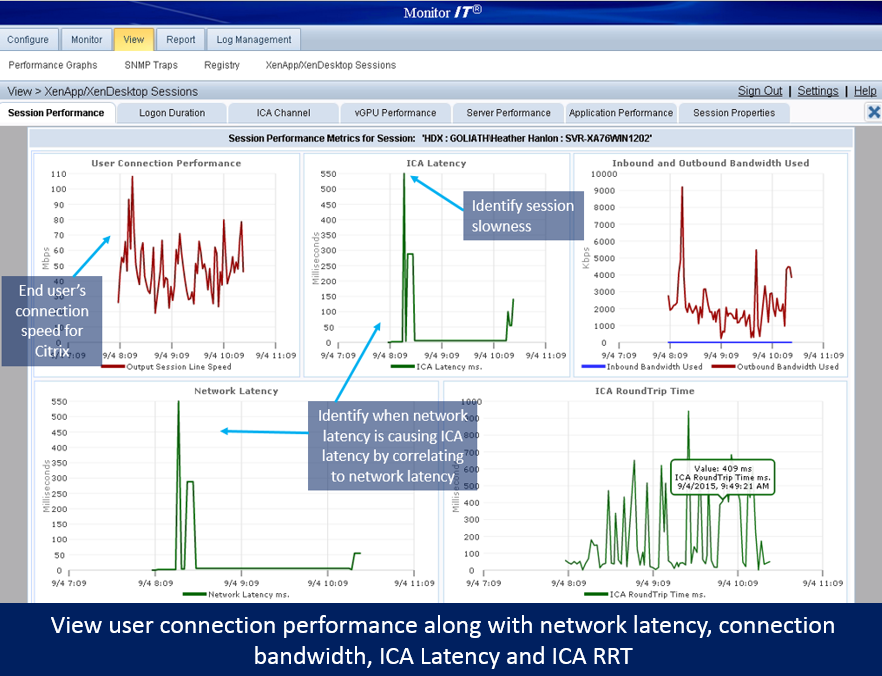
Combining the Logon Simulator together with Goliath Performance Monitor offers lots more than only Logon Simulator. Goliath really focuses on the Citrix client and the Citrix VDA, providing lots of useful insight like Connection Performance, ICA latency, network latency, bandwidth usage, virtual channel usage, and client version.

goliath-logon-simulator-ica-latency-troubleshooting

Conclusion of the Logon Simulator Review

The Goliath Logon Simulator for Citrix XenApp and XenDesktop is an easy to implement solution to ensure that your end-users can logon to the Citrix infrastructure.

It’s powerful because the solution works with any connection methodology without making changes to scripts or something similar. By using the intelligent remediation, the solution is really proactive. It would be nice if the installation and remediation would be more integrated within the product, but Goliath is already working on those enhancements.

The Logon Simulator is definitely an added value for Citrix infrastructures and provides lots of insights between the endpoint and Citrix infrastructure in combination with Goliath’s Performance Suite features.

To try the Logon Simulator in your own environment, download a fully supported 30-day free trial or request a personal demo. Also, you can see the Goliath Logon Simulator live in action during a free webinar on December 2nd, How to Proactively Prevent Citrix Logon Issues & Improve the Citrix End User Experience.

Independent Review: Proactively Manage VMware with Goliath

Independent Review: Proactively Manage VMware with Goliath

Independent Review: Proactively Manage VMware with Goliath Technologies

Editor’s note: this review is from Bilal Hashmi, an accomplished and respected VMware vExpert. Bilal also holds specialized certifications like ISA, MSCITP-SA and VCP-3/4/5. You can connect with Bilal on Twitter.

This unique monitoring solution allows you to be proactive in the management of VMware vSphere infrastructure while at the same time simplifying operations. In this review I will talk about how you can leverage the functionality and unique architecture to accomplish this dual purpose.

Just recently, I had the pleasure to work with the good folks at Goliath Technologies and review their solution, Goliath Performance Monitor (GPM).

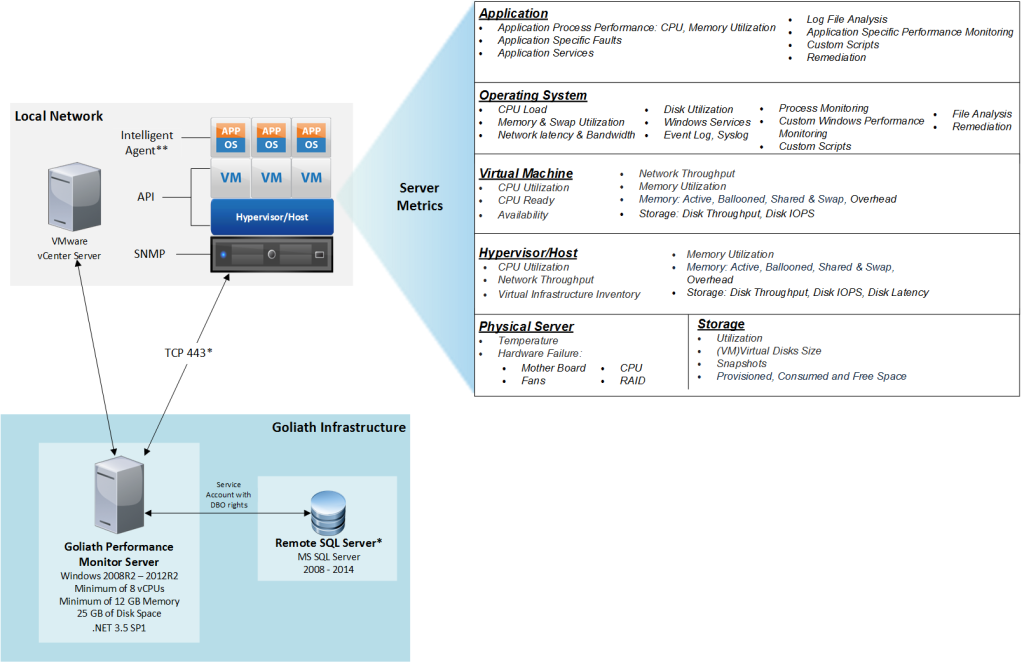
My first impressions of GPM were pretty positive. If you’re unfamiliar with GPM, for VMware vSphere it’s a single solution for providing monitoring across the 5 layers of the virtual stack including Application, OS, VM,Hypervisor and Hardware. So it’s a single pane of glass to monitor your entire stack. The version of GPM I am reviewing is 11.6.0.6.

The GPM Installation Process – Up & Running within Minutes

Goliath does an excellent job in creating an installation guide for the tool so I won’t go into detail about that. I just glanced over it and my deployment may have taken about 30 minutes or so.

Within minutes, I was playing with the monitoring tool’s consoles. One thing I would like to point out from the installation guide is the pre-requisites. You will need a VM or Physical Machine with the following settings:

  • Windows Server 2008 R2 – 2012 R2
  • At least 8 vCPUs and 12GB RAM (these are soft limits but probably a good idea to follow these when deploying in production)
  • .NET 3.5 SP1 installed on the Virtual Server or Physical Machine
  • Internet Explorer Enhanced Security disabled
  • TCP ports 80 & 82 opened inbound
  • Download the Goliath Performance Monitor software
  • Proper credentials for the environments you would like to add to inventory (vCenter, XenServer, ZDC, DDC, etc.)

Goliath Performance Monitor vs vCOPs/vRealize Operations

Why XenServer credentials? Unlike some other popular tools in the space like vCOPs/vRealize Operations, GPM supports VMware vSphere and also XenServer, Hyper-V along with XenDesktop, XenApp and Horizon View.

So remember what I said about simplifying IT operations? You can use Goliath’s product to monitor VMware vSphere and everything else too. Not to mention you don’t have to fall prey to licensing that limits your functionality. Basically, you get full functionality with Performance Monitor on the base product, unlike some of its direct and indirect competitors.

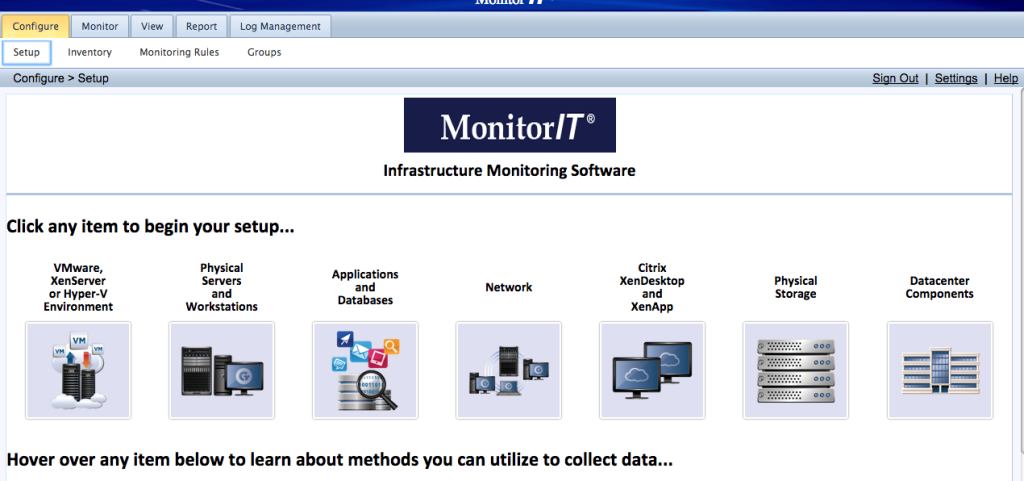
As soon as the installation was complete, I pointed my browser to the IP address of the server the tool was installed on and this is where I landed.

From here on, it was pretty straight forward. I selected the first obvious choice, provided credentials for vCenter, and within seconds my whole lab was presented before me.

About GPMs vCenter Plugin & Impressive “Intelligent Agent”

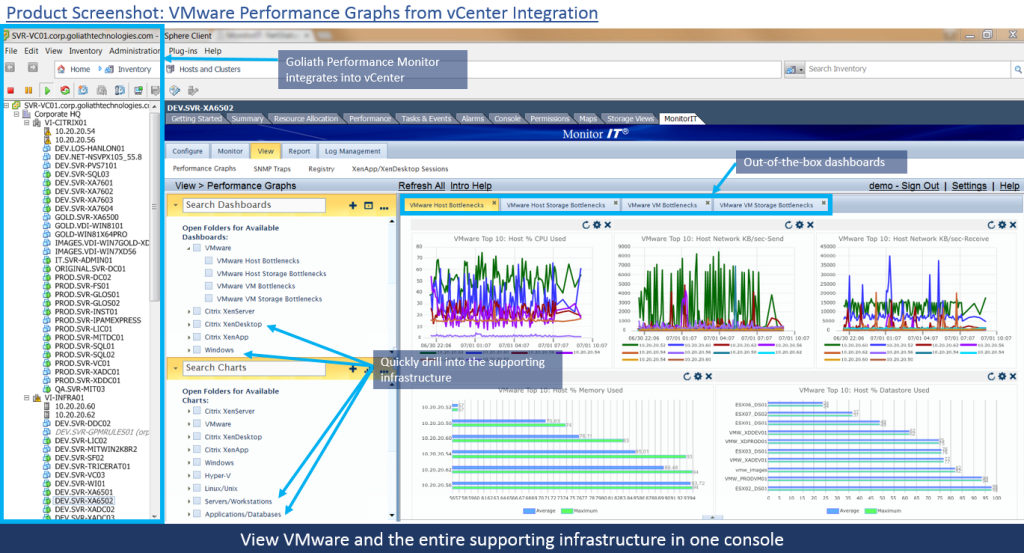
The tool has a vCenter plugin that provides a single dashboard to monitor both physical and virtual infrastructure in vCenter. If you are not a VMware only shop, you will be happy to know that GPM has API integration with both ESXi and XenServer that captures key metrics about the host, virtual machines and storage agentlessly.

So what exactly does the agent do?

First of all, this is by far the most impressive agent deployment process I have witnessed. They call it the “Intelligent Agent” and I think for good reason.

It literally takes seconds for the Intelligent Agent to be deployed and communicating back to the mother ship. It is able to capture deep diagnostic metrics with little resource utilization, typically less than 0.1% of CPU & Memory utilization, and a 1.5 MB footprint.

GPM Can Monitor any Application

Once I deployed the agent on one of my windows machines, I started seeing this tool’s true potential apart from being hardware/hypervisor agnostic. You can literally tune it to monitor any application.

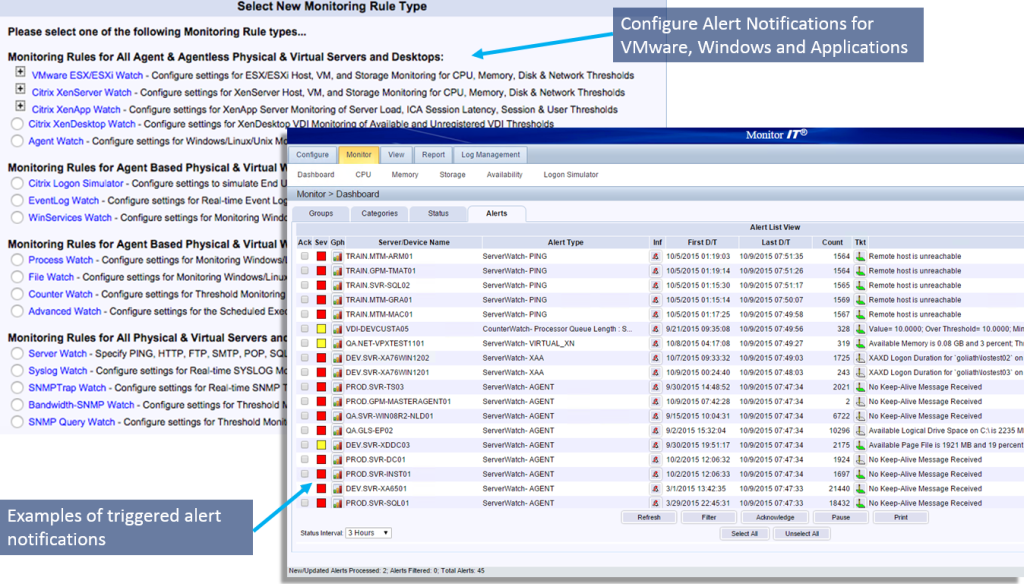
Take a look at the types of monitoring rules and alerts that can be set and think of your current gaps in monitoring. This is what I gathered; as long as the individual understands what the application does, Goliath Performance Monitor can monitor it effectively.

Needless to say, the agent provides a new level of monitoring that enables you to monitor services that are critical to your business, not just VMs and OSs, etc. And yes, it can be deployed from within the console as long as proper credentials are provided. The agent can get deployed on both Windows and *nix machines.

Some of the metrics that are captured are detailed and useful. The key is that they use both agentless (API) and agent based approaches to get all of the below metrics in one product. Also, each agent has log management capability built in for troubleshooting.

GPMs Metrics Will Help You Keep Your Sanity

This is the 5 layers of visibility:

Those are some critical metrics to monitor your infrastructure which will eventually help you keep your sanity. But what makes these even more valuable is the way they are reported.

Not only does it give you a detailed view of what’s happening with your environment at the moment, you can also get some real-time trending on the data and historically go back as far as you wish, or at least to the point where data began to be collected.

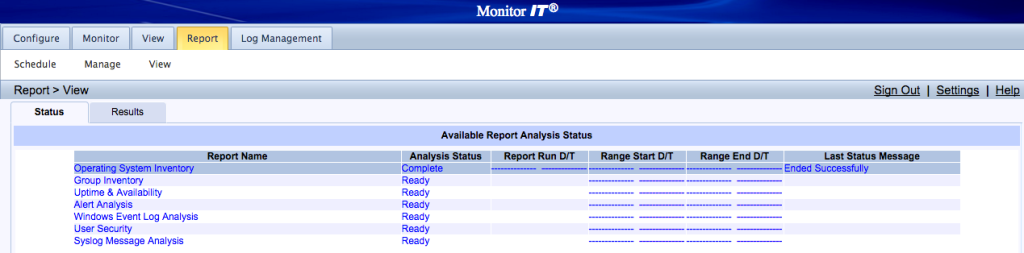
All the hypervisor metrics mentioned above can be retrieved in similar fashion. Apart from that, there are some canned reports that come with the solution and there is the option of creating more.

But it’s information like this across multiple aspects of your infrastructure that makes this tool stand out. You are able to run these types of reports for your entire stack.

If you have multiple sites or hybrid clouds in play, you will love the “Master Agent” functionality. I think this is the part that I really liked due to its simplicity.

GPM makes it Easy to Monitor & Manage Remote Sites

The Goliath Performance Monitor Intelligent Agents make it easy to proactively monitor and manage customer sites remotely. Any agent can be designated as a “Master Agent” at a remote site, behind a ­firewall, and con­figured to proactively reach out to the central Goliath Performance Monitor server if a condition is met and trigger an alert.

There is no need to deploy a separate server or proxy at a remote location. Note: Intelligent Agents are less than 0.1% CPU/ 30 MB Memory, click to deploy and easy to use. So basically the agent we talked about earlier is all that is needed to make one of the boxes at any of the remote sites serve as the proxy for communicating with the GPM server.

Obviously because of its tiny footprint, performance should not be a big concern. But what if this remote server goes down? Well I would imagine GPM would trigger an alert as soon as that happens.

Also, there are notification capabilities that will allow you to integrate these alerts with most ticketing solutions. These are configurable at the alert level so each alert can follow a different notification method if need be.

A Few Areas of Needed Improvement

With all its greatness, the solution does have some areas of improvement. The Goliath team was very interested in hearing my feedback on this. They were keen to know how to make this tool even better.

In all honesty, I have been pretty impressed with what GPM offers. However, its GUI can use a little help. The navigation is not the most straightforward like many other monitoring tools. But it does solve an extremely complex problem; allowing you to monitor your entire infrastructure through a single pane of glass, the ultimate fantasy for most people in IT.

The Goliath team was very receptive about my comment on how I keep forgetting how I got to a certain screen because of the confusing navigation. They quickly acknowledged that and pointed out they are currently working on revamping their GUI to address those issues and will continue to come back to the community for further enhancements to the product. Look for my blog post later on the new UI when it is released.

The Verdict about Goliath Performance Monitor

In conclusion, I think Goliath Performance Monitor is a true winner. I can’t seem to pinpoint a tool that does everything it does. There are tools that compete with it in certain areas obviously, but I am not sure if there is any that delivers everything it does, the way it does.

It should appeal to businesses of all sizes. The support I got from the Goliath team in getting me familiar with the tool was phenomenal. If their actual support team has the same attitude, then you cannot go wrong with making an investment in them.

Speaking of investments, here is a link that will give you an idea on how much it will cost you to run this tool in your environment. But before you do that, I suggest you download a fully supported 30-day free trial of GPM and let the technology do the talking.

Independent Review: New Citrix EUE Monitoring in Goliath 11.6

Independent Review: New Citrix EUE Monitoring in Goliath 11.6

Independent Review: New Citrix EUE Monitoring in Goliath 11.6


As a working Citrix Engineer, my top priority is delivering a good End User Experience. I am always looking for tools that will help me be proactive, meaning get ahead of end user complaints, so I can fix issues before they impact my users.

I was able to take an early look at the new Goliath Performance Monitor (GPM) version 11.6 from Goliath Technologies. This software has some of the best new features I have seen to help engineers and admins proactively monitor and manage the end user experience because it delivers three key benefits:

  • Real-time Alerts: GPM 11.6 alerts you in real time if performance thresholds are breached so you can resolve potential issues before they happen;
  • Troubleshoot Root Cause: to help you get objective evidence of the root cause of performance issues, GPM 11.6 gets the data you need to pinpoint the root cause to troubleshoot and remediate, and then report on it after the fact;
  • Ease of Use: all of the features and functionality you get with GPM 11.6 are out-of-the-box. There is literally almost no configuration you need to do, which is something I have never seen in an IT performance monitoring product.

While this post doesn’t cover all the new features, I do delve into the 6 I think are the most compelling for a Citrix Engineer like myself.

1. Unified Dashboard

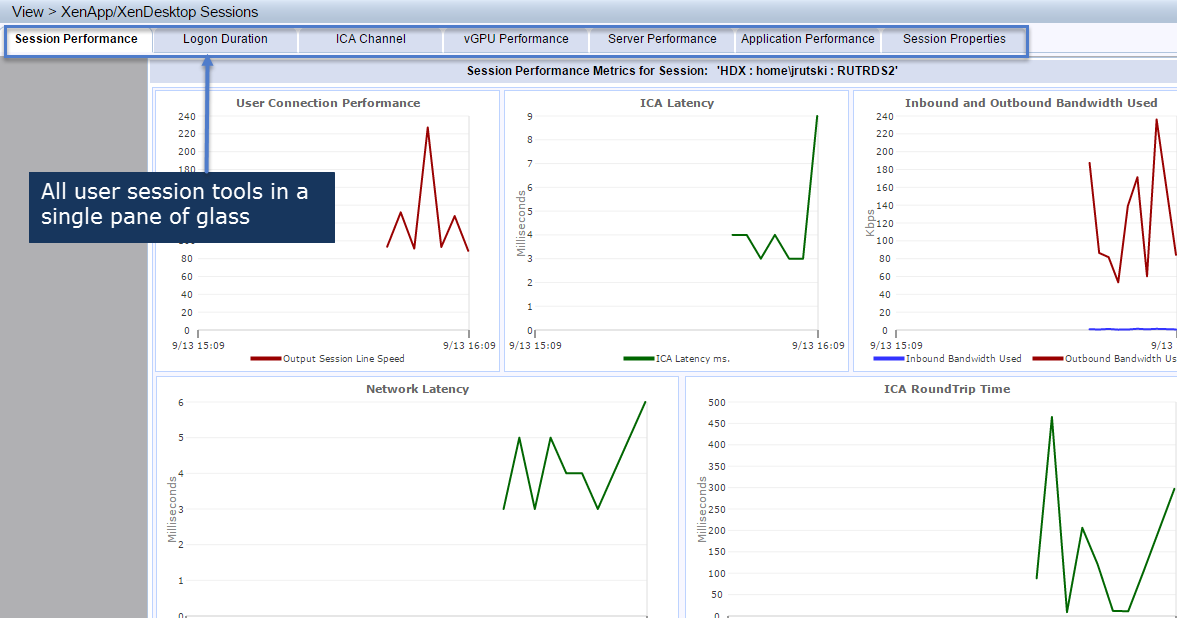
Today’s system administrators have to look at numerous applications and tools to gather information: a network monitoring tool, a hypervisor console, windows performance monitor and likely several other 3rd party tools or scripts. This begs the question “When an issue is reported, where do you start?”

Below you can see Goliath Performance Monitor brings you all of this end user session data in a single dashboard.


2. End User Experience Monitoring and Management

Anyone that has used Citrix XenApp/XenDesktop knows about End User Experience; there is even a Windows Service named “Citrix End User Experience Monitor” (EUEM). Moving a user’s desktop into the data center shifts the burden of end user experience away from the local desktop hardware and onto the server infrastructure. That means it is now the responsibility of the server administrators to provide an excellent end user experience.

In today’s world of extra processing power and super-fast solid state hard drives at ever lower prices, end users expect the same superb performance at work that they have on their home systems. Logon times in excess of one minute are no longer acceptable and any sluggish performance is noticed by the end user. Mouse click delays and profile loading time are simply not acceptable.

When an end user problem is reported, the administrator needs to have the right tool to determine exactly what caused the problem and which component in a complex environment to remediate. Goliath Performance Monitor breaks down the logon process into numerous unique events that show exactly what is occurring when the user logs on to the system. Metrics such as ICA RTT and bandwidth, network latency and frames per second have a direct correlation to the user’s experience – these are all captured by GPM.

3. Real Time Logon Performance Metrics

With the added logon performance metrics gathered in Goliath Performance Monitor 11.6, this monitoring product is uniquely positioned to not only fill the monitoring and alerting gaps left in stock XenApp/XenDesktop 7 implementations, but also to completely replace Citrix EdgeSight – without losing any End User Experience Monitoring (EUEM) data or core functionality. Citrix EdgeSight was a great product especially when it came to EUEM data, monitoring Citrix sessions and troubleshooting user logons and overall experience issues.

Not only has EdgeSight been discontinued, it also had numerous gaps in understanding and presenting the performance of the underlying virtual infrastructure. Citrix Director does not even come close to providing the HDX-specific data that EdgeSight did, nor does it provide any of the missing functionality that EdgeSight lacked.

Goliath Performance Monitor 11.6 is unique in that it has full ‘ICA/HDX specific’ capabilities out-of-the-box as well as being able to gather performance metrics on the hypervisor, compute, and shared storage platforms that underpin most of today’s enterprise private cloud environments. This visibility into both the Citrix session and the infrastructure supporting the session allows engineers and administrators easily track down end user experience issues.

Below is a screen shot of the very detailed logon performance metrics breakdown. Note that this is out-of-the-box, so no set up or configuration, and it is in real time due to the API development Goliath has done with Citrix XenApp and XenDesktop.

4. End User Experience Reporting

In addition to the real time EUEM data gathered by GPM 11.6, the data has also been made available to the reporting engine. The following reports are available out of the box – no custom reports required:

XenApp (XA), XenDesktop (XD)

  • XA/XD Client Report
  • XA/XD End User Activity Report
  • XenApp End User Experience Report
  • XA/XD ICA Latency Report
  • XA/XD Server Health Report
  • XenDesktop Peak Usage Report
  • XA/XD Session Activity Report
  • XA/XD Session Logon Duration Report
  • XA 4.5-6.5 End-to-End Connection Report
  • XA 7.5-7.6 End-to-End Connection Report

Below are a few that I found most useful- Citrix XenApp Session Report and the XenApp ICA Latency Report.

5. Additional Windows Performance Counters

As virtual infrastructures become more complex and harder to troubleshoot, engineers and administrators are being asked to understand more and provide an even better user experience. This task becomes more difficult as layers of virtualization, shared networking, shared storage, and compute are added on. Goliath Performance Monitor 11.6 (GPM) gathers performance metrics at every layer of the stack – including the lowest: the guest operating system.

Monitoring tools that only monitor at the hypervisor level may provide some decent ‘what’s going on right now’ metrics, but they lack the ability to look at what the guest OS is doing. By gathering specific Windows performance counters, GPM is able to display and alert on the resources that lead to performance issues – effectively looking into the future of a performance bottleneck and proactively alerting before it becomes a larger problem.

Below you can see performance dashboard. These performance counters are enabled by default with GPM and integrated into the existing performance dashboard allowing administrators to get a firsthand look at issues before they happen.

As you can see, the new features in GPM 11.6 make this product a great tool for troubleshooting not only logon slowness but also overall Citrix session performance. A unified troubleshooting interface and numerous session reports right out of the box without custom code or 3rd party plugins makes Goliath Performance Monitor your one-stop-shop for all your monitoring and troubleshooting needs for Citrix and End user experience.

Do you think Goliath can add value to your organization? Reach out.
Email us at  techinfo@goliathtechnologies.com or schedule a demo, consultation or free trial.

Independent Review: The Goliath Logon Simulator, Rob Beekmans

Independent Review: The Goliath Logon Simulator, Rob Beekmans

This independent review of the Goliath Logon Simulator is republished on our blog with permission from Rob Beekmans, vExpert, CCEE, CCIA, VCP5, VCP5-DT, VCAP-DTD, MCSA2012. The original post appears on Rob’s blog, EUC, UEM, Mobility, Monitoring and Security.

In my line of work, I come across a lot of products that offer similar features or come close to each other. To make sure I know the differences between the good, the bad and the ugly, I test all of them.

In my home lab, I setup a product and do a functional test. In that test, I try to look for similarities with other products and features that are exceptional. As I work for PQR, the products we sell is not in my hands. I can advise in favor or against but nothing more than that. Still, I think for any consultant, it is valuable to know the competitors’ products and have a basic understanding of them.

The same goes for the product that I’m currently testing, Goliath Logon Simulator for Citrix. There are other logon simulators and products which offer similar features. I also wanted to see what Goliath is offering because they are a company whose name I hear more and more, so I added them to my bucket list.

This post will show you how to setup the Goliath Logon Simulator for Citrix and what it does. You will see the results you get from the simulation, and in which scenarios it would benefit. Last but not least, to show the value of the product I will shed light on aspects like licensing and scalability.

An Intro to Goliath Technologies

Goliath Technologies is an US company based in Philadelphia, Pennsylvania with two development centers in other locations in the US. With over 400 clients, they are an ever growing company and their business is all about being proactive.

Enough about the company, let’s take a look at the software they make. If you look at their software catalog you see the following list:

  • Goliath Performance Monitor for Citrix XenApp/XenDesktop, VMware Horizon view
  • Goliath Performance Monitor for vSphere, Hyper-V and XenServer
  • Goliath for NetScaler
  • Goliath End User Experience Monitoring and Management
  • Goliath Logon Simulator for Citrix

It’s quite a list and I can’t handle it all at once, so I’ll start off with the newest software, the Goliath Logon Simulator for Citrix XenApp and XenDesktop.

The Goliath Logon Simulator for Citrix

There are many products that provide a logon simulator for Citrix, so what is a logon simulator? With a logon simulator you logon with a real user on a real Citrix server and therefore get real results on what the performance looks like.

Logon Simulator Components

For a logon simulator to work properly you need to setup some components. Goliath’s Logon Simulator uses the following components to do the job:

  • Management server
  • Agent
  • Database
  • Client to start the session from

Of course a working Citrix environment is a nice to have if you want to do some testing (it’s a must have of course). My lab is setup with a working Citrix environment. It uses one server as the Controller, Storefront and license server and one server as the XenApp server.

The Goliath server is the Management server and is also the server from where the tests are run. I try to keep my lab small so I can run many products at once; no need for performance, functionality is king to me.

The Setup

Setup of the Logon Simulator is done with assistance of Goliath. In a GoToMeeting or WebEx session they walk you through the setup and familiarize you with the product. I have to say they are great people to talk to and you learn while installing and configuring.

  • When you set it up you need to take care of a couple of things:
  • UAC has to be disabled. If it is not disabled you won’t get it to work
  • The user account you test with should be Administrator to run the agent
  • A demo user account with access to the application or desktop
  • The Management server needs pretty steep hardware, 4vCPUs and 8GB RAM
  • Internet Explorer 11 or newer on the system will execute the Citrix session
  • There are more small requirements, like .Net 3.51 SP1, but that is minor
  • There are some other setup things to do but not worth to mention, just tuning to make sure your users logs on fine and logs off even better
  • After you install the agent on the server(s) you are ready to setup a test

Scenarios

There are two possible scenarios to setup with Goliath’s Logon Simulator:

  1. Testing the Citrix Delivery infrastructure
  2. End user troubleshooting

The second scenario is used when you deploy the agent to a user’s home computer and see where the issue is. You would get data where the logon is not working fine. We won’t look into that scenario here right now, we will begin with scenario one. We’ll get back to the second scenario later on.

Scenario1: Setting up the logon simulation

Start the MonitorIT website with the icon on the desktop of the management server. The main screen will start.

Goliath-MonitorIT-Rob-Beekmans-Logon-Simulator-Review

Goliath’s MonitorIT is a tool that allows you to add monitoring rules to test numerous things. When you open monitoring rules you see a vast list of rules that are available. If you can’t find the rule you are looking for (which is hard to imagine) you can create one yourself.

With the help of the team from Goliath, I created a rule called Citrix Logon Simulator test Launch of Desktop to test my Citrix environment.

Logon-Simulator-Test-Launch-Rob-Beekmans-Logon-Simulator-Review

When you create a new rule you have a couple of options, and the screen that pops up is shown here. In addition to testing a Citrix logon you could periodically test if a service is still running or watch a file or something similar.

There are many more options for monitoring a specific thing rather than building and end to end solution. All these options are nice to have extras that come with the product when you run the Logon Simulator. I did not test these because the logon simulations was priority.

Goliath-Monitoring-Rules-Rob-Beekmans-Logon-Simulator-Review

If you click on the item Citrix XenApp Watch you see drill down and monitoring options that are Citrix specific. In addition to running a periodic logon simulation, you might be interested in doing some other tests on your Citrix environment like watching the load on the server or keeping an eye on the latency. Again, nice options to have that come with the package, but probably will cost you a few extra licenses.

Goliath-Monitoring-Rules-Type-Rob-Beekmans-Logon-Simulator-Review

In the rule we just created, there are a few items to be configured:

The Site URL is the website user’s type into the browser to access the Citrix environment.

The Authentication User Name is a demo user that you use to access the resources. I didn’t configure storefront yet so the domain name is needed in front of the username, but in a production environment you wouldn’t need this.

App & Title Names is the name of where the resource is found on the website, so if you configured tabs with applications and desktops this is where you configure how Goliath sees the resource.

Script name, the script name is a default script to test the logon.

Goliath-Monitoring-Rules-Parameters-Rob-Beekmans-Logon-Simulator-Review

Make sure you select one server where the session is started from. I selected the management server because that was easiest in my lab. In a real time environment you would have a couple of virtual machines that are dedicated to test the Citrix environment.

If you have multiple locations and you want to test access from those locations it might be a good idea to start a session from there periodically. If you want good data and proactive signals that there might be an issue you would need to attend to, you would schedule the simulation to run periodically as best fits your organization.

Goliath-Monitoring-Rules-Properties-Rob-Beekmans-Logon-Simulator-Review

If you want the notification to be sent out by email, SNMP or log to a Syslog server you can set this up on the notification tab. You can integrate the Logon Simulator with any other monitoring tool and combine the results with an end-to-end monitoring solution.

On the schedule tab you can select when and how often the job is run. I selected every 1 hour so I had time to look around in the console after each run. There are many options to be configured and depending on your setup or needs you would configure them accordingly.

There is also the remediation option that gives you the option to start a remediation action if an error occurs. You need to think this through and configure it for your needs, it’s just a five-step-click to get it up, but it will take some testing and tuning to make it yours.

Goliath-Monitoring-Remediation-Rules-Rob-Beekmans-Logon-Simulator-Review

After you set it all up you sit and wait. At the specified time, you will see an Internet Explorer tab appear and the Storefront site appear. The user you specified is automatically entered as well as the password, so you don’t need to do anything there. Just sit back and relax and see the process do the job.

Goliath-Simulated-Logon-Rob-Beekmans-Logon-Simulator-Review

The resource is displayed like you would expect, here we only had one desktop as a resource, so the Goliath Logon Simulator had to start that one. As expected the Simulator starts the application (the desktop) and the logon process starts. Behind the Internet Explorer screen you notice the session is being started, but it went too fast for me to change the screen and capture it.

Goliath-Simulate-Logon-Rob-Beekmans-Logon-Simulator-Review

After a few seconds the session is logged on, the session will stay like this for a few seconds to make sure everything is finished. After that period, the log off is initiated automatically. The XenApp server is landing on a basic install with Office 2003. It’s nothing fancy, just a very fast logon.

Goliath-Simulated-Citrix-Session-Rob-Beekmans-Logon-Simulator-Review

The next screenshot is too wide to be useful so click on it to see it for real. After the session has logged on successfully this is shown in green, when it is red you will see that there is something wrong. When you have scenario two, you would see what is going wrong for that user in the logging shown there. More on that soon.

Goliath-Simulated-Citrix-App-Session-Rob-Beekmans-Logon-Simulator-Review

When you click on the box next below details you will see the details of the logon session.

As you see below every step is displayed in detail and you will see where something went wrong if there is a performance issue.

Goliath-Simulated-Citrix-Desktop-Availability-Rob-Beekmans-Logon-Simulator-Review

In the View tab you get more details about the session you launched and some of the metrics of the server. It will give you a reference as to what the environment was like when the session was run. Logon times might be longer during the day, but that doesn’t have to be alarming because a server might be a bit busier during those hours.

Goliath-XenApp-XenDesktop-Rob-Beekmans-Logon-Simulator-Review

If you look at the XenApp/XenDesktop session tab you will see all the user session data in the XenApp environment. Because the agent is running there, you will also get detailed information about those logons. There will be a breakdown of how long the authentication took, how long GPO loading took, and so on. I think that’s a nice to have extra with the tool.

You can visually see the logon performance in a graph. Of course, with just one task running it’s a simple graph. With multiple tasks running for days it will show how your environment is running and you can take action if needed.

Goliath-XenApp-XenDesktop-Performance-Rob-Beekmans-Logon-Simulator-Review

Extra functionality

Because the Goliath Logon Simulator is part of an actual monitoring tool you get more information about servers than just the logon performance. With the agent running and the management server seeing all the servers around him or her, you will get some extra data. See this as a benefit.

So if you look in the monitor tab you will see several options that might be interesting if you want to know how your servers are performing.

Goliath-MonitorIT-Performance-Rob-Beekmans-Logon-Simulator-Review

There are several options, and I’m not going to talk about all of them, but you can monitor the CPU, memory or the storage of the servers. If you want to monitor servers, you can get an instant quote using Goliath’s online pricing calculator.

Goliath-MonitorIT-CPU-Performance-Rob-Beekmans-Logon-Simulator-Review

Scenario 2

Before we head for the review section let’s talk about scenario 2. Scenario 2 is the scenario where you can use the Goliath Logon Simulator as a debugging tool. Let’s say you have a remote or local user who has issues logging on to the Citrix environment. You have no clue why and can make no sense out of her story.

Take a look at the screenshot you saw before. It is the result screen of the session that is started, and every step along the way is there. If for some reason anything with her Citrix receiver was wrong it would show up here.

The Goliath Logon Simulator starts up, opens the web site, and is stuck on being unable to find the receiver. In my test, we did a fairly easy setup with just the client connecting to the Storefront and the controller getting to the XenApp server.

In a more serious scenario you would connect through NetScaler as well with 2FA implemented and you are testing that one periodically from each of your branch offices. In my setup the Controller, License Server and Storefront are one server. In production that will never happen and thus will it be more complex and more meaningful to test.

Goliath-MonitorIT-App-Desktop-Performance-Rob-Beekmans-Logon-Simulator-Review

Personal Review of the Logon Simulator

Now that you’ve seen how the product works let me talk about what I think about it. First let’s look at the pricing model. Pricing is easy as you license per instance. There’s nothing difficult about that.

Licensing

Many products are not open about their license costs, but Goliath is very easy about licensing. If you visit /pricing/ you will be able to enter the number of a certain license you want and request the quote.

The Goliath Logon Simulator is priced between $3000 and $4000 per simulated user with even lower prices for enterprises with over 20 users.

Scalability

Scalability is key in production environments with multiple branch offices. With Goliath there is no limit to scalability as the sessions are started from machines you setup to do sessions. If you have 20 branch offices and you deploy 20 machines to logon periodically, that’s just fine.

The management server is set up with such steep hardware that you should be able to handle 20 agents reporting.

Support

Support is a very important factor in any IT environment, with all dependencies getting software running, you sometimes need a little support. While we were installing the software and did a test run, we encountered an issue. In these occasions, you get to know the company and they passed with all regards.

We had a couple of sessions to troubleshoot and after a session with Heather from Goliath’s Tech Team, I knew things would be solved quickly… resulting in an e-mail this morning with a fix.

Functionality

When you look for a logon simulator to test your Citrix environment Goliath is a solution that can help you. What are pro’s and what are con’s?

Pros:

  • Setup is easy and guided by Goliath. Setup and guidance by them is surely a plus for me, I do look at companies a lot how they handle customers. If they are unreachable they are off my bucket list. Goliath stays on :)
  • Process is visible so any errors are easy detected. The logon process is done while you watch it, so if something goes wrong you will notice instantly which makes setup a breeze.

Cons:

  • No application profiling is available. It is not possible to create an application profile like you see in competitive products. Often that is used to test logon and startup of one or more default applications, to get application startup times as well as logon times.
  • Hardware requirement of the management server are kind of steep, 4cpu is quite a number.

Conclusion

Overall, I think Goliath’s Logon Simulator is a good product with a few things to work on (Logon dashboard with big shiny circles showing numbers).

I would like to see a dashboard with a number showing the current average logon time. I think enterprises would love to have a dashboard at their office showing the current status, logon time, latency, startup time of storefront and so on.

My overall conclusion is that it is a valuable product for simulating Citrix logons because it does it with minimal effort and with a real user account. Details about the logon process are displayed but not in a fancy matter.

Independent Review of the Goliath Logon Simulator for Citrix

Independent Review of the Goliath Logon Simulator for Citrix

Editor’s note: This post about proactively troubleshooting and fixing Citrix XenApp/XenDesktop end user logon issues is written by Ed Duncan, a former Citrite and one of the IT industry’s foremost experts on Citrix end user logon optimization. Ed’s post is written to be a resource, so please share this content with your peers and colleagues.

A few years ago I co-authored a white paper for Citrix called Logon Optimization for XenDesktop and XenApp. In it I discussed various ways to improve the logon experience when launching XenApp or XenDesktop sessions. I am proud that it has been one of the more popular whitepapers from Citrix and that it is still relevant with the current versions of XenApp and XenDesktop.

The whitepaper did not really delve into what administrators can do after following the best practices mentioned in the document, but are still experiencing logon issues. This is an important topic because slow logons give users the perception that the problem is with XenApp or XenDesktop, when the root cause could be due to something else. There are several components involved in the logon process, and trying to identify where the problem is occurring is not always an easy task.

Think about it, you have Citrix Receiver initiating the connection from the end client device, NetScaler Gateway or a similar appliance providing secure access into the datacenter, StoreFront or Web Interface servers handling authentication, and the Broker Service on the Controller determining which desktop and/or applications the user will be given access to all happening relatively quickly when the environment is configured optimally.

In addition to those components there is the supporting infrastructure to consider with Active Directory, DNS, group policies, SQL Services, Citrix Licensing, and optionally Provisioning Services. There is also the hardware to consider from the hypervisor hosts, to the underlying network, to the storage sub-system where the virtual machines reside. With so many components involved in delivering a XenApp or XenDesktop session how does one go about accurately finding the root cause when issues arise?

Most administrators will have a well-defined methodology for analyzing each step in the logon process using an assortment of tools, logs, and reports however this process can be painstakingly difficult for a few reasons:

  • IT components may be siloed. This is particularly true in larger organizations where services like Active Directory and SQL, or infrastructure components like networking and storage are managed by different IT teams. As a Citrix consultant, many companies I’ve worked with had great interaction between the Citrix admins and the other IT teams working together to resolve issues. However I have seen organizations, where enlisting assistance from other teams is a formal procedure involving submitting support tickets and waiting for a resource from that team to respond. While efficient it can slow the troubleshooting process.
  • Multiple monitoring tools are required. It is not uncommon to find administrators using multiple monitoring solutions within the datacenter for different services. There are times when it is even necessary to run multiple monitoring solutions for different versions of the same product. For example, I would often see organizations running multiple versions of XenApp usually because of the need to support a critical legacy business application that won’t run on Windows Server 2012 R2. Therefore EdgeSight is used to monitor the older XenApp farms and Citrix Director is used for the newer XenApp 7.x sites. This creates additional complexity when troubleshooting because both tools may be required.
  • Data may not accurately reflect the issue. The data gathered by some tools may not be indicative of the real issue. For example, a report may show that logon performance is slower during the morning hours, which is expected due to the increased number of users starting sessions around the same time. However just assuming that the increased load is the problem and not digging further into the details may cause you to miss the real issue like a faulty domain controller or non-responsive DNS server. During periods of light user logons a bad domain controller or DNS server may be masked by a healthy domain controller or DNS server that is handling all of the logon requests.

These are just a few examples of what I’ve seen Citrix administrators having to grapple with when troubleshooting session logon issues. An ideal tool would be able to capture the entire logon process from initiation to launch, and provide in-depth details that can be analyzed quickly and easily.

I have recently been evaluating Goliath Technologies’ Logon Simulator. It is a product that is capable of simulating the full user logon experience, and through the use of agents it can report on what is occurring at every step of the logon process. The product can also send alerts based on failed or slow logons.I have been looking at this product for several reasons:

  • There are not many tools available that can detect and report issues across the different components that make up the Citrix environment as well as the supporting infrastructure. If I am experiencing slow logons and can show that the problem is with a domain controller, or that network latency is high, or read/writes to storage is taking longer than usual, then the teams managing those services will know where to focus their investigation, which speeds up the troubleshooting process.

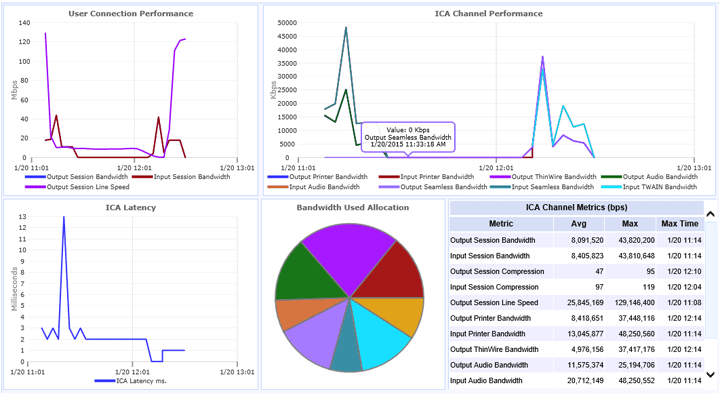
ICA-Channel-Metrics-Goliath-Logon-Simulator

  • Logon Simulator collects data from every component in the Citrix environment and provides an overview from one console, which is more efficient than having to pull logs or run reports from multiple sources and monitoring tools.
  • A unique feature of Logon Simulator is being able to drill down into the details of the individual ICA channels, which makes it easier to identify the activities of the end user when performance issues occurred. This is useful for troubleshooting slow sessions in general and not just the logon performance.

The product provides many built-in reports. I won’t cover each one here but some important ones to note are the End-to-End Connection Report which gives details about the specific components that were touched during the logon process, from the type of device the end user is working from to the server the session was brokered to and how long it took to get there. The ICA Latency Report (previously mentioned and shown pictured above), and the End User Activity report which gives details on the number of sessions and the length the sessions ran.

At the time of writing the Logon Optimization whitepaper there wasn’t a technology that could preemptively logon with synthetic users to identify potential performance issues before real users attempt to logon. I can see great value in this technology to fundamentally change how Citrix Administrators manage and troubleshoot logon issues.

To see a live demo of the Logon Simulator, please watch our pre-recorded webinar, Introducing the Goliath Logon Simulator for Citrix. You can also get a fully supported free 30-day trial or personal demo.

If you have any questions about the Goliath Logon Simulator or you need help troubleshooting a Citrix end user logon issue please leave a comment. Thank you.