Troubleshoot Citrix & VMware Horizon Deployments

Troubleshoot Citrix & VMware Horizon Deployments

Troubleshoot Citrix & VMware Horizon Deployments

Why do most IT departments struggle to manage Citrix & VMware Horizon deployments effectively?

IT spends millions of dollars and years of worker-time so their workforces can work anywhere, anytime, on any device, securely. And a huge chunk of that investment is in VDI from Citrix or VMware Horizon, both on-prem and in the cloud.

As a result, IT, you’ve delighted your end-users with a super high-performing, super reliable end-user experience, right?

Sadly, IT is often in the doghouse, reacting and responding to rising end-user gripes about glitches and bugs that can arise from so many sources it’s almost impossible to keep tabs on them. Instead of investing time and money in future enhancements to better stabilize, simplify, and speed the user experience, you’re burning those resources putting out endless fires.

Care and Feeding of VDI

You’ve invested in technology from great vendors – and wisely, too. The challenge is this: how do you invest in the proper care and maintenance of your tech stack from Citrix or VMware to ensure success for your projects and your end-user experience?

Implementing Citrix or VMware Horizon isn’t a “one and done.” You don’t just make it happen and move on. You’ve taken on a beast that needs to be fed with new apps, more integration, upgrades, and performance improvements to quiet those service tickets. And how often do your end-users wait patiently while you get this all sorted? And what about them, anyway? Maybe a careless action or bad habit or two or three will also impact performance. An audio file running in the background, multiple instances of the same app, hidden behind window after window.

And do you know what’s worse than end-user complaint tickets? No user complaint tickets. After a while, users become apathetic to performance issues and no longer bother filing a ticket. They take their complaints to the hallways – and then they burn you on the year-end survey.

Feeding the VDI beast is tough. It’s always hungry, and never satisfied.

The Answer: Proactive Monitoring and Troubleshooting 

Goliath Technologies provides software to help IT break out of reactive mode, into proactive mode.

Our customers running Citrix or VMware Horizon are getting faster, more reliable end-user experiences today. And they’re doing it because we’ve given them the visibility and intelligence to anticipate, troubleshoot, and prevent performance and availability problems across their hybrid IT environments. We give them visibility beyond the VDI stack which empowers them to find more answers. Take healthcare, for example, we can give visibility not only into Citrix and VMware Horizon but across all major EHR systems (Epic, Cerner, MEDITECH and Allscripts). 

Our embedded intelligence and automation enables them to dynamically discover and see a dependency map of the entire IT infrastructure delivery layer, so they anticipate performance issues before they impact their users. And Goliath provides an end-to-end view across Citrix or VMware Horizon with granular metrics that equip them to troubleshoot and resolve issues in hours, not days. By leveraging objective evidence in the form of reports and analytics, they’re diagnosing root causes and collaborating with management, cross-departmental counterparts, and vendors to fix what breaks and prevent future problems.

This can happen for you, too. Your latest Citrix or VMware Horizon project doesn’t need to be at risk. You can set yourself up for success with the right tools to put proper maintenance and care into your hands. To learn more, check out this video from Penn National Insurance and listen to what they have to say about how Goliath Technologies saved their virtual desktop initiative.

It’s real and it’s available now. And you could be the star of our next video. Click away – and call us today.

How to Improve Your Citrix Deployment by Monitoring Pilot Phases

How to Improve Your Citrix Deployment by Monitoring Pilot Phases

By Jacob Rutski, Sr. Architect at Citrix


We all want seamless rollouts of Citrix XenApp/XenDesktop and we use a number of tools to achieve that reality. I have found a unique software that allows me to proactively understand the performance impact of Citrix XenApp/XenDesktop on the IT infrastructure and ultimately end user experience early in the Citrix deployment lifecycle.

In this post I will show you four examples of how I use the software to avoid potential issues.

VDI Deployments

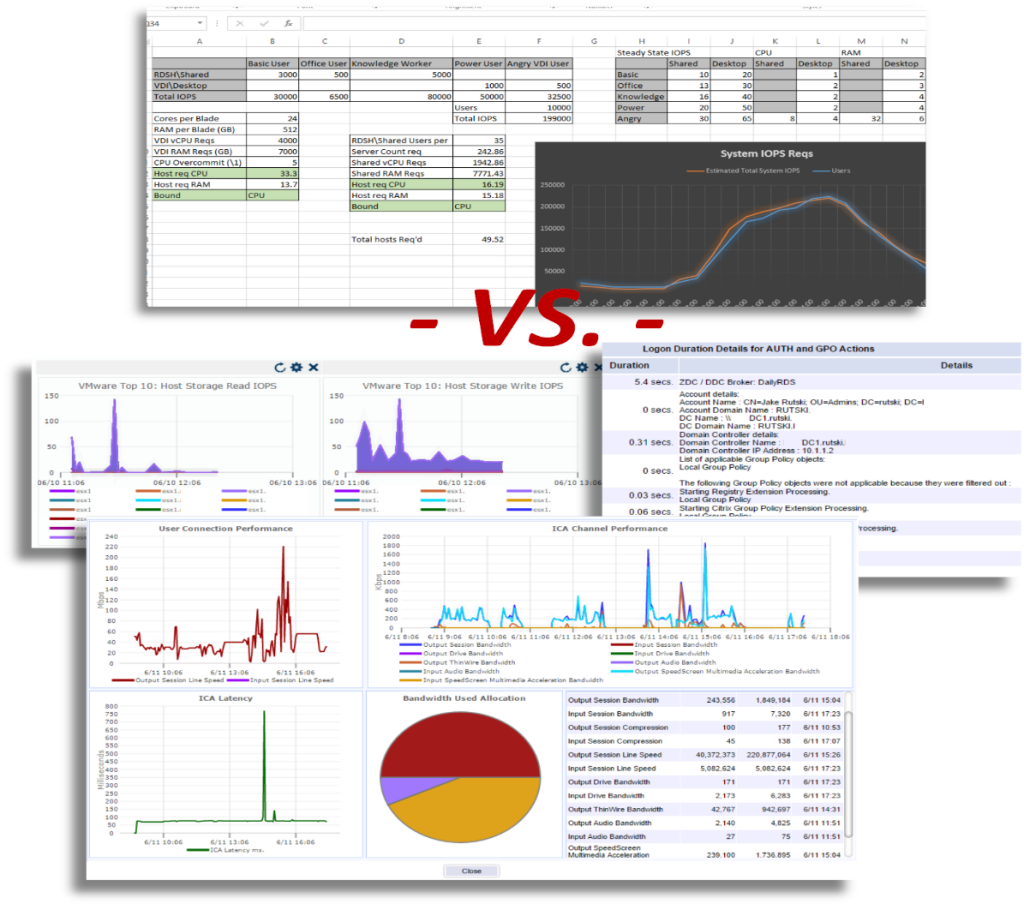
When large VDI deployments are being designed and architected, lots of numbers get tossed around from computer requirements, storage capacity and IOPS, to user count, application set and type of user. Most integrators will use some form of a spreadsheet tool or assessment to gather user data, compile it all and generate some reports that try to estimate requirements for the environment. For the most part, this is fine – for just that – estimation. What I am going to discuss is manual vs. purpose-built software.

Once the project gets underway and things start coming together, the first item on the list is usually testing by a small group of pilot users in the technology group. Then another business unit, usually close to the IT group, is allowed access to test. Then another. Once a few groups of test users have given their blessing on the pilot environment, it is rolled into a full production, highly available, high-performing (hopefully) infrastructure.

And the last step is usually the scariest – the floodgates are opened and a large population of staff are migrated into the environment…here’s to hoping it goes well. But there can be some problems with this procedure; a monitoring product that can actively monitor the performance of the overall environment as well as actively test logons should be deployed from day one to not only avoid potential issues, but also to accelerate the Citrix deployment and help guarantee successful project completion. The Goliath Performance Monitor (GPM) paired with Goliath Application Availability Monitor for Citrix is such a product.

Problem 1: Not all monitoring solutions are created equal

A monitoring solution that only uses SNMP, WMI, and NetFlow is not a monitoring solution that I would consider capable of watching over 10,000 desktops on top of a hypervisor, on shared storage and networking in the datacenter. A proper tool must integrate and gather data directly from all layers in the environment – including the hypervisor, the computers, and the software orchestrating thousands of connections every day.

Monitoring tools that are built to monitor networks and Windows servers may not be capable of knowing which counters to use or how to integrate with Citrix specific APIs to align Citrix session behavior and performance with infrastructure conditions. Furthermore, technologies dependent on wire-data have no facility to provide the needed information because they have no mechanism to leverage the APIs or context from where the sessions take place – the servers.
Having the ability to understand, monitor, report and alert at every layer of a complex deployment empowers technology staff to know exactly what is going on in the VDI environment, when there is an issue, and where to start troubleshooting. For example, one can troubleshoot slow session performance by digging into the ICA Channel.

Troubleshoot ICA/HDX Channel Performance

Goliath Performance Monitor is Citrix Ready and VMware Ready for the hypervisor as well as XenApp/XenDesktop and VMware Horizon – this means there is direct integration with these products and their APIs to gather direct and accurate data.

SNMP simply does not allow for this deep integration and data gathering. See below – Goliath Performance Monitor has out-of-the-box performance graphs to gain full visibility into the hypervisor and VMs trending over time.

Many small IT groups are often in ‘catch-up’ mode where it is hard to get ahead; they are constantly fighting fires, cleaning up the network, and trying to stay ahead of the next hardware failure or management request. IT managers will say “let’s not fix tickets as they come in, let’s resolve the issue before the users are aware of it.”

When consultants are hired to deploy a new solution, staff are often left with little knowledge about the new system and may not know where to look to begin troubleshooting. In the case of larger organizations, trying to implement a monitoring tool to troubleshoot a pre-existing performance issue will prove difficult. Having performance data from day zero will allow staff to go back through history and see exactly when the disk latency went above 30ms average, or when the hypervisor host CPU became so overcommitted that the CPU wait times rose above 500ms.

Problem 2: Project designs use estimates for computers and storage

Estimating the requirements for any virtualization project is difficult – especially when you are talking about thousands of end user desktops in the datacenter. Designs for these projects are estimates – and estimates are not always completely accurate. If a design calls for 300,000 IOPS for desktops, oftentimes the budget may not allow for much more than that. The problem comes when a boot or logon storm happens during 50% system load and consumes all available storage I/O.

All the users on the system just saw an hourglass or saw their session hang because the storage latency is well above the acceptable 5ms average. These problems don’t show up during the pilot phase when there is only 2-5% test load. Once the project is half way completed, it is too late to order more hardware due to under-spec’d designs.

If storage is not designed properly, you may end up with very high average datastore latencies – GPM will show this:

Hopefully it can be addressed before users begin complaining about terrible performance.

Problem 3: Changes break things

The natural progression of any large deployment requires a great deal of work and most of that work is making changes. Any of the normal steps in a project have the potential to disrupt – adding capacity by deploying more servers, changing SSL certificates, changing security or permissions – all these changes can go so far as to completely bring down the environment.

Additionally, changes during a proof-of-concept or initial deployment may not be run through a change control, making them difficult to track and even harder to determine if a change is the true cause of an outage. The dreaded Citrix StoreFront ‘Cannot complete your request’ error can rear its head when changes are being made to StoreFront or the NetScaler Gateway configuration.

The Goliath Application Availability Monitor will detect this issue immediately. By having a monitoring tool running from the beginning of the project, you will be alerted immediately if the most recent change broke remote access or crippled performance. In the screenshot below, GAAM is alerting us that application was not found:

Pinpoint Application Failure

The Goliath Application Availability Monitor will detect this issue immediately and alert you that the StoreFront resources were not found.

By having a monitoring tool running from the beginning of the project, you will be alerted immediately if the most recent change has broken remote access or crippled performance. Even more taxing to the system is the ‘ramp-up’ period when more and more users begin to logon to the system – if it was not designed correctly, you need to know as soon as possible, and a static design guide spreadsheet isn’t going to do that for you.

Problem 4: Technology staff are not always the best test users

The pilot phase or proof-of-concept deployment gets started with some small percentage of users testing the environment – usually the technology group and associated support staff. This leads to the first problem: Most technology staff don’t see issues and bugs as a big deal.

It’s similar to alarm fatigue in the healthcare industry – the IT staff are always so busy resolving issues or responding to production problems that a warning message in the proof-of-concept environment is not that big of a deal. It is also difficult for technology staff to ‘eat their own dogfood’ – when they have so many other means to get work done, it may be difficult to convince them to use the unproven pilot environment.

Using the monitoring tools by Goliath Technologies will allow deep insight into an otherwise complex and overwhelming environment. By setting up the GPM at the beginning of the project you will have historical data to help determine if the sizing and design of the infrastructure is up to par and allow you to troubleshoot any “growing pains” during the project ramp up that would otherwise lead to delays.

To try all of this in your own environment, get a 30-day free trial of Goliath Performance Monitor or Goliath Application Availability Monitor for Citrix by clicking the link below.

 
Goliath vs. Citrix Comparison
Solve Slow Citrix XenApp/Desktop Logons with the Logon Report

Solve Slow Citrix XenApp/Desktop Logons with the Logon Report

Citrix Blog

How To Solve Slow Citrix XenApp/Desktop Logons with the Logon Report

Blog Banner_ How To Solve Slow Citrix XenAppDesktop Logons with the Logon Report

This post outlines a story about how we helped a new customer use Goliath’s Logon Duration Report to solve end user experience issues related to slow Citrix XenApp and XenDesktop logons.

While on a training call with a new customer this week, he was telling me about the complaints he receives from some Citrix XenApp and XenDesktop end users:

“Every morning it takes me forever to get logged on,” or the ever-present, “My internet is fine, it’s Citrix.”

While these types of comments are heard in any organization delivering Citrix virtual desktop infrastructure, the ability to actually provide objective evidence that the root cause of an issue isn’t derived from Citrix can be a major challenge, to say the least.


Running the Historical Logon Duration Reports

I thought to myself What good timing! because part of today’s training and implementation is using the reporting capability in Goliath Performance Monitor for Citrix XenApp and XenDesktop to troubleshoot this specific logon issue. This detailed data can really make a difference in how well you can perform your job, especially as a member of the Citrix VDI team responsible for delivering an acceptable end user experience for Citrix XenApp and XenDesktop users.

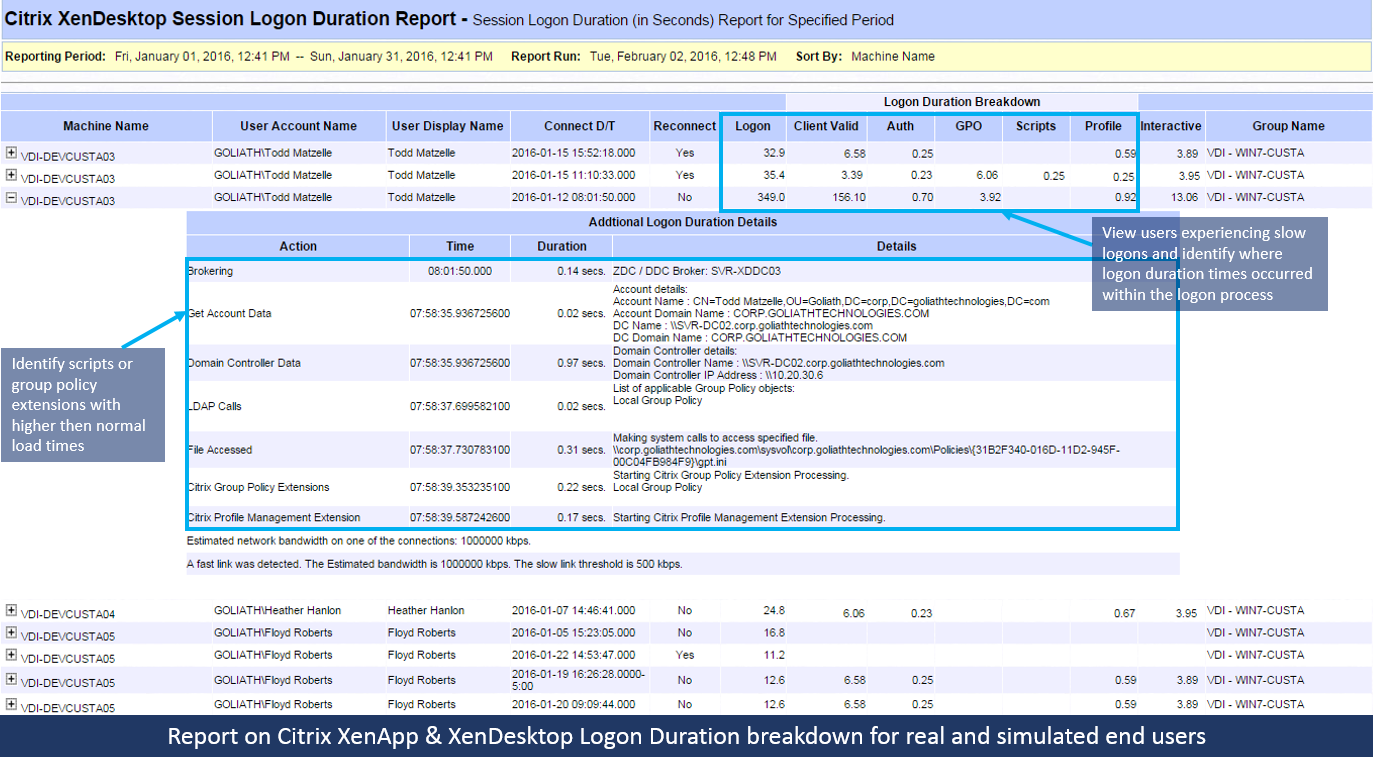
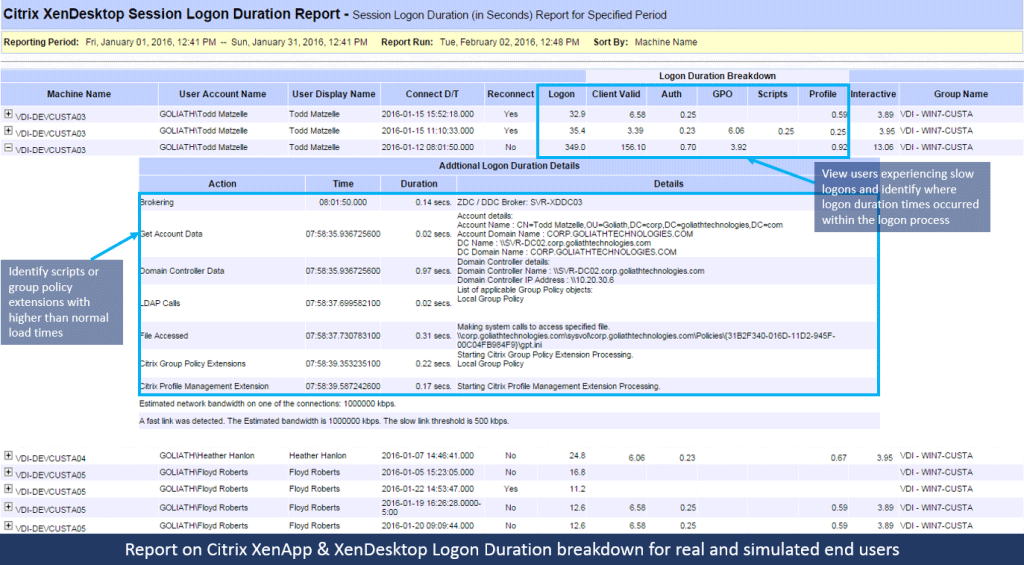
So, we started by running the Logon Duration Reports for the last month, though we can also run reports on a daily or weekly basis. For our purposes, we ran a report for the last month to get a broad overview, and then drilled down for the slow users in 4 hour increments in order to view a specific user “under the microscope.”


Citrix Xendesktop Session Logon Duration Report

See the End User’s Logon Duration through the Entire Brokering Process

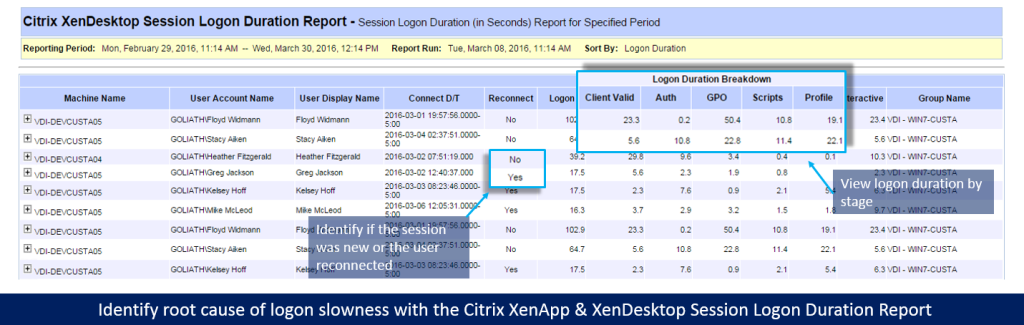
The Logon Duration Report provided the ability to see a high level view of the entire duration of each user’s logon, through the entire brokering process. Then we drilled down into each user’s logon, which helped us determine where the actual points of “logon slowness” were actually resulting from.

As you can see from the screenshot of the report below, the logon slowness for the respective user is a direct result of the client validation, as shown. Some of the more common causes of slowness that I’ve experienced in managing Citrix environments relate to GPO changes, logon scripts, drive mappings, etc.

By using this tool we were able to identify the root cause of a persistent issue with logon duration.

Beyond the specific example with the new customer, within the Logon Duration Report data you can view:

  • A specific user
  • Specific time frames
  • The XenApp/XenDesktop session host from which the user session may be connecting

You can then validate each step of the logon process and the timing of their respective actions as well. If a GPO is being applied which is taking too long, you will know it. If a drive mapping script is exceeding the expected duration time you believe should be occurring, you will know which drives are being mapped and at which step of the brokering this is taking place.


Full Visibility into Root Cause of Slow Citrix Logons

If there are logon scripts which are kicking off but may be failing before they are able to complete, you will have the insight into which script is doing so. Many times, the logon duration slowness a user experiences can be attributed to something which isn’t exactly Citrix related. By having the visibility into what the root cause may be, an engineer/admin can make the appropriate adjustments to a script, to the actual priority of a GPO being applied, or printer mappings which are failing due to a missing driver, etc. which will alleviate the end users experience from being negatively impacted.

Back to my training with our new customer. We coupled these reports with the ability to create additional threshold based alerts, which allow him to be more proactive in troubleshooting because if Citrix logon slowness occurs, he will be alerted in real time.

He now has the visibility into the entire brokering process (beginning to end) that a Citrix end user is experiencing. This visibility traverses both real time, and historical data, and he will be both alerted to any issue, and have reports to further analyze and provide objective evidence of the true root cause of a Citrix logon issue.

Get a 30-day Free Trial or Demo of Goliath Performance Monitor or the Goliath Logon Simulator for Citrix

To try this technology you can get a fully supported 30-day free trial of Goliath Performance Monitor and the Goliath Application Availability Monitor. Or, you can schedule a personal demo and member of the Goliath Tech Team will walk you through the technology. 

The Complete Citrix Infrastructure Health Check Tool

The Complete Citrix Infrastructure Health Check Tool

The Complete Citrix Infrastructure Health Check Tool

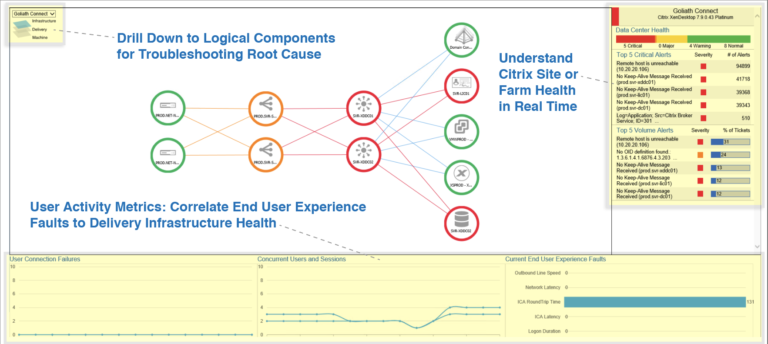
The New Topology View for Citrix Monitoring and Citrix Troubleshooting gives an IT administrator an out if the box solution to troubleshoot Citrix from a 50,000 foot view, down to the individual user. It’s an industry first capability to view their entire global hybrid IT infrastructure from a single pane of glass whether it is on premises and or in Amazon AWS or Azure. The admin will receive alert notifications and warnings right from this view to understand the physical and relational dynamic between the IT elements emitting the alerts. Then, the administrator can drill into additional layers of the Citrix IT stack down to the individual Citrix user session. Topology view does not require manual intervention to populate the architecture map or to add metrics. The setup process is automated via API integration.

Relational View of IT Element Health and Impact on End User Experience 

The new Goliath Topology View for Citrix Monitoring and Troubleshooting adds additional layers of visibility into the Citrix Delivery Infrastructure. The Topology View enables quick and easy identification of performance issues, allowing troubleshooting to start from a dynamic high-level view. These new capabilities give administrators the ability to understand the health of their Citrix XenApp or Citrix XenDesktop infrastructure end-to-end, and how the health of each of those components impact each other, and ultimately the end user.

The following sections detail each level of the topology view and the data points that they provide.

Citrix Delivery Hybrid Infrastructure View 

The infrastructure view below is the default, top-level perspective that displays the overall physical topology of the Citrix delivery infrastructure components whether on-premises or in the public cloud. It also dynamically shows their relationships to each other, as depicted in the following image. When threshold based alerts are triggered, you know at first glance the IT element responsible for the alert and its relation to other elements in the Citrix delivery infrastructure. The drilldown icons at the top left of the infrastructure map allow you to troubleshoot lower level logical components such as the delivery groups and machine catalogs. The default view provides several key details on the right and lower panes. Utilization metrics and alerts are displayed on the right.  The metrics on the bottom display user experience information.

From this high-level view, without leaving the screen, you can select any component from the screen and drill into the details as depicted below. The metrics on the right change to display information applicable to the specific component selected.

The right pane presents the following data points per component:

  • Component Details
  • Resource Health
  • Services Health
  • Top 5 Critical Alerts

The bottom pane presents user experience metrics as detailed below:

  • User Connection Failures
  • Concurrent Users
  • Outbound Line Speed
  • Logon Duration
  • Network Latency
  • ICA RTT
  • ICA Latency

As seen in the screen below, health status is represented by a color circle surrounding the specific component. As alerts are triggered, the color will change accordingly. Green represents a healthy status, orange represents warning level, and red represents a critical level fault. If the relationship status between components is impacted by a fault or error, the connection color is also changed to red or orange accordingly. The following image depicts the health status indicators.

Important Note: Dependencies including Active Directory, Microsoft SQL and the Virtual Infrastructure are auto mapped to the infrastructure view as depicted below. The health of these components, and how they impact other dependent services is dynamically presented in the display. Health statistics and details for each are also presented in the right pane.

In the image below auto-scaling allows for the entire infrastructure to be viewed and analyzed regardless of the size or scale of the environment.

Delivery View

Below, as we troubleshoot into to the second layer from the drilldown icon at the top left, the delivery view is displayed. The site delivery controllers and all the logical components associated with application delivery are presented here.

Like the top layer, each component of the delivery view is surrounded by a circle. The color of the circle (green, orange or red) represents the health of the specific component. Connections between the components are displayed and color coded based on health status. The colored line provides an understanding of how the health of one component impacts another. Relevant health related information is displayed on the right pane based on the selected service. The user experience data displayed in the bottom charts is more specific and segmented based on delivery group.

Machine View

Below, clicking either a delivery group or machine catalog from within the delivery view drills down to the machine topology view. The Machine topology view extends the delivery group view out to the virtual cluster and host(s). This provides insight into the health of the cluster as well as the individual host servers, allowing you to trace host level issues directly through to delivery resources and subsequently the user’s session.

Citrix Monitoring and Troubleshooting Topology View Features and Benefits

Features Benefits
Troubleshoot infrastructure dependencies such as Active Directory, Microsoft SQL and the virtual infrastructure XenApp and XenDesktop is highly dependent on several components and services including Active Directory, Microsoft SQL and the virtual infrastructure. The state of these components will impact the overall health of the environment, and ultimately user experience. Topology View allows you to find root cause by showing the relationships that these components have to the delivery infrastructure, and how their status impacts user experience.
Automated setup and configuration Topology view does not require manual intervention to populate the architecture map or to add metrics. The setup process is automated via API integration.
Auto-scale mapping supports any size deployment Auto-scale mapping enables the topology view to be adaptive, and readable. Every component of the infrastructure end-to-end is viewable for any size environment.
Visibility into component relationships Citrix deployments are complex and require interoperation between many systems. Having a view into the health of the connections provides insight into how issues with one component will impact another. Understanding relationships is also a key component for troubleshooting end user experience issues derived form system level failures.
Graphically Track End User Experience and Resource Consumption Beyond faults and errors, being aware of resource consumption and user experience health is critical to understanding the overall state of the delivery infrastructure. Topology view graphically presents usage, resource consumption and the user experience to better understand how they impact the health of the environment.
Troubleshooting drilldown from physical infrastructure components into logical delivery components for root cause analysis The health of logical components such as Delivery Groups and Machine Catalogs greatly impact user experience. Topology view provides insight into the state of these components allowing administrators to troubleshoot and correlate infrastructure and logical element issues back to end user experience.
Instant visibility of usage statistics, errors, faults, and end user experience issues Topology view is not simply a map of the environment. It is a fully operational, dynamic monitoring and troubleshooting tool that reflects alerts, faults and issues in real-time. This allows administrators to know the global impact of component related conditions as they happen in real-time.

Summary

The Goliath Topology View for Citrix monitoring and troubleshooting is designed to provide a complete multi-level overview of your entire Citrix delivery infrastructure. It is configured automatically and does not require user interaction to manually build the topology. Beyond providing a high-level overview of the architecture, the Topology View is fully interactive and operational, allowing you to see resource consumption, errors and faults in real-time. It also provides visibility into how specific service level issues directly impact individual components, their relationships to one another, and ultimately end-user-experience.

Using Goliath Application Availability Monitor for Citrix Reports

Using Goliath Application Availability Monitor for Citrix Reports

How To Use The Goliath Application Availability Monitor for Citrix Reports

The Organization:  Applicable to any Goliath Application Availability Monitor Customer

The Organization’s Infrastructure: Citrix XenApp and or Citrix XenDesktop

The Organization’s Performance Monitoring Products:  Goliath Application Availability Monitor for Citrix XenApp or XenDesktop


Understanding the Application Availability Report

The Goliath Application Availability Monitor for Citrix XenApp or XenDesktop (GAAM) provides time stamped information on all the stages of the end user logon process that were completed during a given simulation. The data provided in the report is very powerful and provides significant value to administrators because the information provided serves multiple purposes as detailed below;

      • Troubleshooting logon or application/desktop availability issues
      • Analyzing availability or performance trends over specific time frames
      • Validating the effectiveness of updated configuration related to the logon process such as profile changes
      • Providing objective evidence as to what the issue is, as well as proving what is not the issue
      • Validating that SLAs for availability and logon duration are being met

Although there is significant value in the report, there are times when the information conveyed is not always fully understood. Thus, we have created the following to provide a detailed explanation of how to read, interpret and use the data contained within the Simulation Success and Failure Analysis report.

About the Report:

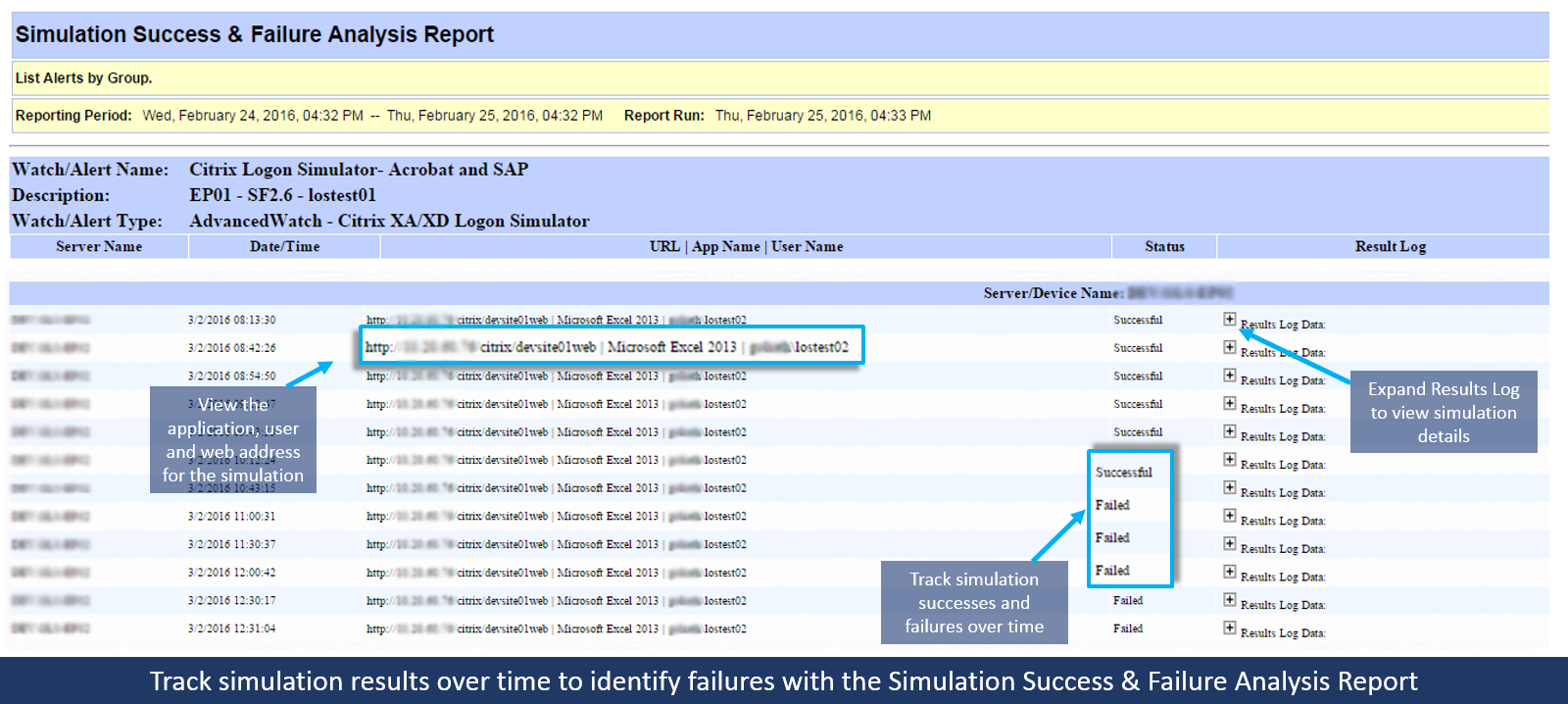
The Simulation Success and Failure Analysis Report has to ability to be scheduled and sent to your inbox automatically on an interval basis or it can also be run on-demand when analysis is needed. The report includes all the necessary data points needed to confirm success or failure of a logon simulation as well as why it failed.

The following data sets are included with the report:

      • Server Name where the simulations ran
      • Date/Time the simulated session was launched
      • URL that was used to connect to the Citrix environment
      • Application/Desktop that was launched
      • Username of the simulated end user who launched the session
      • Status of whether the simulation was a success or failure
      • Isolation of the exact failure point such as the NetScaler/StoreFront or session brokering
      • Simulation log details

The “status” and “simulation result logs” provide the most actionable information for troubleshooting root-cause. The troubleshooting process begins with identifying a failed simulation and expanding the result logs to identify what caused the failure. Since GAAM is testing the entire logon process, failures can manifest in multiple ways. The most common failure and informational messages that are included in the result logs are detailed below. The will help to understand what can be identified, how it’s presented, and what to look for in the report:

  • SF Resources Page Not Found: This error is indicative of GAAM being unable to confirm that it has successfully signed into Storefront successfully. This error can manifest for 2 reasons, first is invalid user credentials and the second is the storefront server is down and not accepting logins.
  • Resource ‘______’ not found: This error entails that GAAM was unable to find the defined application/desktop on the Storefront page. When first deploying the simulator, please ensure that application/desktop is spelled correctly and matches the content on the page exactly. If the resource is spelled correctly, we often suggest our customers to do an ‘Inspect Element’ of the resource to ensure there is no hidden space characters that may not be visible to the naked eye. You will also want to confirm that the simulated end user has rights to the application/desktop.
  • WARNING: Unable to confirm that session launched for Resource= ‘_____’ and Title=’____’: This error is the result of GAAM being unable to confirm that the session has been successfully launched. Once the simulator clicks on the application/desktop, next the simulation will confirm that the session did indeed launch by using the defined window title for the application/desktop. If any windows open instead of the application, i.e. an error prompt, the window title will be included the lines above this message for you to reference.
  • Try #_ Waiting: This is an informational message, not an error message. With the simulation configuration process, a ‘Launch Timeout’ value is defined. This value is the threshold that is used for the stages of GAAM. If any stage of the simulation process, i.e. loading the page, signing in, finding the application, etc., exceeds the threshold the simulation is deemed as a failure. The ‘Try’ messages simply countdown how long it takes each stage to execute. If the ‘try’ reaches the value of the launch timeout, the simulation will result in a failure.
    1.  

Conclusion:

The Simulation Success and Failure Analysis report includes all the necessary data points required to confirm success or failure of a logon simulation. The data contained in the report, delivers significant value to administrators when troubleshooting logon availability issues because it provides objective evidence, and or documentation that proves the success or failure of end user logons to Citrix and if they did fail, isolates the exact failure point.

Do you think Goliath can add value to your organization? Reach out.
Email us at  techinfo@goliathtechnologies.com or schedule a demo, consultation or free trial.

How To Predict Citrix EUE Logon To Word and Oracle Apps

How To Predict Citrix EUE Logon To Word and Oracle Apps

The software featured in this post was brought to market with help from IT operations teams who participated in the Design Partner Program. Current customers of the Goliath Application Availability Monitor (GAAM) featured in this post include Facebook, Lionsgate, Carefirst Blue Cross, Energy Transfer Partners (Sunoco), Augusta Health and SM Energy.

Simplifying the Process of End User Experience Monitoring & Management

There are multiple tools that Systems Administrators attempt to use to get ahead of end user experience issues. The problem is, each tool only offers a partial solution, causing IT operations teams to weave together multiple tools while managing a bloated toolset—until now.

To help IT operations teams simplify the process of monitoring and managing the end user experience, Goliath Technologies performance monitoring software is architected to proactively manage the full spectrum of the end user experience from logon initiation, through the logon process to session performance in one fully integrated software product.

Proactively Managing the End User Experience of Any App Delivered through Citrix

It is important to state at the outset that, in a marketplace rife with pronouncements by companies that they have the “only solution of its kind” or analysts who write about “the best product in years,” Goliath offers a more realistic solution.

Our solution incorporates the best concepts to date from Citrix EdgeSight, the Citrix Application Availability Manager and others into one product. The technology may not solve your Citrix performance issues, and we will not say that ours is the first ever, but it is the only single product available that fully integrates logon simulation with performance monitoring to give a true understanding of the actual end user experience and the data to proactively impact it.

As our architects designed GAAM we spoke with many customers and did an in-depth analysis of available solutions. These findings inspired our product design and development. IT administrators defined three key areas where performance issues most likely result in a call or open ticket from an end user:

  1. Logon initiation
  2. Logon process
  3. Session performance

One Product that Simultaneously Sends Preemptive Performance Alerts & Initiates Remediation Actions

IT Administrators required us to develop one product that will preemptively alert them if end users are going to have a performance problem and then, simultaneously with the alert, initiate self-healing or remediation actions. So, the challenge presented to us was to warn IT if there was going to be a problem in the future, provide the root cause and then fix it using one simple-to-use technology, not multiple tools. A challenging “ask” to say the least.

The only way to accomplish this was to simulate the end user logon process; but it had to be in such a way that we could exercise the entire Citrix delivery infrastructure like a user would when they logon. In addition, the technology has to monitor all the IT elements involved in application delivery or we wouldn’t be able to determine the root cause, much less fix it.

Now, with the back story out of the way, the remainder of this blog will describe how our technology provides a preemptive approach to determining if there will be issues with logon initiation, logon process and session performance so IT administrators can truly be proactive.

Our customers have relayed to us that a comprehensive, proactive, and preemptive end user experience management solution must have 6 capabilities:

  • Real life simulation of an end user
  • Simulate any Citrix delivered application and/or desktop
  • Ability to simulate logon initiation from both local and remote locations
  • Breakdown of the logon duration process by stage for each end user
  • Detailed analysis of ICA protocol by channel
  • Simultaneous alerting and self-healing

In the next few paragraphs, I will explain how our unique solution offers these capabilities in one product.

Real-life Simulation of an End User

This is the genesis of any comprehensive simulation technology. The “simulation” needs to be real life in order to be effective. In the case of Citrix, this means that the simulation must work in such a way as to exercise the same IT elements that a user would when they are accessing the applications.

Ask administrators when performance issues are likely to occur and they will tell you it is when end users attempt to logon. Though the independent systems may look healthy, problems frequently manifest during the act of making the entire Citrix delivery infrastructure work in concert to deliver the application.

Our technology takes the same actions an end user would and thereby tests the whole delivery infrastructure to proactively determine if there will be performance issues when users attempt to access their applications. The diagram below depicts the simulation process which includes the NetScaler or F5.

Goliath-Logon-Simulator-Dashboard

Simulate any Citrix Delivered Application and/or Desktop

GAAM is designed to accommodate any application and or desktop delivered through Citrix software in the first release (VMware View and RDS in future releases). This includes business applications such as Oracle, SAP, Microsoft Office, and Quickbooks, and browsers such as Google Chrome and Internet Explorer.

In the core product, we have even added functionality to accommodate key EHR/EMR applications such as Cerner, MEDITECH, Allscripts with others such as Epic, Siemens and McKesson coming soon.

Simulations from Local and Remote Locations

The importance of this capability cannot be understated and it really relates to the concept of “real life simulations.” If you have a simulator, whether a commercial or home grown solution, that doesn’t offer the ability to simulate locally and remotely while taking into consideration the load balancer or application delivery controller like F5 or Citrix NetScaler, then the results of the simulation aren’t adequate for truly proactive management.

I would argue that a simulation tool that leaves “gaps” in visibility by not taking into account the real life scenarios encountered by end users simply does not have the ability to be preemptive in its alerting.

Breakdown of the Logon Process by Stage for Each End User

If the logon initiation process is successful, the next stage where most issues occur is the duration of the logon process. “It is taking me forever to log on” is a common complaint reported by our Citrix System Administrators.

GAAM for Citrix, coupled with the Goliath Performance Monitor, will break down each stage of the logon process including brokering, authentication, group policy loading, personalization, script execution, profile load, folder redirection and the presentation of the interactive display.

The Citrix System Administrator will be able to tell at a glance, and in real time, the root cause of the issue and execute the appropriate fix actions. The actual product screen shot below depicts the logon duration breakdown for each end user.

Goliath-Logon-Simulator-Logon-Duration

Detailed analysis of ICA Protocol by Channel

Now, after logon initiation and the logon process the Citrix User is in the session and has complaints that the session is slow or they are experiencing screen lag. It is annoying and an often heard performance issue.

GAAM has unique functionality that breaks down, again by user, how the ICA Channel is consuming bandwidth by virtual channel including, display/video, audio, copy/paste, printing, keyboard/mouse, USB, and other dynamic channels, like Adobe Flash redirection so that remediation actions can be focused on the root cause of ICA latency. The actual product screen shot below shows the breakdown.

Goliath-Logon-Simulator-ICA-Channel-Metrics

Simultaneous Alerting and Self-Healing

To now be truly proactive in managing the Citrix end user experience one has to be able to take action. The alerting and self-healing or remediation sequences embedded in the product function equally well with simulated users as well as real users.

This is the key: Systems Administrators are able to receive alerts based on logon failures, logon duration slowness or session performance from simulated users because the logon simulations can be run 24/7 or set to run before real end users get to work, allowing valuable time to remediate.

Since GAAM is fully integrated into the Goliath Performance Monitor, these alerts can kick off the remediation sequences Systems Administrators select. For example, if XenApp Servers or if the XenDesktop VDIs are unregistered and not allowing logons, a reboot can be executed automatically to reset the virtual machine or server.

To see if GAAM is right for you, you can also get a fully supported free 30-day trial or personal demo.